47
UM150 User’s Manual
47
UM150 User’s Manual
5. SETTINGS IN OTHER APPLICATIONS
This section describes special settings that might be required to use other
applications over the Verizon Wireless network.
5.1 Sync Applications
Palm Inc. HotSync® and Microsoft Corporation’s ActiveSync® are used for
Personal Digital Assistants (PDAs) and smartphones. These programs are used to
synchronize files between a notebook or desktop PC and the PDA. These programs
may conflict with your WWAN device. If you have any problems using your WWAN
device, try turning these programs off as explained below:
To turn HotSync On & Off
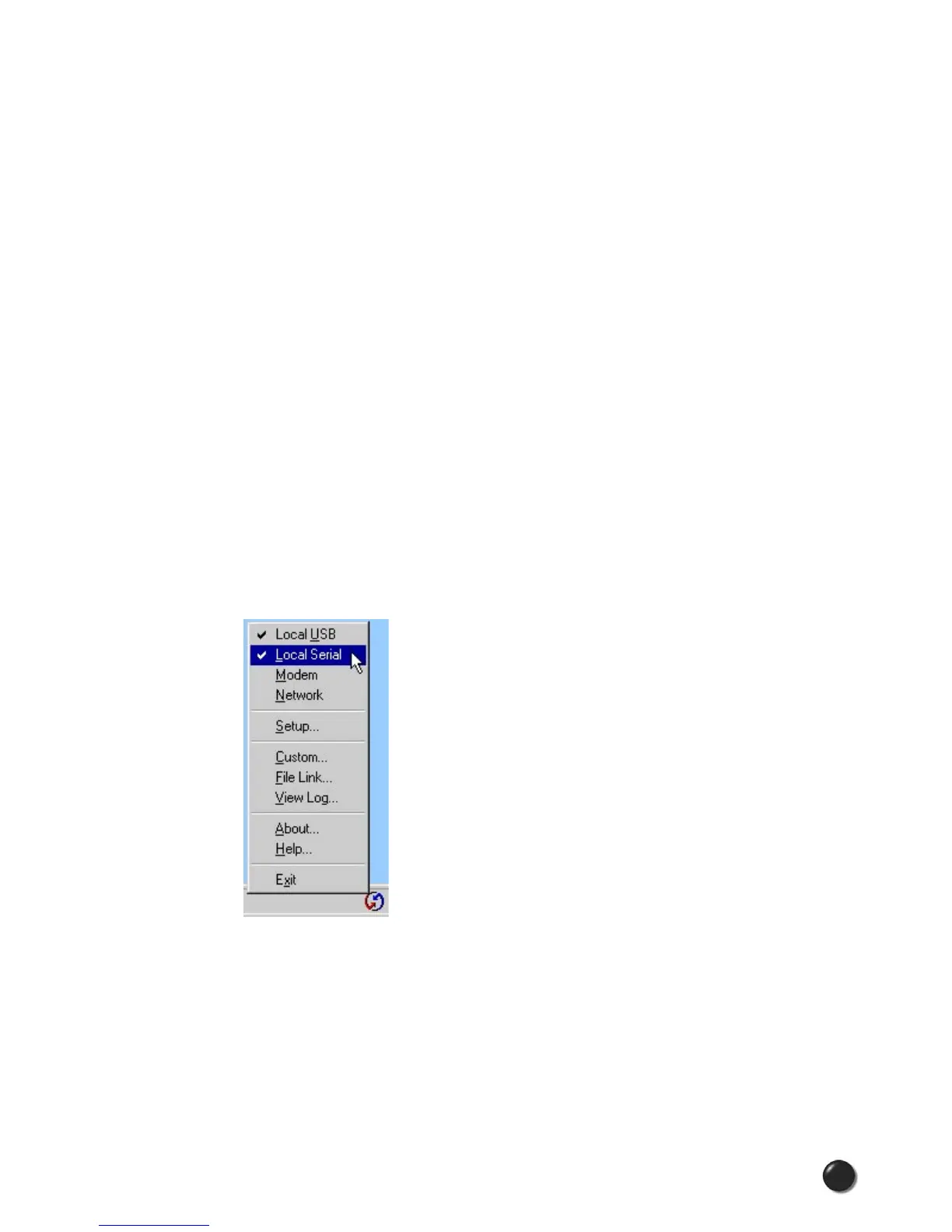
Right click on the HotSync
®
icon in your task tray and the menu below will appear.
Click on “Local” or “Local USB” to remove the check marks. This effectively disables
HotSync
®
and if it is causing a conflict this will allow your WWAN device to work.
You can repeat this process to put the check marks back to re-enable HotSync
®
.
If you are using an early version of HotSync®, you may not be able to uncheck the
“Local” options without first checking “Modem” or “Network.” If this is the case, you
can always select “Exit” to close HotSync® and launch it from the Start Menu the
next time you need it.
To turn Windows CE Services On & Off
For the original Windows CE services: Right click on the Windows CE Services icon
in your task tray and select/deselect “Enable Serial Connection.” Make sure it is
unchecked for Mobile Office and checked when you want to sync your Windows CE
based PDA.



 To Next Page