LabQuest
®
3 User Manual
www.vernier.com/labq3 35
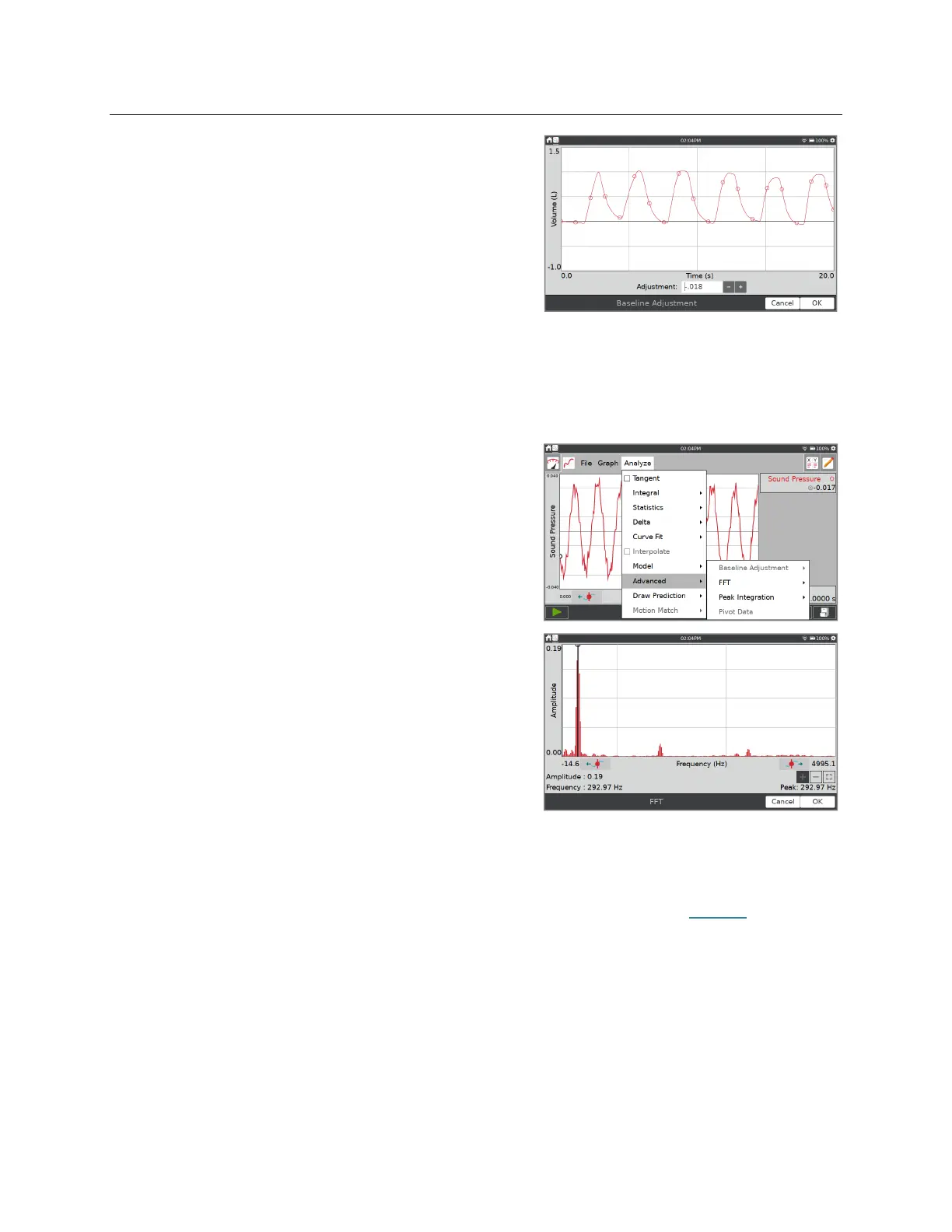
From the Graph Screen, choose Advanced from the
Analyze menu, then select Baseline Adjustment.
Enable the tool by tapping on the displayed sensor or
column name.
Use the + and – buttons or tap the value to adjust the
graph so that the volume data returns to a value close
to zero after each cycle. Tap OK.
FFT Analysis
Fast Fourier Transforms (FFTs) are typically used when analyzing microphone data. The tool
calculates the FFT of the selected data. The results are displayed in a separate graph that can be
analyzed.
From the Graph screen, choose Advanced from the
Analyze menu and select FFT. Enable the tool by
tapping on the displayed sensor or column name.
Adjust the graph display by touching and dragging
across the graph to select a region, and then tap Zoom;
alternatively, you can use the two-finger
pinch/zoom/pan gesture to highlight a region of
interest. The frequency with the highest amplitude for
the region on the graph is displayed below the graph.
Tap OK to exit the tool. The results of the FFT
analysis are shown in the plot details.
Peak Integration
The Peak Integration tool is most commonly used when analyzing gas chromatograph data;
however, it can be applied to any data plot. Peak Integration differs from the Integral tool in that
it does not use the x-axis as the baseline. Instead, the integral for Peak Integration is evaluated
using the minimum y-values to the left and right of a selected peak or region.


 To Next Page