Using the LabQuest
®
App
36 Vernier Software & Technology
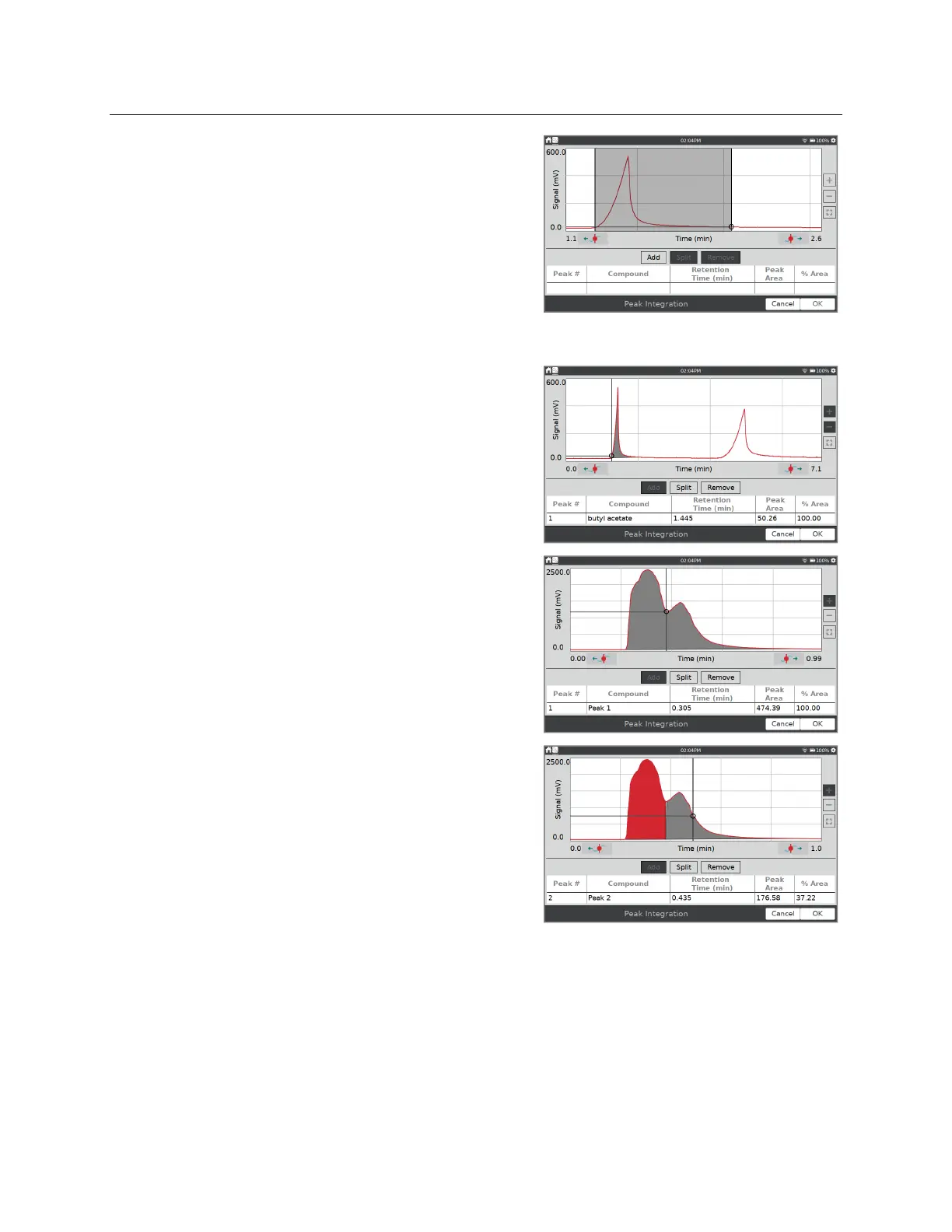
From the Graph screen, choose Advanced from the
Analyze menu and select Peak Integration. Enable the
tool by tapping on the displayed sensor or column
name.
Adjust the graph display by touching and dragging
across the graph to select a peak, and then tap Zoom;
alternatively, you can use the two-finger
pinch/zoom/pan gesture to highlight a peak. Tap Add
to report the value in the table.
As you add peaks, you can rename them by double-
tapping the compound cell in the table below the
graph.
Repeat as needed to capture the data for all of your
peaks. If you need to look at data for a peak you have
already added, tap that region to select it.
If you have two peaks that overlap, you can find the
area of the two regions by first selecting the entire
region and adding it to the table. Tap the region to
select it, and then tap on the graph to show the point
where you want to split the region.
Tap the Split button to divide the original region into
two separate regions. The left portion of the region is
selected and shown in the table.
Tap the right portion of the split region to see the data
for that region.


 To Next Page