Chapter 5 Power meter, VFL (Visual Fault Locator) & Talkset
Talkset/Datalink Function
32 User Manual 76100000200 Rev. 001
Establishing
communication
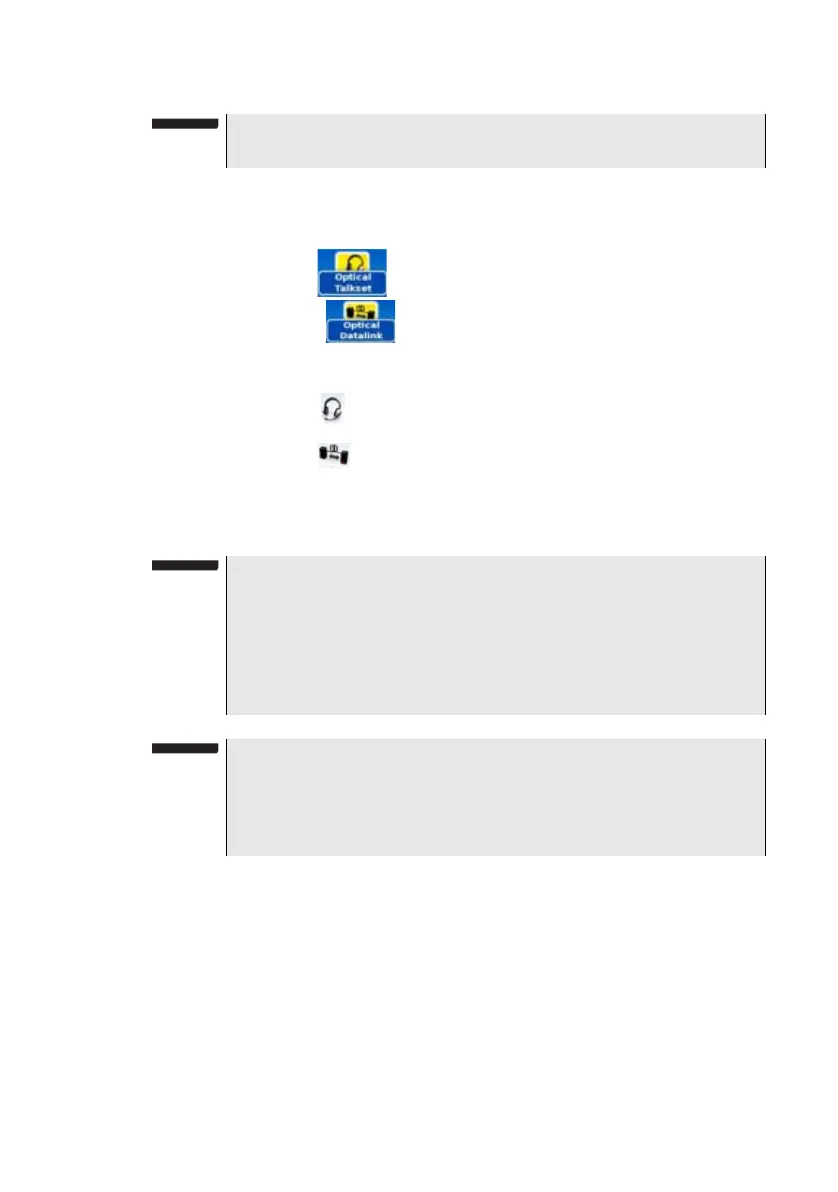
On the caller 6000A V2 Platform, press the HOME button, then validate
the desired function:
– Talkset (Optical Telephone): used to communicate via the
fiber.
– Datalink : used to transfer data along the fiber.
If the remote instrument is ready to receive (on standby), the Talkset icon
turns yellow, beeps are emitted, and
– the icon appears at the top of the screen: telephone communi-
cation can now take place.
– the icon appears at the top of the screen: data transfer can now
take place.
If the remote instrument is not ready to receive, the Talkset icon does not
change color and a message is emitted.
Adjusting
volume level
The sound is transmitted to the earphones of the headset and, if this
function has been activated, to the speaker in the 6000A V2 Platform
base. To activate the base loudspeaker and adjust the volume:
1 Press the
HOME key.
2 Press System Settings key to reach the System Settings page.
3 In the Audio box, select Channele and define the communication
settings: Hands-free / Headset / Auto.
NOTE
Data transfer uses the same fiber as the optical telephone
NOTE
The talkset icon is displayed on the top banner as long as communi-
cation remains established, letting the user know that the connection
is working.
When communication is established, the headset is automatically
enabled if plugged in. However, the loud speaker must be correctly
configured in the setup menu to work accordingly
NOTE
Data transfer varies according to the type of application you use. For
Fiber Optics for example, you can use the explorer. The distant 6000A
V2 Platform will be shown just like a disk and all file and directory fea-
tures can be used from and to that disk.




 To Next Page