SETTING UP PAPERPORT TO WORK WITH YOUR SCANNER 101
8. Click the Scan button on the TWAIN interface.
The Setup Wizard runs the scan test.
A message window opens that says “Basic scan test passed.”
9. Click Next on the message window.
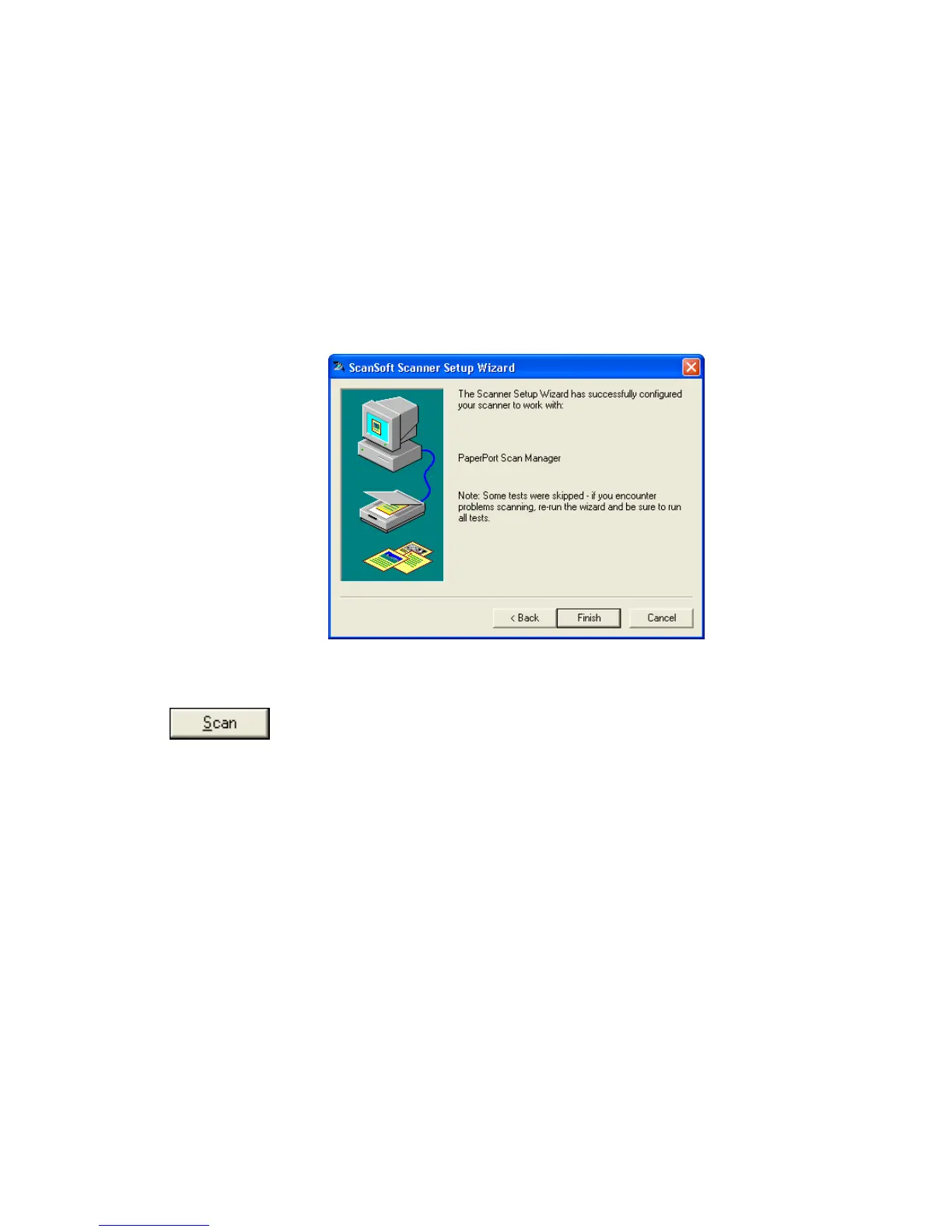
The final Setup window opens to let you know the setup process is
finished.
10. Click Finish.
PaperPort is now setup for the scanning option you selected (in the
example above, it’s the TWAIN option) and the Scan button on the
PaperPort window will now become active.









 To Next Page