104 VISIONEER STROBE XP 450 SCANNER USER’S GUIDE
5. Click Preview to preview the image before scanning. The image is
displayed on the right side of the window.
6. If necessary, adjust settings of the previewed image as desired:
■ Change the button selection for the type of image.
■ Adjust the custom settings; refer to the next section, “Fine
Tuning Your Scans”.
■ Click the Page size drop-down arrow and choose the size of the
pages you’re scanning.
7. Preview the image again. When you are satisfied with the image,
click the Scan button.
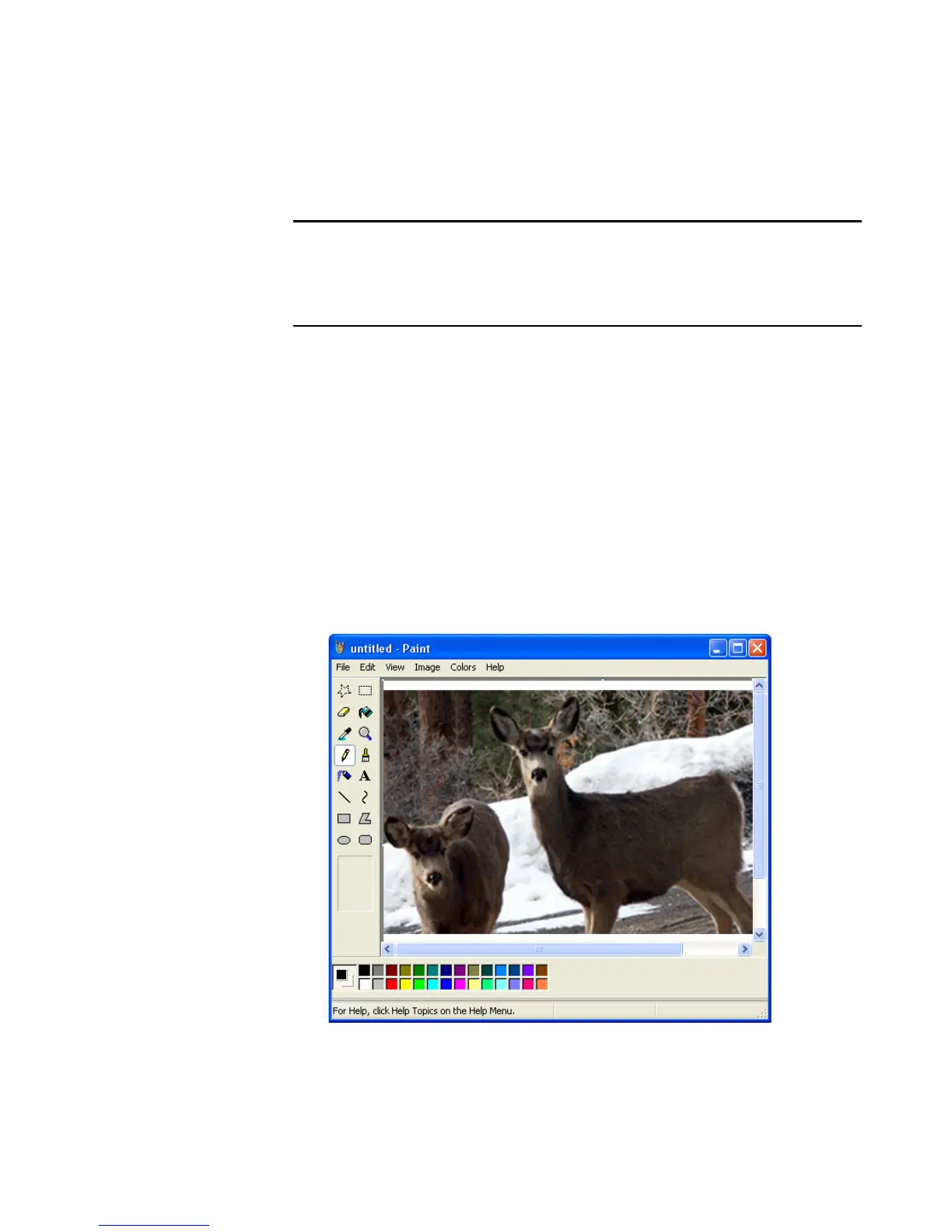
8. The scanned images will appear in Microsoft Paint (or other
TWAIN application you’re using).
Note: If you preview when scanning a stack of documents, the first
page of the stack feeds through the ADF for the preview. After
adjusting the scanner settings, replace that page on the stack so it is
scanned with the rest of the pages.









 To Next Page