page 2 – 15
IP-12/IP-16 / Dec 2014
SURFACE CONFIGURATION
Changing The IP Address Of The IP-12/IP-16
The IP address of an IP-12 can be changed from the GUI when the GUI is connected
to the IP-12/IP-16 that needs changing. Select Hardware>Assign IP Address... from the
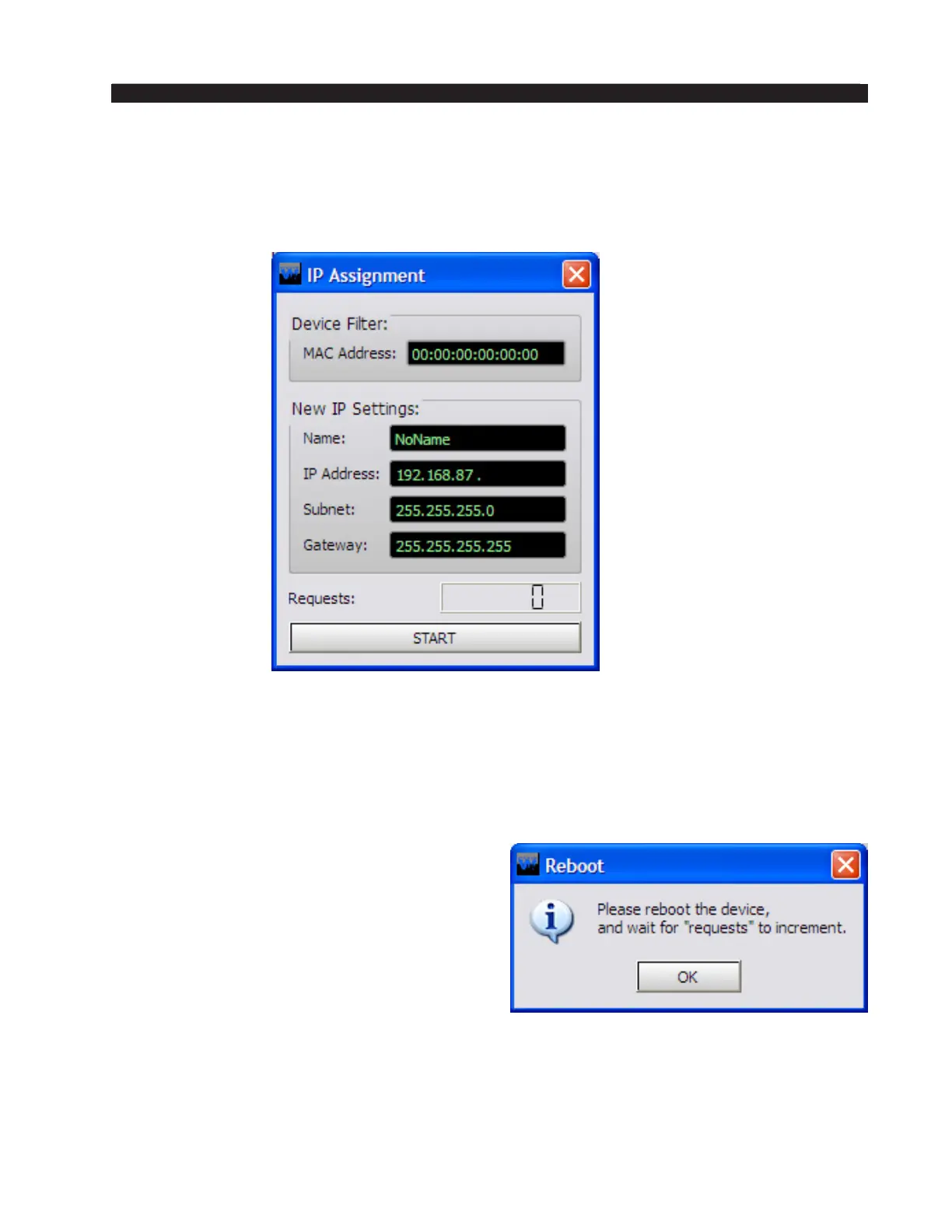
IP-12/IP-16 GUI to see the IP Assignment dialog box:
Enter the MAC Address, which you will nd on a label on the IP-12/IP-16. Enter
a Name for the IP-12/IP-16 and specify the IP Address for the IP-12/IP-16. If needed,
change the default Subnet and Gateway settings (see your friendly IP person to nd
out what you should use). Please note, when entering any of the network parameters
(everything you are changing on this screen except the Name) it is best to highlight the
complete default entry, delete it, then type in the complete new entry. In the IP Address,
Subnet, and Gateway elds use the period (aka dot) to move from one octet to the next
to avoid having leading spaces.
Once all the data is properly entered in the
dialog, click START to begin the process. You
will be prompted to reboot the IP-12/IP-16.
Click OK to dismiss the reboot prompt (but
make sure the IP Assignment dialog is still
showing).
Reboot the IP-12/IP-16 by cycling power to it
(you will not be able to use Hardware>Reboot...
to do this). Watch the Requests entry near the bottom of the IP Assignment dialog. You
should see this number increment to something other than 0. Once you see the Requests
number change, you can click STOP, then click the red X in the upper right corner of
the IP Assignment dialog. The IP-12/IP-16 now has the new network parameters you
have assigned to it.



 To Next Page