page 2 – 4
IP-12/IP-16 / Dec 2014
SURFACE CONFIGURATION
System Info Tab
When you rst start the IP-12/IP-16 GUI there will be no information showing in the
System Info Pane. Assuming that you are connected to a working system, you can get this
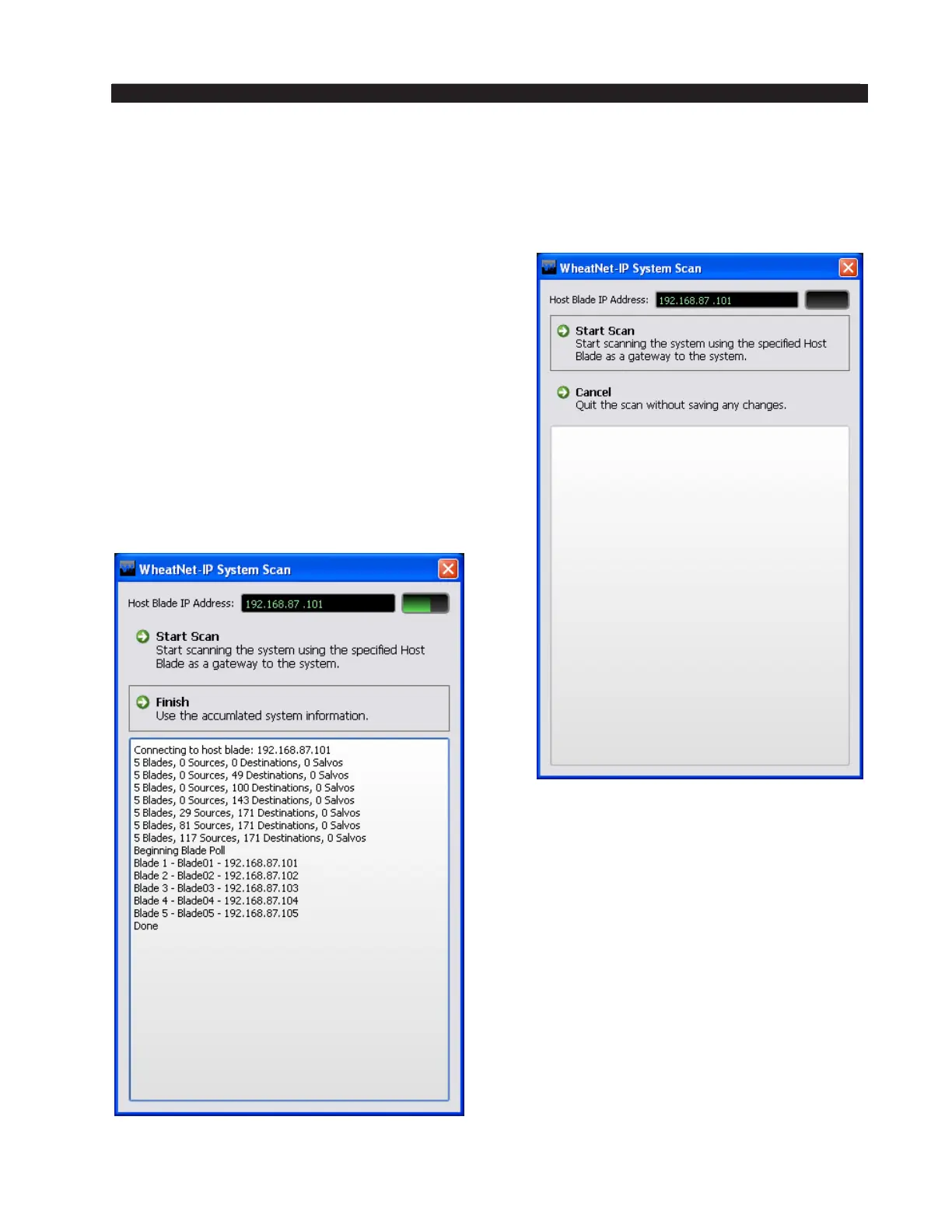
pane to ll by selecting WheatNet‑IP System>System Scan... from the GUI menu. This will
display the WheatNet‑IP System Scan screen:
Start by specifying the Host Blade IP Address.
This can be the IP address of any physical BLADE
in the system. Next, click Start Scan. When the scan
is complete you will see a screen like this (the exact
text is system-dependent):
Click Finish. You will be asked if you want
to save the System Info. If you click Yes you
will be prompted for the location and name
of the saved le, and also given a chance to
write a brief description of this saved data set,
but for now just click No.



 To Next Page