page 4 – 9
IP-12/IP-16 / Dec 2014
WHEATNET-IP 88cb CONSOLE BLADE
Stand Alone System Setup
To use a BLADE in stand alone mode is easy. Just connect your audio and logic inputs
and outputs and turn it on. When shipped from the factory as part of the IP-12/IP-16 system
the WheatNet‑IP 88cb is precongured with an IP address of 192.168.87.101. If you need
to set the BLADE to a different IP address you will need to do a factory reset, after which
the BLADE will enter the System Wizard mode. That’s where you tell the BLADE what
you want it to do by means of the front panel encoder and switch. This wizard is designed
to help you get the system up and running quickly with little effort. If you have any issues
during the setup process please contact Wheatstone Technical Support for further assistance
at (252) 638‑7000.
Network Setup
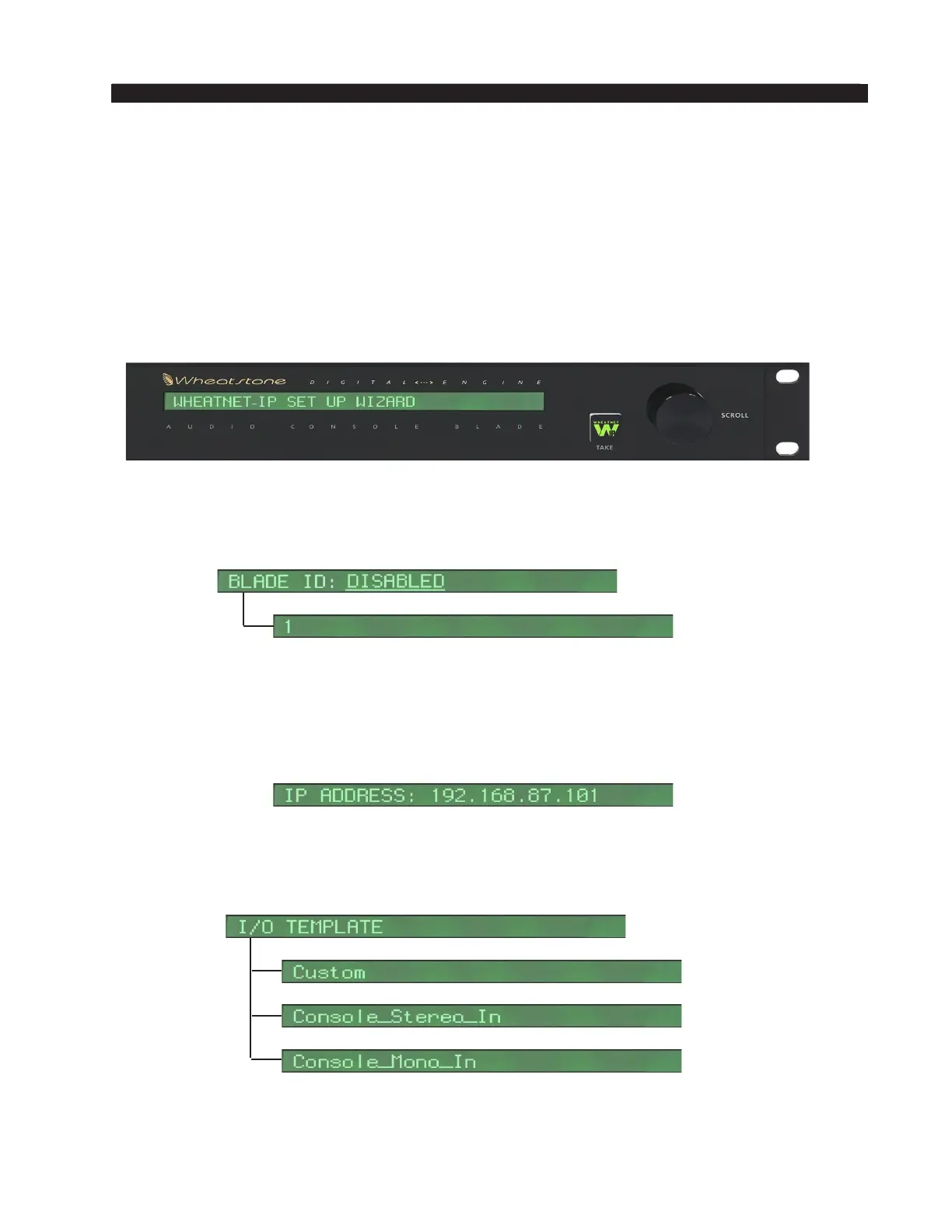
The System Wizard starts by showing System Wizard start up message on its front panel,
and then displays BLADE ID: DISABLED.
Simply scroll the front panel knob one click for the display to change to
BLADE ID: 1 and press the front panel TAKE switch.
The display will change to show the default IP address. Make a note of this address in
case you want to use web browser access in the future, then press TAKE again to accept the
address. Please note, if you cannot accept this default IP addressing scheme you can change
the IP address, subnet mask, and gateway to be something that will work for you.
The wizard will next allow you to select the system sample rate as either 44.1 kHz or 48
kHz. Choose the sample rate that is best for your system.
Finally the display will show I/O TEMPLATE. For Wheatstone‑IP 88cb there are three
templates available:
• Choose the Console_Stereo_In template to create all of the needed signals for your IP‑12/
IP-16 control surface. When using this template the input signals are created as stereo
sources. This template maps all of the Program, Headphone, Cue, and Monitors signals.



 To Next Page