64
WPS-365-DVR-9CH & 16CH Installation and Users Manual
Function
DVR Front Panel
and Remote
Control
Operations
Mouse Operation Descriptions
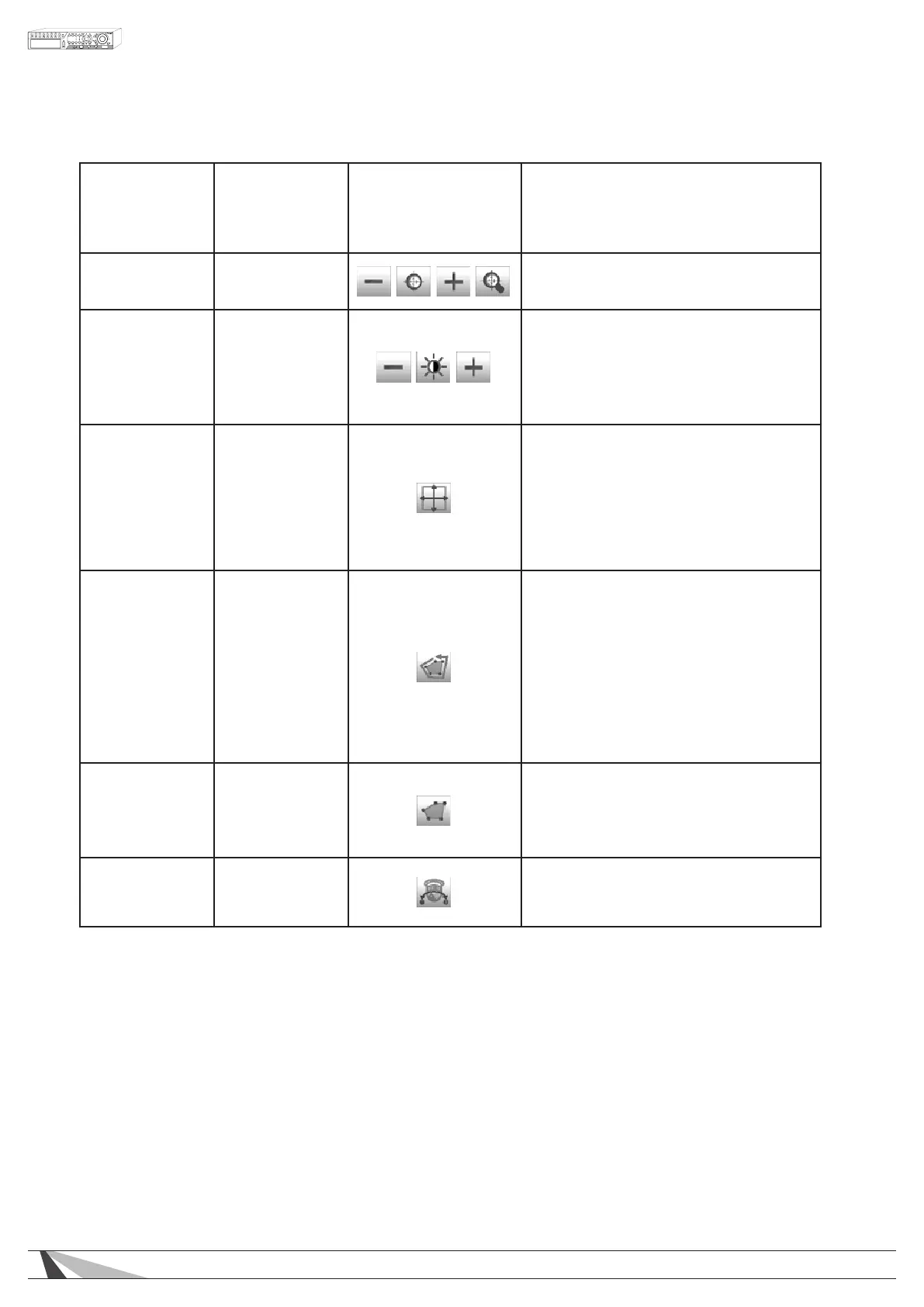
Focus
+/-
ENTER
• Use the +/- buttons to focus far/near
• Press the ENTER button to auto focus
Iris +/-
• Use the +/- buttons to increase/
decrease the Iris
• The Iris + button is used to access the
OSD control of Wirepath™ Surveillance
cameras and to conrm (enter)
commands
Auto Pan (3)
+/-
ENTER
*
#
Auto pan speed is shown in parenthesis
• Use the +/- buttons to increase/
decrease speed
• Press Enter start/stop Auto Pan
• Press (
*
) set start position
• Press (#) set end position
SEQ/Tour Mode
(5 sec.)
+/-, NUMBER
ENTER
SEQ dwell time is shown in parenthesis
• If SEQ mode is on, the camera will go to
preset position 0-9 (or 1-10) sequentially.
• Use the +/- and the Number buttons
to change dwell time
• Press the ENTER button to start/stop
SEQ mode
• An asterisk (
*
) will be shown if SEQ
mode is on
Preset (1)
+/-, NUMBER
ENTER
Preset location is shown in parenthesis
• Use the +/- and the Number buttons
to change Preset location
• Set Preset location
Pan Speed (3) +/-
Manual pan speed is shown in parenthesis
• Use the +/- buttons to increase/
decrease speed
7.1. OSD CONTROL FOR WIREPATH™ SURVEILLANCE CAMERAS
Wirepath™ Surveillance Series Analog Cameras offer remote control of the OSD (On Screen Display) menu.
This is achieved through the PTZ functions of the DVR. The cameras must be connected to the RS-485 terminals
on the DVR and properly congured according to the camera manual. The DVR must also be properly
congured. Please refer to Section 3.2.2 Optional Connections for the connections, Section 6.1 Pre-Camera
Setup to set the PTZ ID of each PTZ camera, and Section 6.10 RS-232/422/485 Setup to setup the RS-485 control
port.



 To Next Page