68
WPS-365-DVR-9CH & 16CH Installation and Users Manual
8.2. SEARCH BY EVENT / LOG DISPLAY
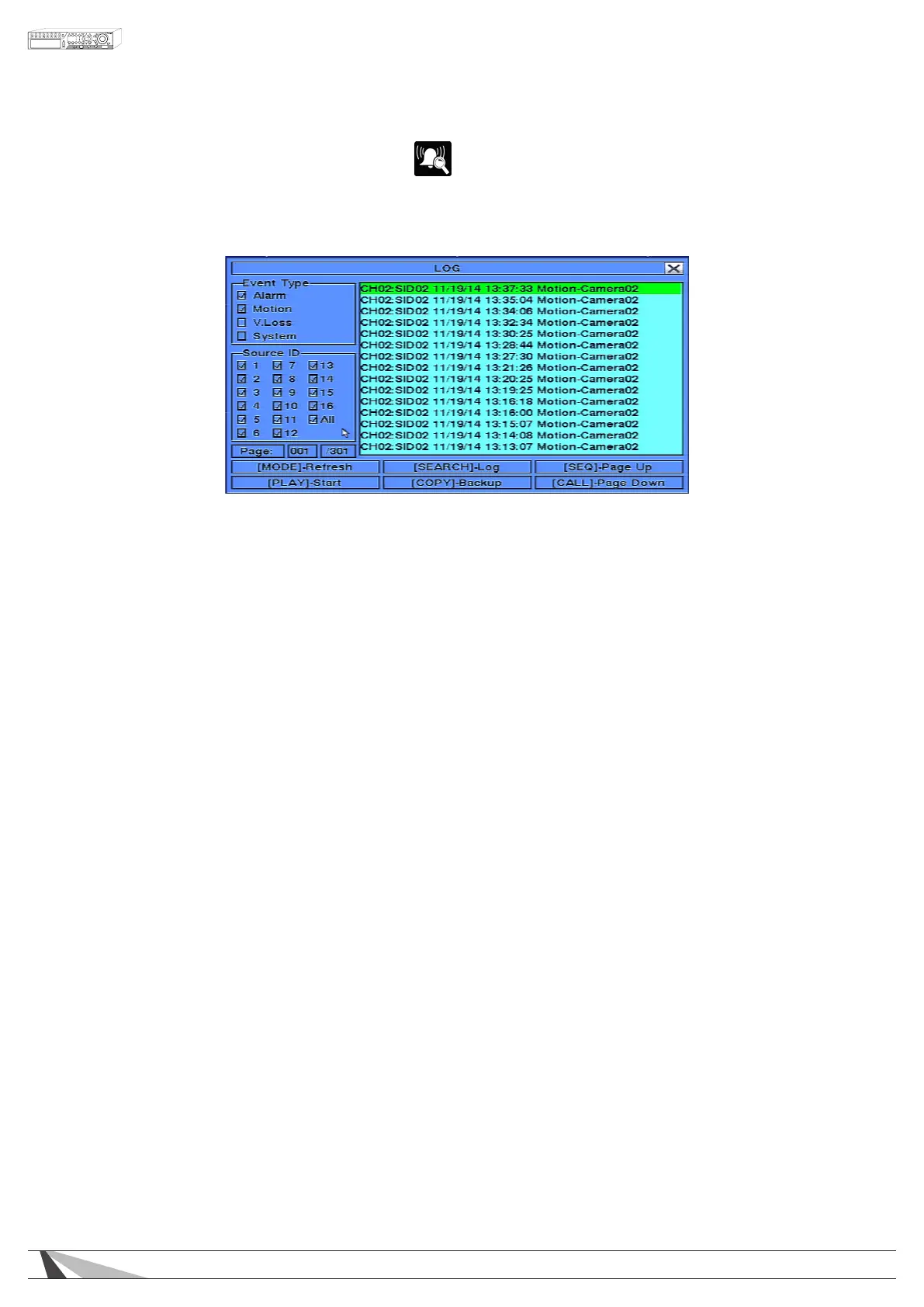
The Search By Event feature allows the user to search for recorded video and audio based on the
type of event recorded by the DVR.
The DVR will store up to 6000 of the most recent event logs. There are four different types of event logs: Alarm,
Motion, Video Loss, and System.
Tip: You can jump to a log page quickly by selecting the page box with the mouse and typing in the desired
page number. This is useful when you need to see the last page of recordings.
To navigate and operate this menu:
•▲▼◄►
Press these buttons on the front panel of the DVR or remote control to select an item. Alternatively use the
mouse to select an item.
•ENTER
Press the ENTER button on the front panel of the DVR or on the remote control to select the highlighted log.
Alternatively use the mouse to select the corresponding Search menu icon.
•MODE
Press the Mode button to refresh the log display. If there are new event logs since the screen was displayed,
the log list will be updated accordingly. Alternatively use the mouse to select the Refresh option.
•SEARCH
Press the Search button to Log (export) the event log to a backup device. Alternatively use the mouse to
select the Log option.
•SEQ
Use the SEQ button on the front panel of the DVR or on the remote control to scroll the Event Log Page Up.
Alternatively use the mouse to select the Page Up option.
•CALL
Use the CALL button on the front panel of the DVR or on the remote control to scroll the Event Log Page
Down. Alternatively use the mouse to select the Page Down option.
•Numeric
Press the numeric buttons on the front panel of the DVR or on the remote control followed by the ENTER
button to select the display page of the event logs. Alternatively use the mouse to click the Page Number
box.
•Play(►/II)
Press the PLAY button on the front panel of the DVR or on the remote control to begin playback of the
recorded video and audio using the dened search time and video type. Alternatively use the mouse to
select the PLAY button. If there is not a camera currently in playback mode then all of the cameras in the
current split window will begin playback. See Section 8.5 for more details.



 To Next Page