33
WPS-365-DVR-9CH & 16CH Installation and Users Manual
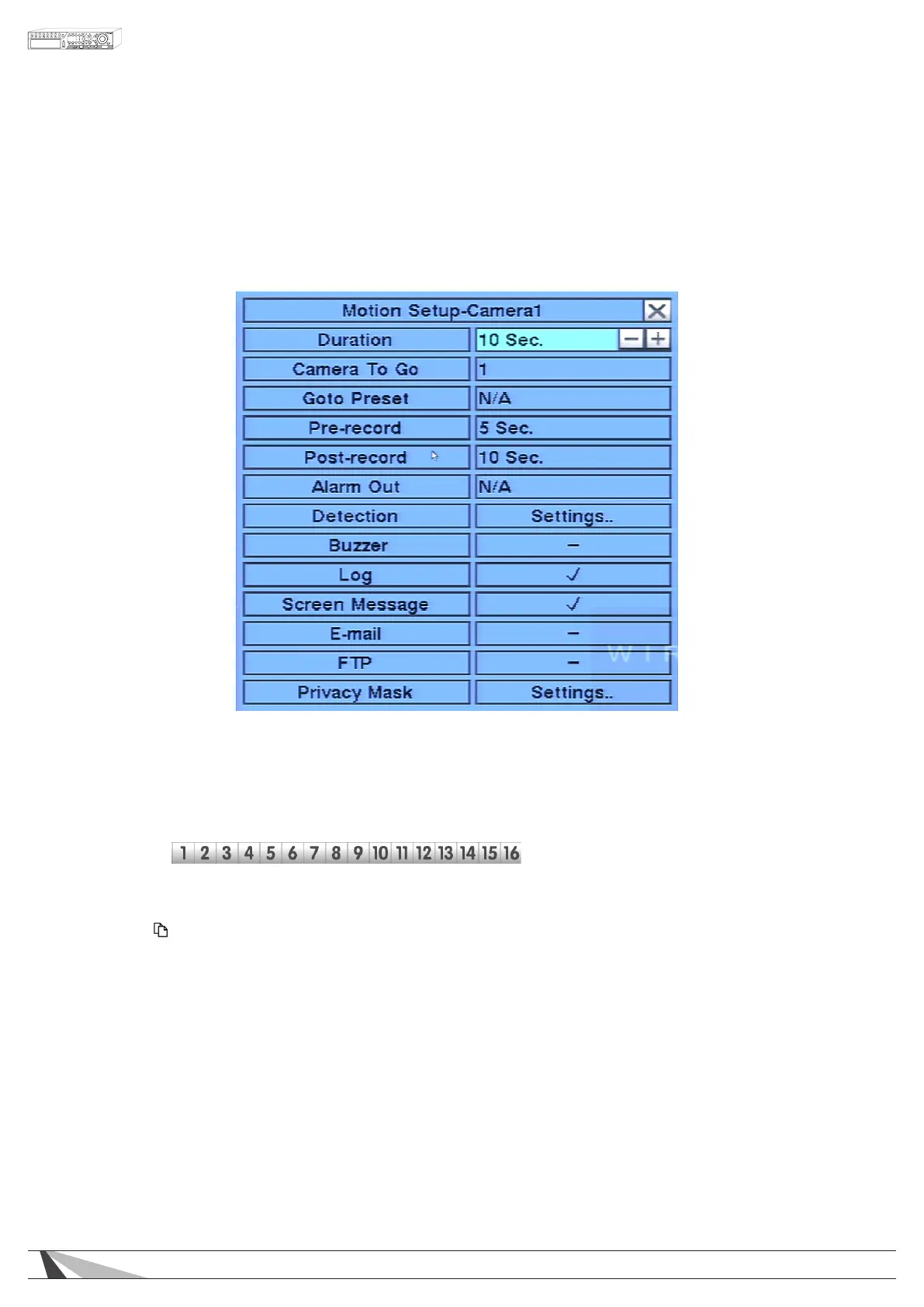
6.2.2. MOTION SETUP
Motion Setup allows the administrator to dene how the system responds when motion is detected for
the camera.
In the Camera Setup menu, highlight Motion Setup and press the ENTER button on the front panel
of the DVR or remote control to display the Motion Setup sub menu for the selected camera.
To navigate and operate this menu:
• ▲▼◄►
Press these buttons on the front panel of the DVR or remote control to select an item.
Alternatively use the mouse to select an item.
•NUMERIC
Press these buttons on the front panel of the DVR or remote control to change the camera. Alternatively
use the mouse to select the desired camera.
• COPY ( )
Press the COPY button on the front panel of the DVR or remote control to copy the Video Loss settings
of the focus camera to all of the cameras.
•ESC
Press the ESC button on the front panel or remote control to escape and return to the main menu.
Alternatively you can use the mouse by right clicking or selecting the “X” in the current dialog window.
If the contents in this menu have been modied, a Save dialog box will be displayed requesting the
user to save the changes. Press ENTER on the front panel of the DVR or remote control to exit and save,
ESC to exit without saving. Another method to escape is to use the mouse to “right-click” and exit the
sub menu.



 To Next Page