Relio 4.2.x User Manual – 07/2015
Page 13
Head Office : Parc d’activites Kennedy - 20, avenue Neil Armstrong – 33700 Bordeaux-Merignac (France)
Tel +33 (0)5 57 928 928 – Fax +33 (0)5 57 928 929 – contact@worldcastsystems.com – www.worldcastsystems.com
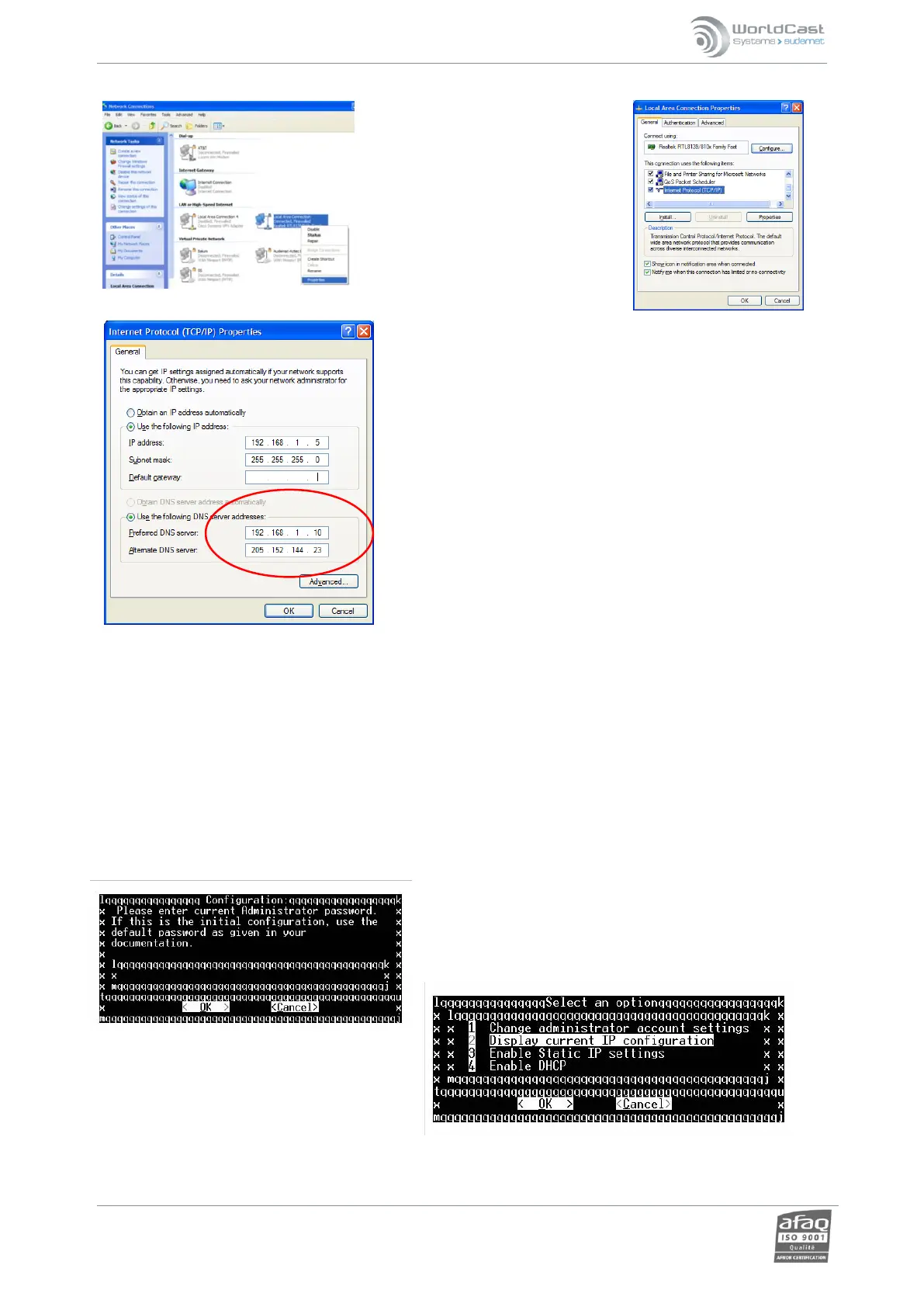
To access the IP settings of your PC,
you can browse to the ‘Network
Connections’ link in the Control Panel
or in the ‘My Network Places’ page.
Right-click on the ‘Local Area
Connection’, click ‘Properties’, then
‘select ‘TCP/IP’ and click ‘Properties’
again.
Click on ‘Use the following IP address’ and enter the IP settings and
the 255.255.255.0 mask in the boxes provided. For a crossover direct
connection, a gateway setting and DNS servers are not necessary.
Click ‘OK’ and ‘Close’ to reconfigure the network connection on the
PC. You should now be able to connect to the Relio using the
crossover cable.
3.4. Other connection methods:
Should the user be unable to connect to either network port of the Relio, there are two alternate methods to
access and control the network settings of the unit.
The first method is to connect a standard VGA monitor to the VGA jack on the rear panel. It will also be necessary
to connect a USB keyboard and mouse. The screen should display a login page, entering the username and
password (Admin / admin are the defaults) will launch the ScriptEasy software on the Relio itself. Select
View/System Configuration and click the Network link to open a menu where you can view and change the settings
for both the primary and secondary Ethernet ports. See appendix B for more information.
A second method is to connect an RS-232 ‘null modem’ cable between a PC and the COM 0 port on the Relio. Open
a terminal program (HyperTerminal, TerraTerm, etc) and connect at 9600 baud, 8 data bits, no parity, and 1 stop
bit (9600, 8,N,1). Hit <spacebar><Enter>. The following screen should display:
The default password is admin, enter it and use the Tab key to
navigate the cursor to the ‘OK’ window and hit <Enter>.
You should see this menu. Use the arrow keys to
highlight your choice and hit <Enter>. If you
select ‘Enable Static IP settings’, you will be
presented a menu where you can set the IP
address, mask and gateway settings for the
Primary network interface. Use the Tab and arrow keys to navigate through the menu and enter your choices to
control the network settings.



 To Next Page