EasyManua.ls Logo

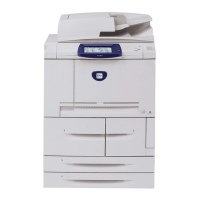
Xerox D136 - User Manual

Xerox D136
460 pages
Print Icon
To Next Page IconTo Next Page
Loading...
Xerox
®
D95/D110/D125/D136
Copier/Printer
User Guide
Version 3.0
September 2013
701P33170

Table of Contents

Other manuals for Xerox D136

Questions and Answers

  • C
    Christine TorresSep 1, 2025
    Why do documents jam often in my Xerox D136?
    • J
      Jose MunozSep 1, 2025
      If documents jam often in your Xerox Copier, make sure the document feeder is loaded properly with acceptable media. Remove any sticky labels, paper clips, or tape from the documents. Properly set the document guides. Open the document feeder cover and check for pieces of paper. Set Mixed Size Originals to ON. Load the A5-size document vertically.
  • B
    Brian VangAug 31, 2025
    What to do if my Xerox D136 is unable to print or unable to copy?
    • B
      Brandi SullivanAug 31, 2025
      If your Xerox Copier is unable to print or copy, follow the instructions displayed on the screen. You can also check if the Printer Mode is set to Online by pressing the Machine Status button. As another measure, try turning the power switch off, firmly plugging in the power cord, and then turning the power switch back on.
  • A
    Audrey Valdez DDSAug 30, 2025
    Why is the paper often jammed or wrinkled in my Xerox Copier?
    • R
      randolphheatherAug 30, 2025
      If your Xerox Copier experiences frequent paper jams or wrinkling, ensure that you load the paper correctly and push the tray in firmly. Try replacing the paper with a new ream, orienting it so the curl faces down. Verify that the paper and tray settings match, remove any obstructions, and use paper that meets the machine's specifications. Also, avoid overfilling the tray and apply the paper guides lightly.
  • J
    Jennifer GrayAug 29, 2025
    Why are documents not fed into the document feeder of my Xerox Printer?
    • S
      saunderstaraAug 29, 2025
      The document feeder can only accept documents of a minimum size: A5 or 5.5 x 8.5 inches.
  • A
    anna59Aug 28, 2025
    How to solve error message after loading paper in paper Tray 5 (Bypass) on Xerox Printer?
    • Y
      yhoweAug 28, 2025
      If you receive an error message after loading paper in Tray 5 (Bypass) and pressing Start, make sure the paper guides are set to the correct positions.
  • W
    whiteamandaAug 27, 2025
    What to do if Xerox Printer online indicator does not light?
    • A
      Angela PorterAug 27, 2025
      If the online indicator doesn't light up when you try to print, turn the power off, unplug the power cord, and check the interface cable connection. Also, check the print driver and environment settings on your computer.
  • D
    Dean BrooksAug 27, 2025
    Why is my Xerox Printer unable to print or copy?
    • T
      tjacksonAug 27, 2025
      If you're unable to print or copy, first follow any instructions displayed on the printer's screen. Next, press the Machine Status button and select Online from the Printer Mode. If the issue persists, turn the power switch off, firmly plug in the power cord, and then turn the power switch back on.
  • M
    Michael WarrenAug 25, 2025
    How to turn on Xerox Printer if power is not switched on?
    • P
      pwilliamsAug 26, 2025
      If the power is not on, first, ensure the power switch is turned on. If it still doesn't power on, turn the power switch off, then firmly plug in the power cord before turning the power switch back on. Also, confirm that the power supply is within the range of 200-240 V and 15 A, and that the power capacity is compatible with the printer's maximum power consumption of 2.8-3.1 KVA.
  • J
    Jacob TurnerAug 25, 2025
    What to do if Xerox Printer documents jam often?
    • D
      Deborah AlvarezAug 25, 2025
      To prevent frequent document jams, ensure the document feeder is properly loaded with acceptable media. Remove any sticky labels, paper clips, or tape from the documents. Properly set the document guides and check for any paper pieces inside the document feeder cover. If you're using mixed-size originals, set the Mixed Size Originals option to ON. When loading A5-size documents, load them vertically.

Xerox D136 Specifications

General IconGeneral
BrandXerox
ModelD136
CategoryCopier
LanguageEnglish

Related product manuals