UTILITY function
188 PM5D/PM5D-RH Owner’s Manual Reference section
LIST UP/DOWN . . Pressing the SCENE MEMORY
[π] key will scroll the list
upward, and pressing the
SCENE MEMORY [†] key will
scroll the list downward.
(Key presses will scroll the list
upward/downward.)
• LIST ORDER
This specifies the order in which scene memories and
library items will appear in the screen.
NORMAL . . . . . . . . Show the list in ascending
numerical order.
REVERSE . . . . . . . . Show the list in descending
numerical order.
F INTERNAL CLOCK
This indicates the date (DATE) and time (TIME) of the
internal clock. To edit the setting, click the SET button.
G BATTERY
This indicates the voltage of the internal battery.
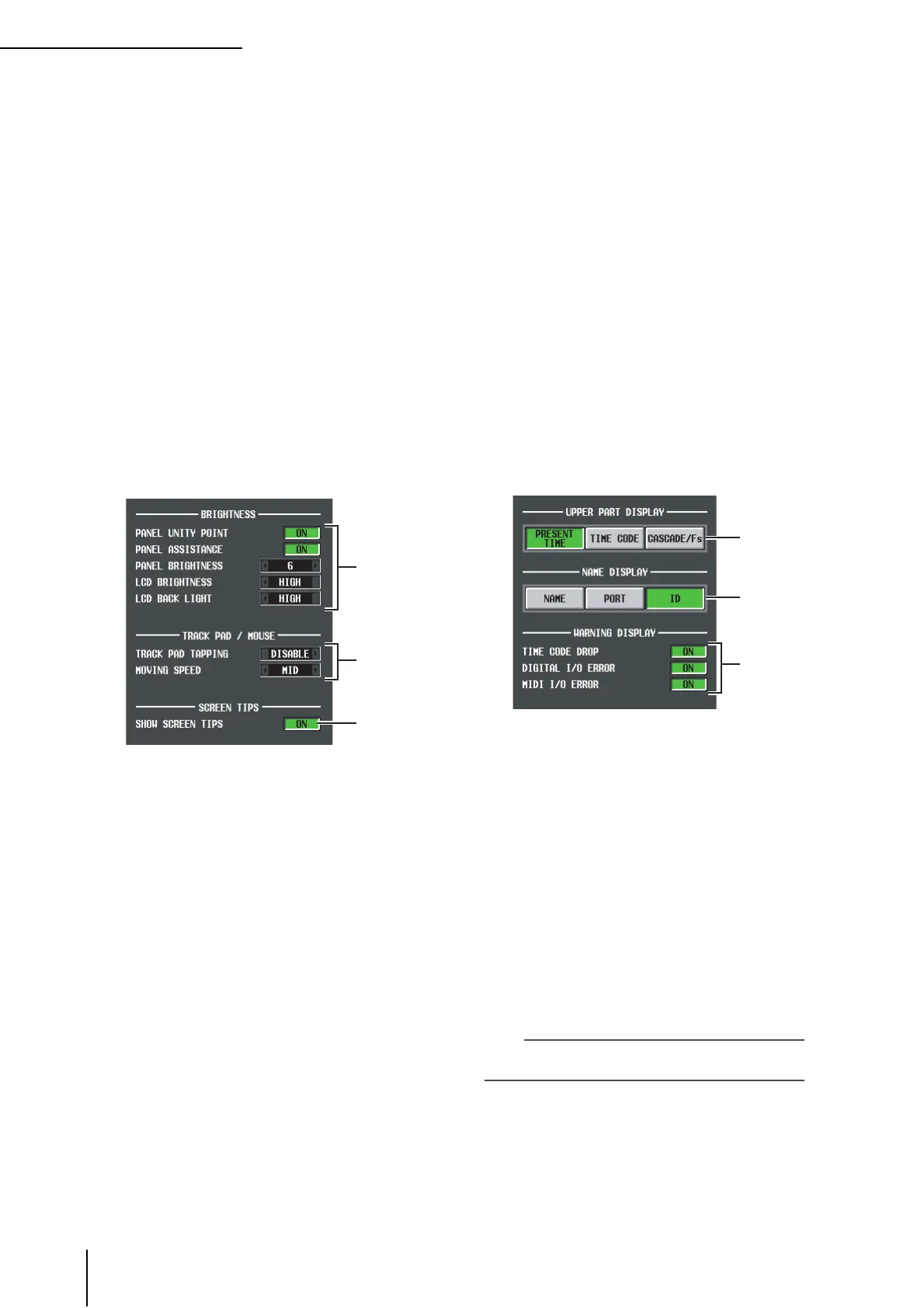
❏ PREFERENCE screen 2
H BRIGHTNESS
Here you can make settings for the brightness of the
panel LED and LCD displays.
• PANEL UNITY POINT
If this button is on, LEDs corresponding to a specific
reference value (e.g., 0 dB or CENTER) will light more
brightly than usual. However, this is valid only if
PANEL BRIGHTNESS is set to 5 or less.
• PANEL ASSISTANCE
If this button is on, even LEDs that should be off will
stay dimly lit so that you can tell their location even in
a dark environment. However, this is valid only if
PANEL BRIGHTNESS is set to 5 or less.
• PANEL BRIGHTNESS
This adjusts the brightness of all panel LEDs in a range
of 1–8.
• LCD BRIGHTNESS
You can adjust the brightness of the LCD display in a
three-step range: HIGH, MID, or LOW.
• LCD BACK LIGHT
You can adjust the brightness of the LCD display back-
light in a two-step range: HIGH or LOW.
I TRACK PAD/MOUSE
Here you can make settings for the built-in track pad
or a PS/2 mouse connected to the MOUSE connector.
• TRACK PAD TAPPING
This enables/disables the Tapping function (a function
that lets you perform the track pad left-click operation
by tapping quickly on the track pad).
• MOVING SPEED
This selects the speed at which the cursor in the screen
will move when you operate the built-in track pad or a
PS/2 mouse connected to the MOUSE connector.
Choose one of three speeds; FAST, MID, or SLOW.
J SCREEN TIPS
• SHOW SCREEN TIPS
If this button is on, moving the cursor onto an item in
the screen and waiting for a short time will (in some
cases) display a “screen tip” reminding you of the oper-
ation. The screen tip is displayed when you open the
JOB SELECT window by holding down the [SHIFT]
key and pressing the [ENTER] key, or when you need
to press the [ENTER] key to finalize an edited value.
K UPPER PART DISPLAY
These buttons select the item that is shown in the cen-
ter right (to the right of the scene memory indication)
of the upper part of the display (the constantly dis-
played area).
• PRESENT TIME
Indicates the present time.
• TIME CODE
Indicates the internal time code being generated by the
PM5D, or the time code being received from an exter-
nal device. This is the same as the time code shown in
the SCENE function EVENT LIST screen.
• CASCADE/Fs
Indicates the master/slave status when using a cascade
connection, and the sampling frequency at which the
PM5D system is currently operating.
Hint
You can also cycle through these choices by clicking in this
display section.
L NAME DISPLAY ([NAME] indicator display)
Choose one of the following as the content that will be
shown by the [NAME] indicators of the INPUT chan-
nel strip and DCA strip.
8
9
J
K
L
M




 To Next Page