OUTPUT PATCH function
222 PM5D/PM5D-RH Owner’s Manual Reference section
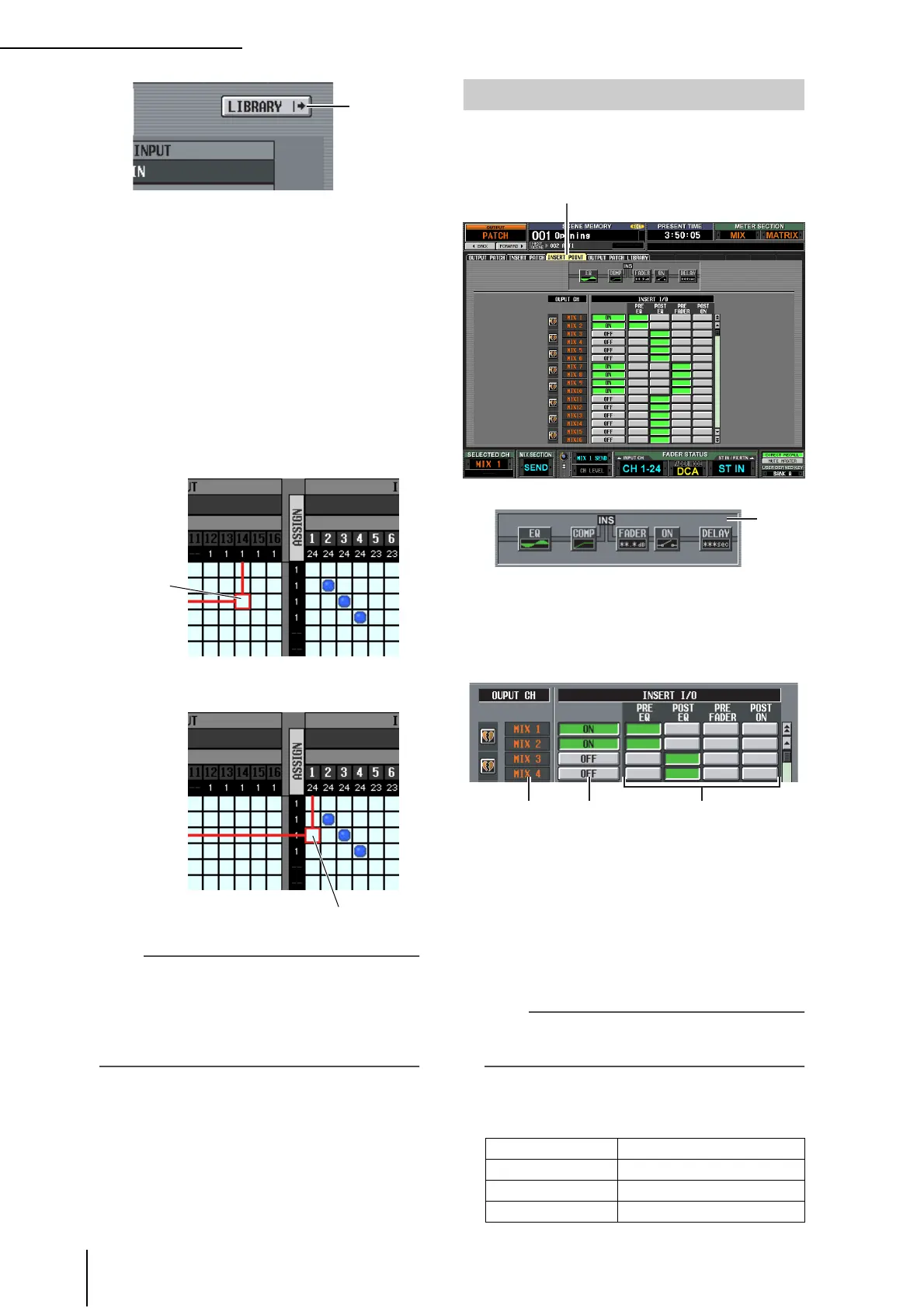
I LIBRARY button
This button accesses the OUTPUT PATCH LIBRARY
screen (➥ p.223), where you can store/recall patch
library settings for output channels.
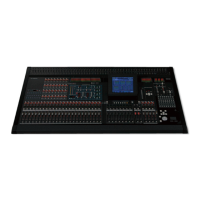
❏ Using the [SHIFT] key + CURSOR [√]/
[®] to move the cursor
When operating from the panel, you can move the cur-
sor from the right side of the screen to the left side (or
vice versa) by holding down the [SHIFT] key and using
the CURSOR [√]/[®] keys.
To quickly move the cursor in or out of the grid, hold
down the [SHIFT] key and press the CURSOR [√]/
[®]/[π]/[†] keys.
Note
To enable an insert-in assigned to an output channel in this
screen, you must turn on the ON/OFF button for the corre-
sponding output channel in the INSERT POINT screen
(OUTPUT PATCH function). (
➥
p.222) However, the insert-
out is always on, regardless of the state of the ON/OFF but-
ton. An exception to the above is that if you insert GEQ, its
insert-in will automatically be on.
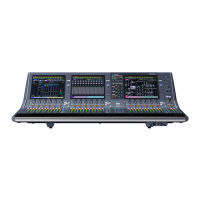
In this screen you can select the position at which the
insert-in/out of each output channel will be patched. Here
you can also switch insert-in on/off.
A Insert view
When you move the cursor to the insert I/O point
(
4), the insert point for that output channel will be
shown graphically.
B OUTPUT CH (Output channel)
This is the number of the output channel you are edit-
ing. Two paired channels are indicated by a heart
symbol shown at the left; settings 3–4 will be linked
for these channels. You can click this symbol to enable/
disable pairing.
C ON/OFF (Insert on/off)
This button switches insert on/off for each channel.
This is linked for paired channels.
Note
Be aware that if you turn on this button when either insert-in or
insert-out are unpatched, the signal will no longer be output
from the corresponding output channel.
D INSERT I/O (Insert I/O point)
Here you can select one of the following as the insert-
in/out location for each output channel.
9
➠
[SHIFT] key
+
CURSOR [®] key
Cursor
Cursor will move
PRE EQ Immediately before the EQ
POST EQ Immediately after the EQ
PRE FADER Immediately before the fader
POST ON Immediately after the [ON] key
INSERT POINT screen
INSERT POINT
1




 To Next Page