ENTER
RECEIVER z RECEIVER z
SETUP
Connecting the unit to a wireless network
There are several methods to connect the unit to a wireless
network.
Select a connection method according to your environment.
■ A: Sharing the iOS device setting
You can easily setup a wireless connection by applying the
connection settings on iOS devices (iPhone/iPod touch).
Before proceeding, confirm that your iOS device is connected to a
wireless router.
• You need iOS device with iOS 5.0 or later. For details on supported devices, see
“Supported devices and file formats” (p.109).
1
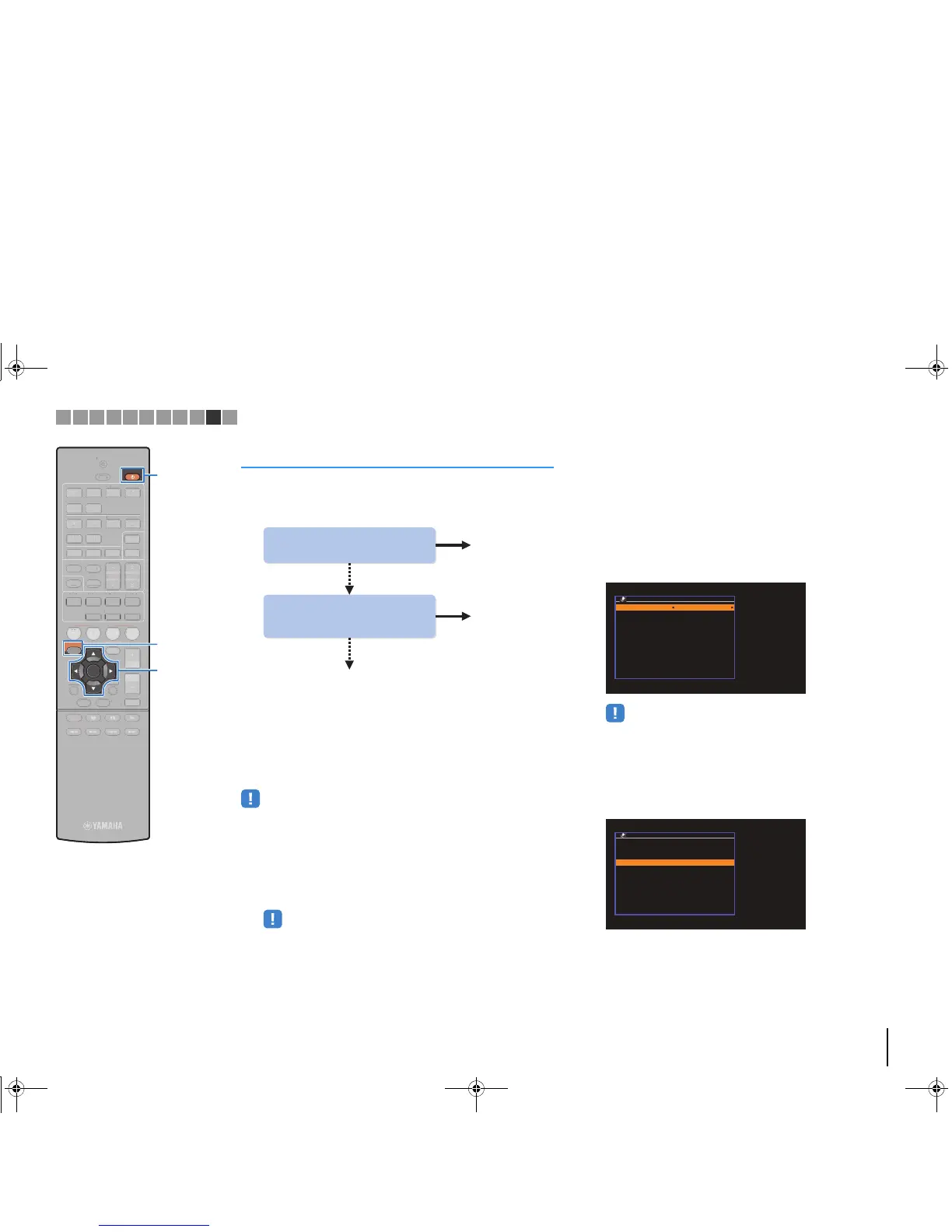
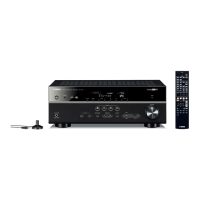
Press RECEIVER z to turn on the unit.
2
Turn on the TV and switch the TV input to display
video from the unit (HDMI OUT jack).
• Operations with TV screen are available only when your TV is connected to
the unit via HDMI.
3
Press SETUP.
4
Use the cursor keys (q/w) to select “Network” and
press ENTER.
5
Use the cursor keys (q/w) to select “Network
Connection” and press ENTER.
6
Use the cursor keys (e/r) to select “Wireless
(Wi-Fi)” and press ENTER.
• The unit may connect automatically to the access point to which it has
connected previously. In this case, the message indicating the successful
connection will appear. You can ignore this message and proceed to the
next step.
7
Use the cursor keys (q/w) to select “Share Wi-Fi
Settings(iOS)” and press ENTER.


 To Next Page