CONFIGURATIONS ➤ Updating the unit’s firmware via the network En 97
New firmware that provides additional features or product
improvements will be released as needed. If the unit is connected
to the Internet, you can download the firmware via the network and
update it.
• You can also update the firmware using the USB memory device from the
“ADVANCED SETUP” menu (p.96).
1
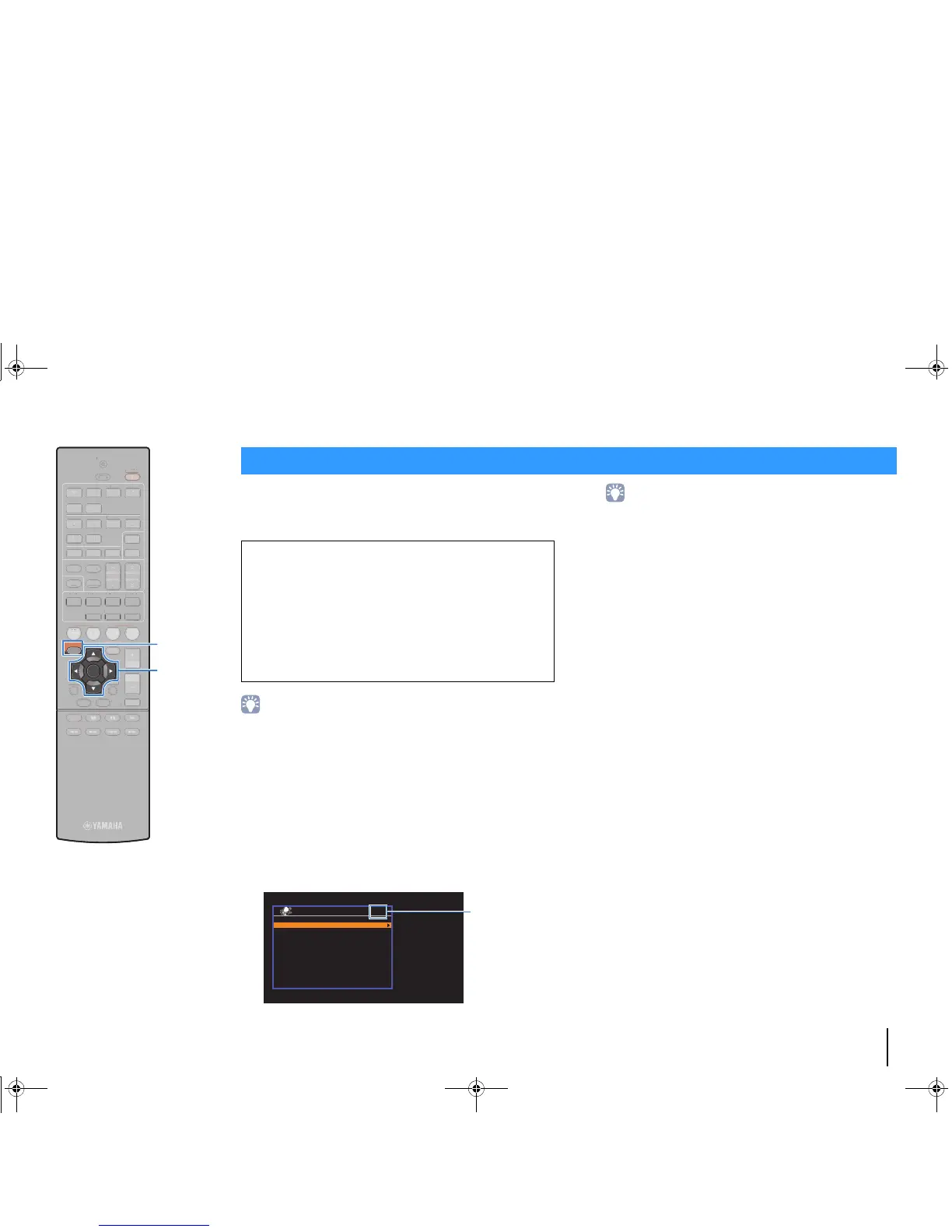
Press SETUP.
2
Use the cursor keys to select “Network” and press
ENTER.
3
Use the cursor keys to select “Network Update” and
press ENTER.
If new firmware is available, the envelope icon (p) appears
in the screen.
• To cancel the operation without updating the firmware, press SETUP.
4
Use the cursor keys to select “Perform Update” and
press ENTER.
The on-screen display turns off and the firmware update
starts.
5
If “UPDATE SUCCESS PLEASE POWER OFF!”
appears on the front display, press z (power) on the
front panel.
The firmware update is complete.
Updating the unit’s firmware via the network
Note
• Do not operate the unit or disconnect the power cable or network cable during
firmware update. Firmware update takes about 20 minutes or more
(depending on your Internet connection speed).
• If the Internet connection speed is slow, or the unit is connected to the
wireless network, network update may not be possible depending on the
condition of the wireless connection. In this case, update the firmware using
the USB memory device (p.96).
• To perform the following procedure, your TV must be connected to the unit via
HDMI. If not, perform the update from the “ADVANCED SETUP” menu (p.96).
• For details on update, visit the Yamaha website.


 To Next Page