EasyManua.ls Logo

Yamaha RX5 - Page 54

Yamaha RX5
81 pages
Print Icon
To Next Page IconTo Next Page
To Previous Page IconTo Previous Page
Loading...
CARTRIDGE
MODE
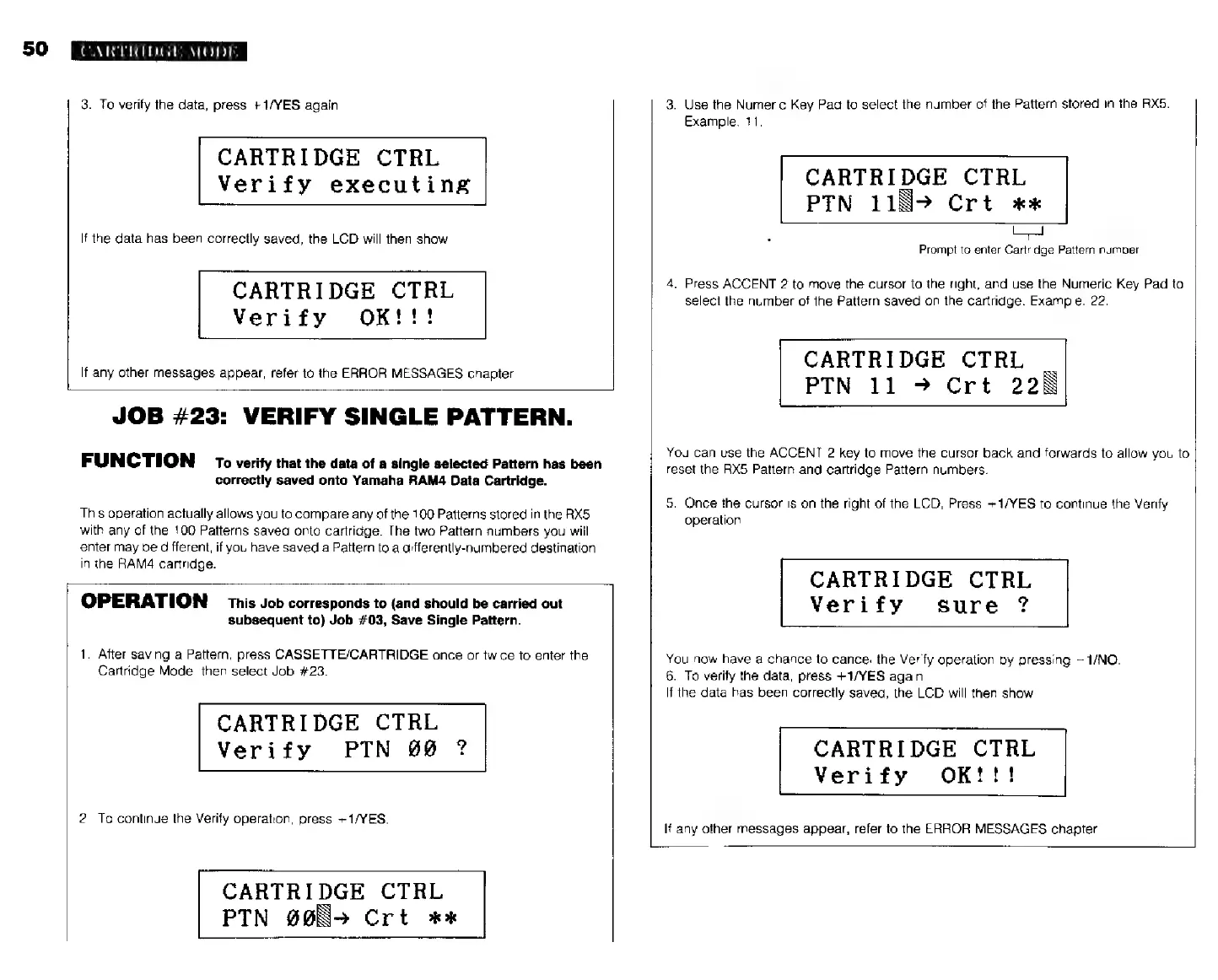
3.
To
verify
the
data,
press
+1/YES
again.
CARTRIDGE
CTRL
Verify
executing
If
the
data
has
been
correctly
saved,
the
LCD
will
then
show
CARTRIDGE
CTRL
Verify
ОК!!!
If
any
other
messages
appear,
refer
to
the
ERROR
MESSAGES
chapter.
JOB
#23:
VERIFY
SINGLE
PATTERN.
FUNCTION
то
verify
that
the
data
of
a
single
selected
Pattern
has
been
correctly
saved
onto
Yamaha
RAM4
Data
Cartridge.
This
operation
actually
allows
you
to
compare
any
of
the
100
Patterns
stored
in
the
RX5
with
any
of
the
100
Patterns
saved
onto
cartridge.
The
two
Pattern
numbers
you
will
enter
may
be
different,
if
you
have
saved
a
Pattern
to
a
differently-numbered
destination
in
the
RAMA
cartridge.
OPERATION
This
Job
corresponds
to
(and
should
be
carried
out
subsequent
to)
Job
#03,
Save
Single
Pattern.
1.
After
saving
a
Pattern,
press
CASSETTE/CARTRIDGE
once
or
twice
to
enter
the
Cartridge
Mode,
then
select
Job
#23.
CARTRIDGE
CTRL
Verify
РТМ
88
?
2.
To
continue
the
Verify
operation,
press
+1/YES.
CARTRIDGE
CTRL
РТМ
905»
Crt
жж
3.
Use
the
Numeric
Key
Pad
to
select
the
number
of
the
Pattern
stored
in
the
RX5.
Example:
11.
CARTRIDGE
CTRL
РТМ
1182
Crt
жж
Prompt
to
enter
Cartridge
Pattern
number
4.
Press
ACCENT
2
to
move
the
cursor
to
the
right,
and
use
the
Numeric
Key Pad
to
select
the
number
of
the
Pattern
saved
on
the
cartridge.
Example:
22.
CARTRIDGE
CTRL
_
РТМ
11
>
Crt
220
You
can
use
the
АССЕМТ
2 key
to
move
the
cursor
back
and
forwards
to
allow
you
to
reset
the
RX5
Pattern
and
cartridge
Pattern
numbers.
5.
Once
the
cursor
is
on
the
right
of
the
LCD,
Press
+1/YES
to
continue
the
Verify
operation
CARTRIDGE
CTRL
Verify
sure
?
You
now
һауе
a
chance
to
cancel
the
Verify
operation
by
pressing
—1/МО.
6.
To
verify
the
data,
press
+1/YES
again.
If
the
data
has
been
correctly
saved,
the
LCD
will
then
show
CARTRIDGE
CTRL
Verify
ОК!!!
If
any
other
messages
appear,
refer
to
the
ERROR
MESSAGES
chapter.