EasyManua.ls Logo

Yamaha RX5 - Pattern Operations; Pattern Selection

Yamaha RX5
81 pages
Print Icon
To Next Page IconTo Next Page
To Previous Page IconTo Previous Page
Loading...
PATTERN
OPERATIONS
OVERVIEW
The
Pattern
operations
available
on
the
RX5
let
you:
*
Write
(record)
up
to
100
rhythm
Patterns,
using
either
Real
Time
Write
or
Step
Write.
Select
a
Pattern
and
play
it
at
any
tempo.
Clear
(Erase)
a
Pattern,
or
a
single
instrument
in
a
Pattern.
Alter
Pattern
Write
functions,
including
Quantize,
Swing
and
Click.
Copy
or
append
(connect)
Patterns.
Edit
Patterns
(alter
5
parameters
relating
to
individual
notes).
Check
the
remaining
Pattern
memory
of
the
RX5.
The
RX5
contains
a
variety
of
factory-programmed
Patterns
in
Pattern
locations
00
thru
54.
These
include
basic
rock
rhythms,
complex
fills,
syn-drum
type
sequences,
and
interesting
melodic
Patterns.
These
Patterns
are
permanently
stored
in
the
Rx5's
internal
memory.
So
if
you
clear
them,
or
edit
(alter)
them
to
make
your
own
Patterns,
the
original
preset
Patterns
are
still
available
and
can
be
re-loaded
into
the
Pattern
locations
simply
by
holding
the
ACCENT
1
key
while
you
turn
the
RX5's
power
on.
NOTE:
Some
of
the
Song/Pattern
Operation
keys
on
the
RX5
have
two
functions.
The
UPPER
function
written
ón
each
key
applies
to
the
Pattern
Mode.
ENTERING
THE
PATTERN
MODE
*
All
Pattern
operations
are
preceded
by
entering
the
Pattern
Mode.
When
you
turn
on
the
RX5,
the
Pattern
Select
Mode
is
automatically
selected
(unless
you
have
inserted
a
different
Wavetorm
data
Cartridge
than
the
one
that
was
previously
used).
the
RX5
is
already
in
use,
in
a
different
mode.
press
PATTERN/SONG.
Repeated
pressing
of
this
key
switches
the
RX5
between
the
Pattern
Mode
and
the
Song
Mode.
When
the
Pattern
Made'is
selected,
the
РТМ
(Pattern
Mode)
LED
will
light.
The
LCD
will
show
the
last
Pattern
number
that
was
selected,
plus
its
time
signature
and
number
of
bars
(measures).
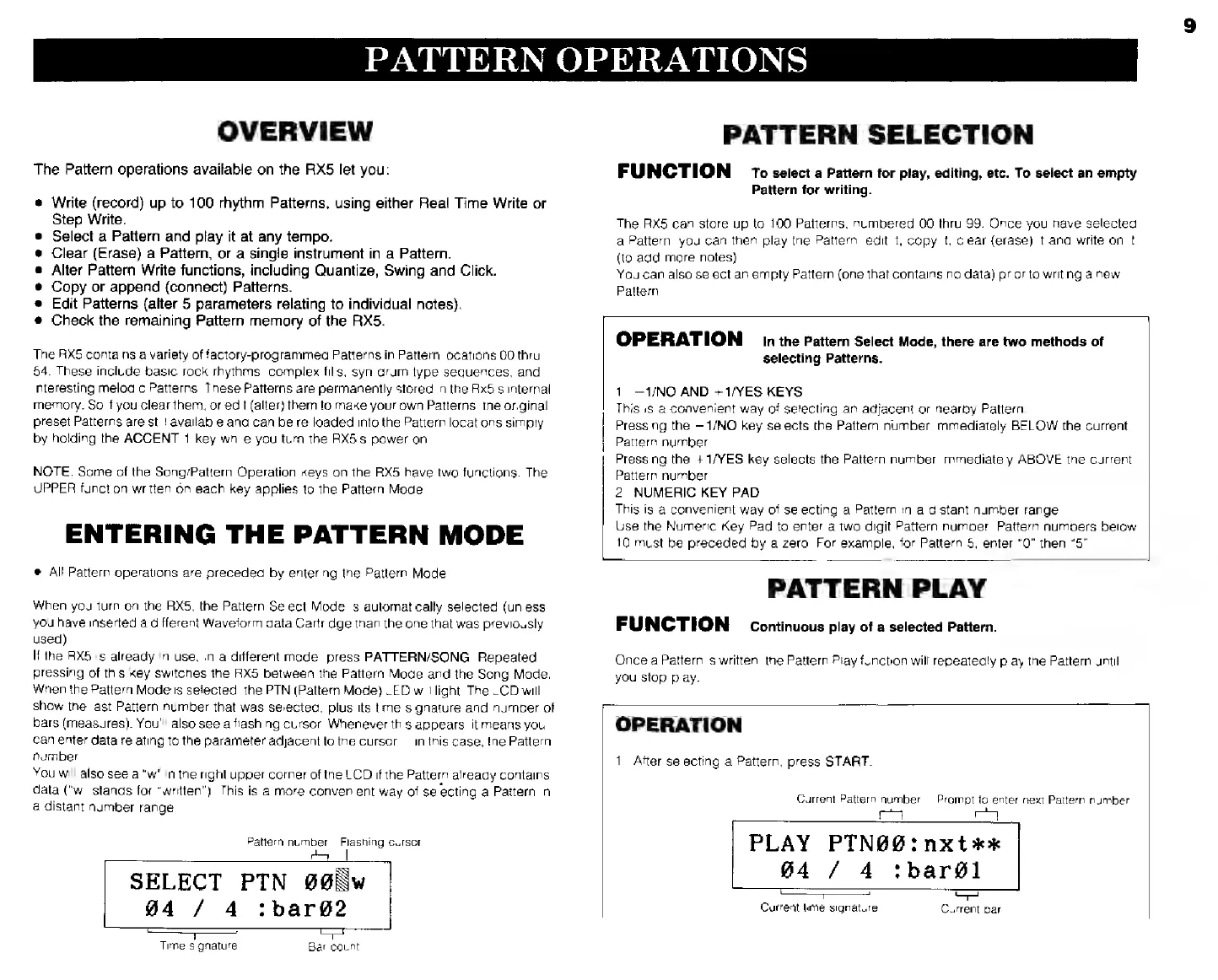
You'll
also
see
a
flashing
cursor.
Whenever
this
appears,
it
means
you
can
enter
data
relating
to
the
parameter
adjacent
to
the
cursor
in
this
case,
the
Pattern
number.
You
will
also
see
a
"w"
in
the
right
upper
corner
of
the
LCD
if
the
Pattern
already
contains
data
("w"
stands
for
"written").
This
is
а
more
convenient
way
of
selecting
a Pattern
in
&
distant
number
range.
Pattern
number
|
Flashing
cursor
|
SELECT
РТМ
#@Nw
й4
/
4
:bar@2
Time
signature
Bar
count
PATTERN
SELECTION
FUNCTION
то
select
a
Pattern
tor
play,
editing,
etc.
To
select
an
empty
Pattern
for
writing.
The
RX5
can
store
up
to
100
Patterns,
numbered
00
thru
99.
Once
you
have
selected
a
Pattern,
you
can
then
play
the
Pattern,
edit
it,
copy
it.
clear
(erase)
it
and
write
on
it
(to
add
more
notes)
You
can
also
select
an
empty
Pattern
(one
that
contains
no
data)
prior
to
writing
а
new
Pattern
OPERATION
inthe
Pattern
Select
Mode,
there
are
two
methods
of
selecting
Patterns.
1.
—1/NO
AND
+1/YES
KEYS
This
is
а
convenient
way
of
selecting
an
adjacent
or
nearby
Pattern.
Pressing
the
1/NO
key
selects
the
Pattern
number
immediately
BELOW
the
current
Pattern
number.
|
Pressing
the
+1/YES
key
selects
the
Pattern
number
immediately
ABOVE
the
current
Pattern
number.
2.
NUMERIC
KEY
PAD
This
is
а
convenient
way
of
selecting
a
Pattern
in
a
distant
number
range.
Use
the
Numeric
Key
Pad
to
enter
a
two-digit
Pattern
number.
Pattern
numbers
below
10
must
be
preceded
bv
a
zero.
For
example,
for
Pattern
5,
enter
"0"
then
"5".
PATTERN
PLAY
FUNCTION
continuous
play
of
a
selected
Pattern.
Once
a
Pattern
is
written,
the
Pattern
Play
function
will
repeatedly
play
the
Pattern
until
you
stop
play.
OPERATION
1.
After
selecting
a
Pattern,
press
START.
Current
Pattern
number
Prompt
to
enter
next
Pattern
number
wai
1
PLAY
PTN00:nxt**
04
/
4
:bargl
==
Current
time
signature
Current
bar