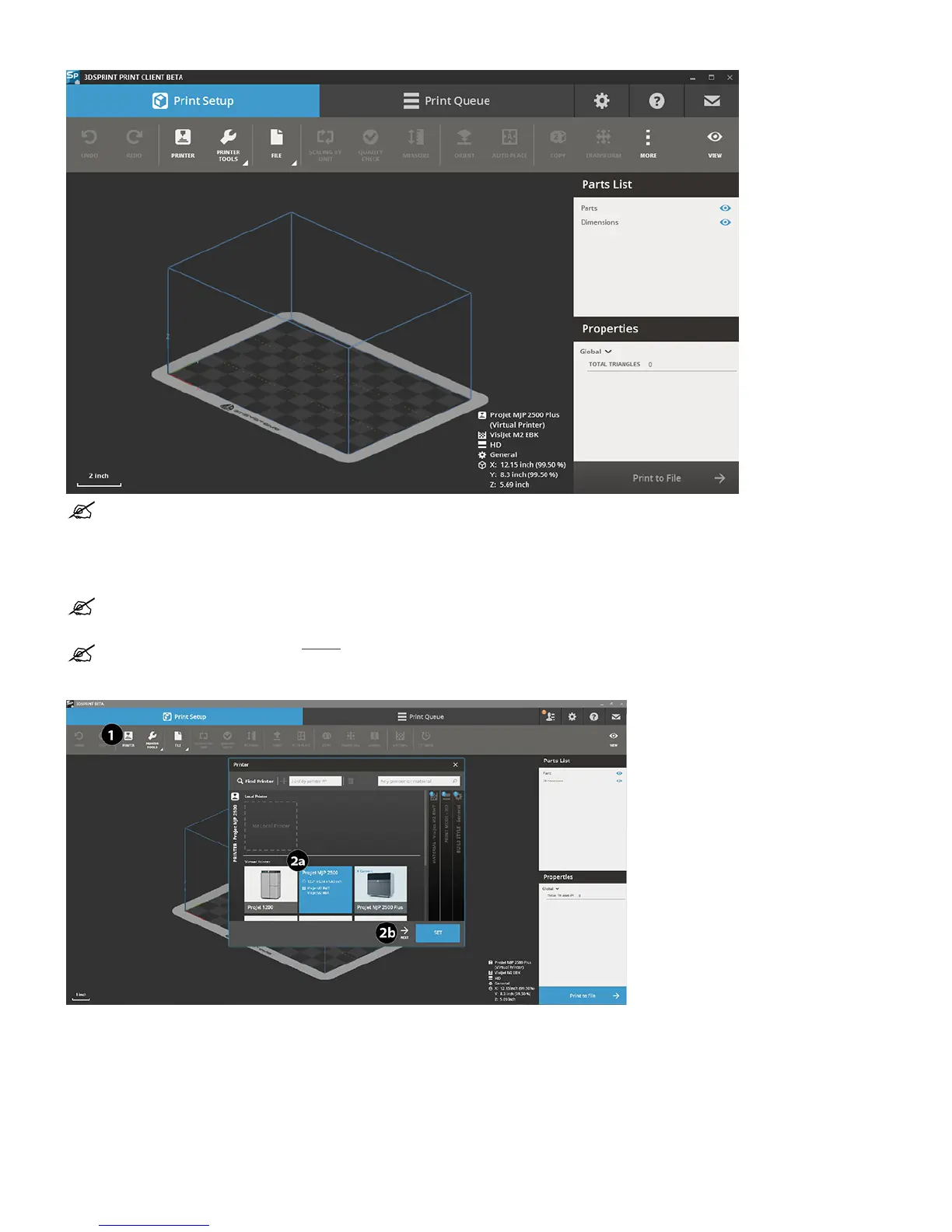
NOTE: If you do not have 3DSPRINT loaded on your computer you can obtain a copy at https://3dsystems.teamplatform.com/l/bf5a2229.
Printing a Part
To print your first part follow these instructions.
NOTE: Ensure print platform is installed prior to printing a part. See Print Platform Installation for more information.
Selecting the Printer
NOTE: A support base of material is always printed prior to printing any part material, and is an integral part of the print build that must
be removed later in the Post Processing Guide.
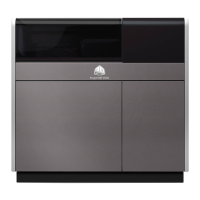
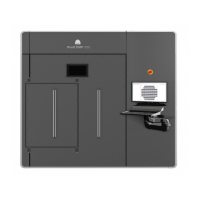
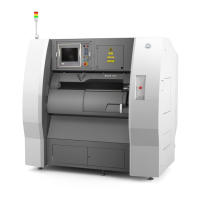
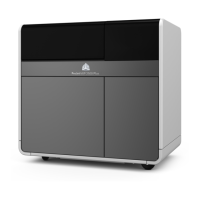
1. Select the printer you wish to print your part on. Click on the Printer (1) button at the top.
2. A list of available printers will come up. Click on desired printer (2a) on the printer you wish to use and select Next (2b).




 To Next Page