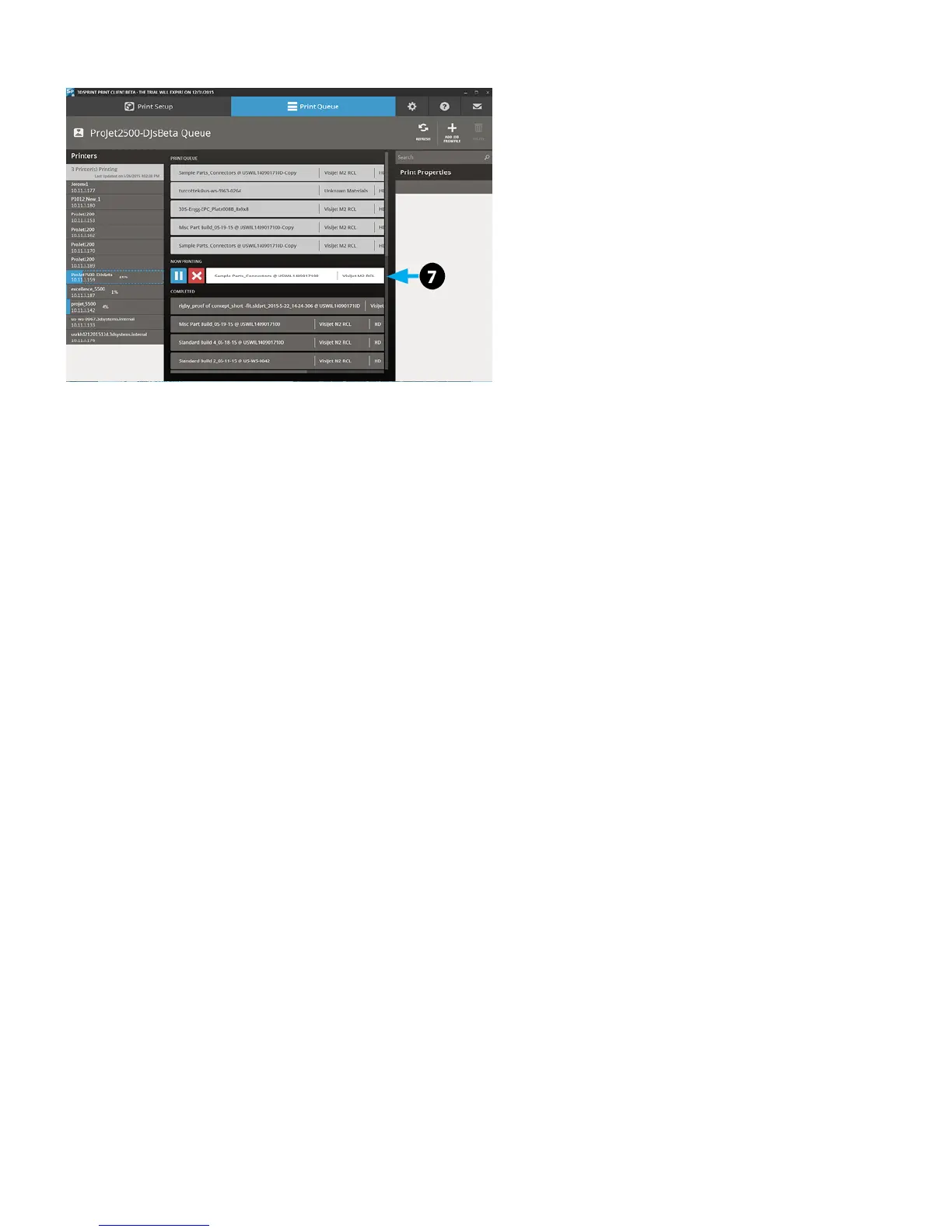
6. Print Queue will display current parts being printed (7) and where your job is in the queue.
Send Job to Print
1. On the UI select the Prints tab (1).
2. Select the job to print (2).
3. Select the Send to Print (3) button.
Removing Part
1. When job is complete, select "Access Platform" to bring the print platform into position and open the top door to lift and remove the platform, refer to Print
Platform Removal in Printer Setup.
2. Refer to the Post Processing Guide for instructions on how to get the best results for your finished part.



 To Next Page