PRINTER STATUS AND FAULT CODE RECOVERY
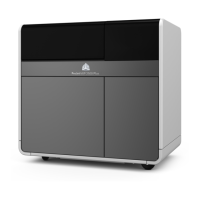
The ProJet MJP 2500 uses codes to identify various fault or status conditions with the printer:
Status about the device, for example, cartridges are low on material
User-clearable faults, by the user performing cleaning procedures
Printer-clearable faults, where the printer is automatically attempting recovery
Service required faults, which can only be resolved by a certified partner
Check the Printer Status envelope for current printer conditions.
Codes listed below describe user-clearable and printer-clearable faults:
Printer Status Code Issue Description Customer Troubleshooting Steps
92-113 - Print Platform front sensor
intermittent
92-114 - Print Platform rear sensor
intermittent
Print Platform sensors may be dirty and require cleaning. 1. Access Platform from the UI > Status Tab
2. Open top door
3. Remove Print Platform
4. Inspect the plate sensors and clean any debris on or
around them
5. Replace print platform
6. Close top door
7. Reboot machine from UI > Tools Tab > Shutdown >
Printer Reboot
8.
If this does not solve the problem call your Certified Partner
for service.
92-152 Planarizer motor stall If the print platform is installed incorrectly or has material on
the bottom, it allows the print platform to be higher than the
printer thinks it is and a minor impact could occur, stalling
the motor.
1. Access Platform from the UI > Status Tab
2. Open top door
3. Remove Print Platform
4. Clean both sides of the print platform
5. Replace print platform
6. Close top door
7. Reboot machine from UI >Tools Tab > Shutdown >
Printer Reboot
92-597 IME NVRAM Restore Failed NVM values were corrupted and could not be restored. Service call required to restore printer calibration values.
93-120 thru 123
93-130 thru 133 Support/part
cartridge 1/2 fill timeout
93-134 thru 137: Support/part
Cartridge 1/2 check needed
93-120 thru 123 & 93-130 thru 133 - When these errors are
detected, the support and build materials are trying to
recover from filling errors
93-134 thru 137 - filling errors
1. Check the affected cartridge and verify:
2. Cartridge has material
3. Cartridge is fully inserted
4. Cartridge vent cap has been loosened 1/2 turn counter-
clockwise and is clear of material.
The printer may delay up to 15 minutes while it is trying to
recover, if no material is available for printing.
93-111/ 93-113 - Support / Build
Head Res max dose count exceeded
Printer is having issues dosing the printhead 1. The printer will try to recover automatically from this issue
2. The printer may go through several Error states and reboot
in its recovery process.
1. If it is not able to ultimately recover, it will reboot into a
Diagnostics mode for the user to call service.
93-114 - Unable to fill the printhead
for purging
Not enough material available The printer may not have enough material to perform
standard maintenance, like purges. Please verify.
- Cartridge has material
- Cartridge is fully inserted
- Cartridge vent cap has been loosened a 1/2 turn counter-
clockwise and is clear of material.
If Cartridges have just been inserted and are cold, it may take
60-90 minutes to warm to an operational temperature.
93-200, 93-201 Excessive
support/part material used
Printer is using more material than can be accounted for Check the printer for any material leakage and contact a
Certified Partner for service.




 To Next Page