Live view
15
Switches the mouse control to the
AUX monitor
Start Auto-switch:
Specify the display sequence delay in the display
settings.
Activation of "AUX monitor" without a connected
spot monitor:
Mouse pointer function is disabled.
Selection bar in the camera image
In single or multi-screen, click on a camera image. A se-
lection bar will appear:
(0) (1) (2) (3) (4) (5) (6) (7) (8) (9) (10) (11)
Area for moving the miniature bar
Activate/deactivate manual recording
Instant playback of the last 5 minutes
Activate / deactivate the audio function
Create a snapshot from the current camera
Open the PTZ control menu (for PTZ cameras
only)
Settings
The following settings are available for the live
view.
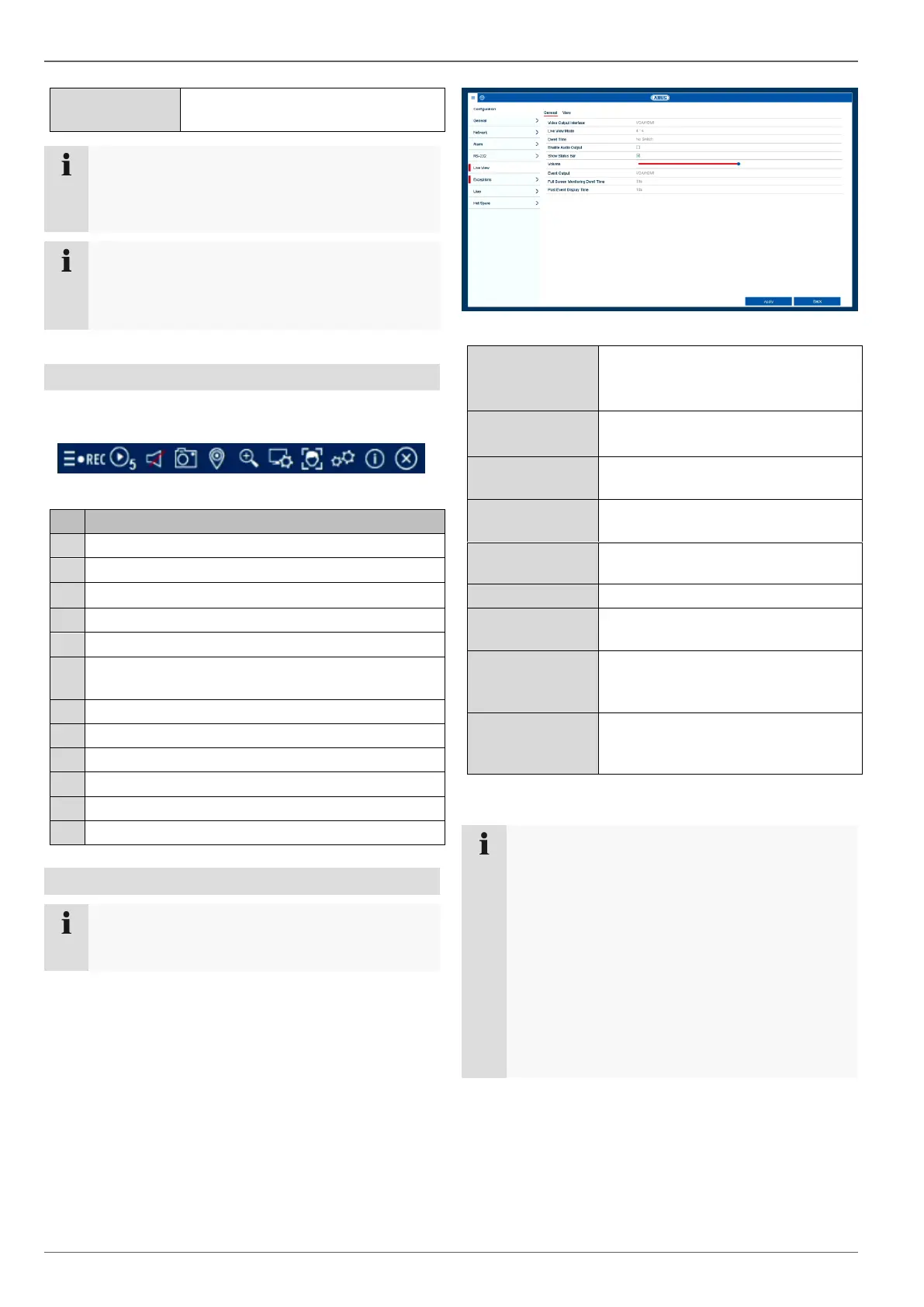
Open the main menu and click on Configuration. Then
click on Live View:
The following settings are available in the General tab:
Select the connection where the set-
tings are changed.
Switching time between the individ-
ual cameras during auto-switch.
Activates the audio output
(VGA/HDMI/BNC) for the live view.
Activate/deactivate the status bar.
Allocate monitor for the output of
events.
Full Screen Moni-
toring Dwell Time
The number of seconds for which
the event will be displayed on the al-
located monitor.
The number of seconds for which
the pop-up window should be dis-
played in the event of an alarm.
Note
VGA monitor connected:
If a VGA monitor is connected, it will be recog-
nised automatically when the device is started up.
The main video signal will be displayed on the
monitor.
No HDMI monitor connected:
If no HDMI cable is connected to the monitor
when the device is started up, the main video sig-
nal will be emitted at the main VGA connection.
Connect the VGA cable and restart the recorder to
perform automatic detection.


 To Next Page