Playback in live view
19
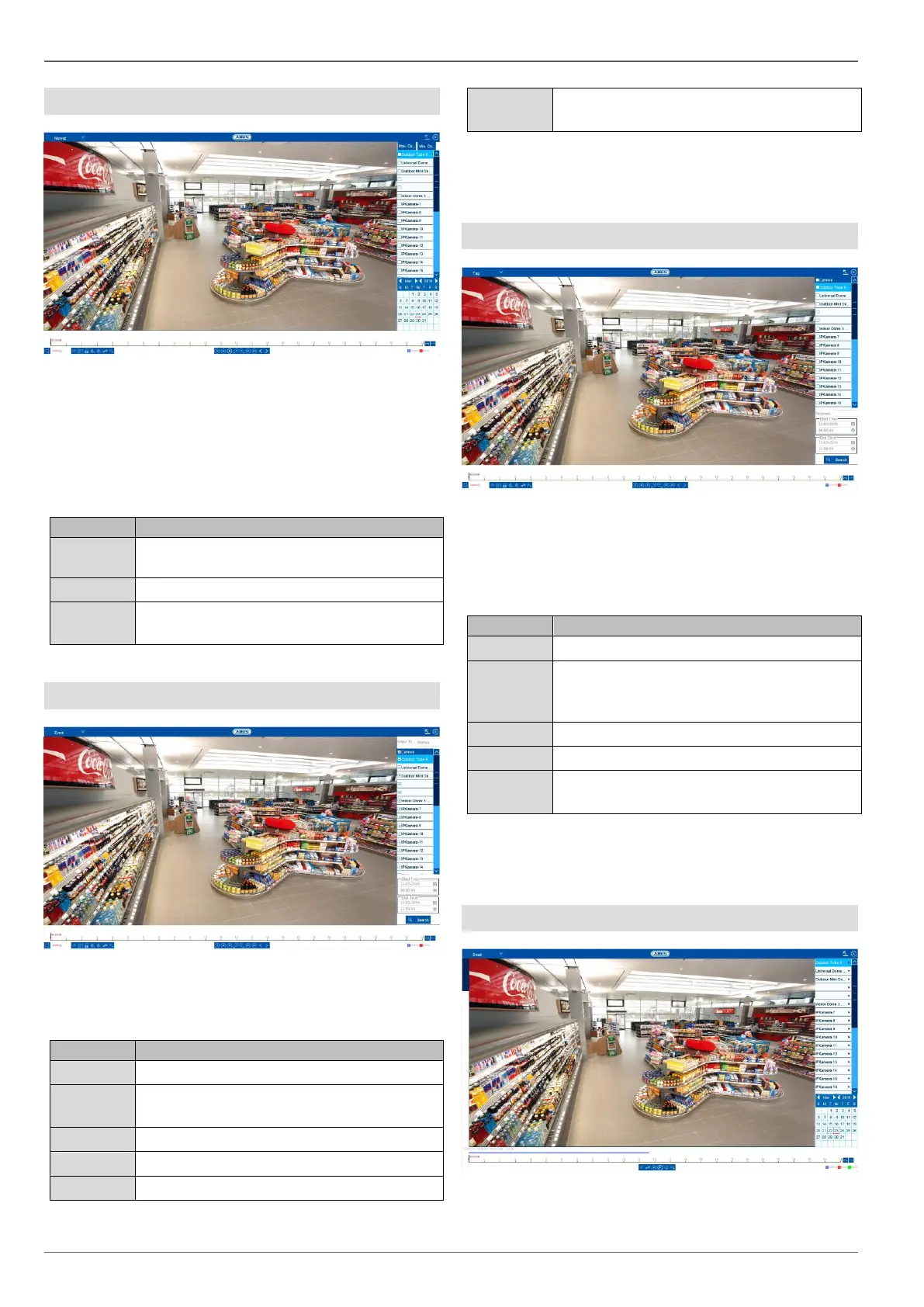
Playback: Duration
"Continuous" playback is the default view always dis-
played when the playback function is opened.
Using this view, all recorded data can be quickly dis-
played and analysed. The time bar distinguishes between
continuous recording and event recording (motion, alarm,
VCA).
Select one or more camera channels.
Select a date for playback.
Select a playback time on the timeline us-
ing the mouse.
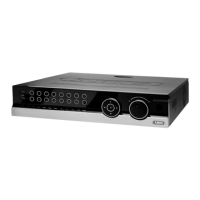
Playback: Event
Using "Event" playback, event recordings can be
searched in a targeted way. There are other filters availa-
ble for the search:
Select an event type: motion, alarm, VCA
Select a VCA type: All, Tripwire, Intrusion
Detection, Face Detection.
Select one or more camera channels.
Select the start date and start time.
Select the end date and end time.
Start the event search using the previously
defined filters.
Select an entry from the list of results and start playback
by clicking on the appropriate icon.
Playback: Tag
Using "Tag" playback, the recordings can be searched
using pre-defined tags. This requires tags to have been
created beforehand by the user.
There are other filters available for the search:
Select one or more camera channels.
You have the option of entering a keyword
as a full text filter for the search. If no key-
word is specified, all tags are searched.
Select the start date and start time.
Select the end date and end time.
Start the tag search using the previously
defined filters.
Select an entry from the list of results and start playback
by clicking on the appropriate icon.
Playback: Smart


 To Next Page