Camera
35
Camera
Camera
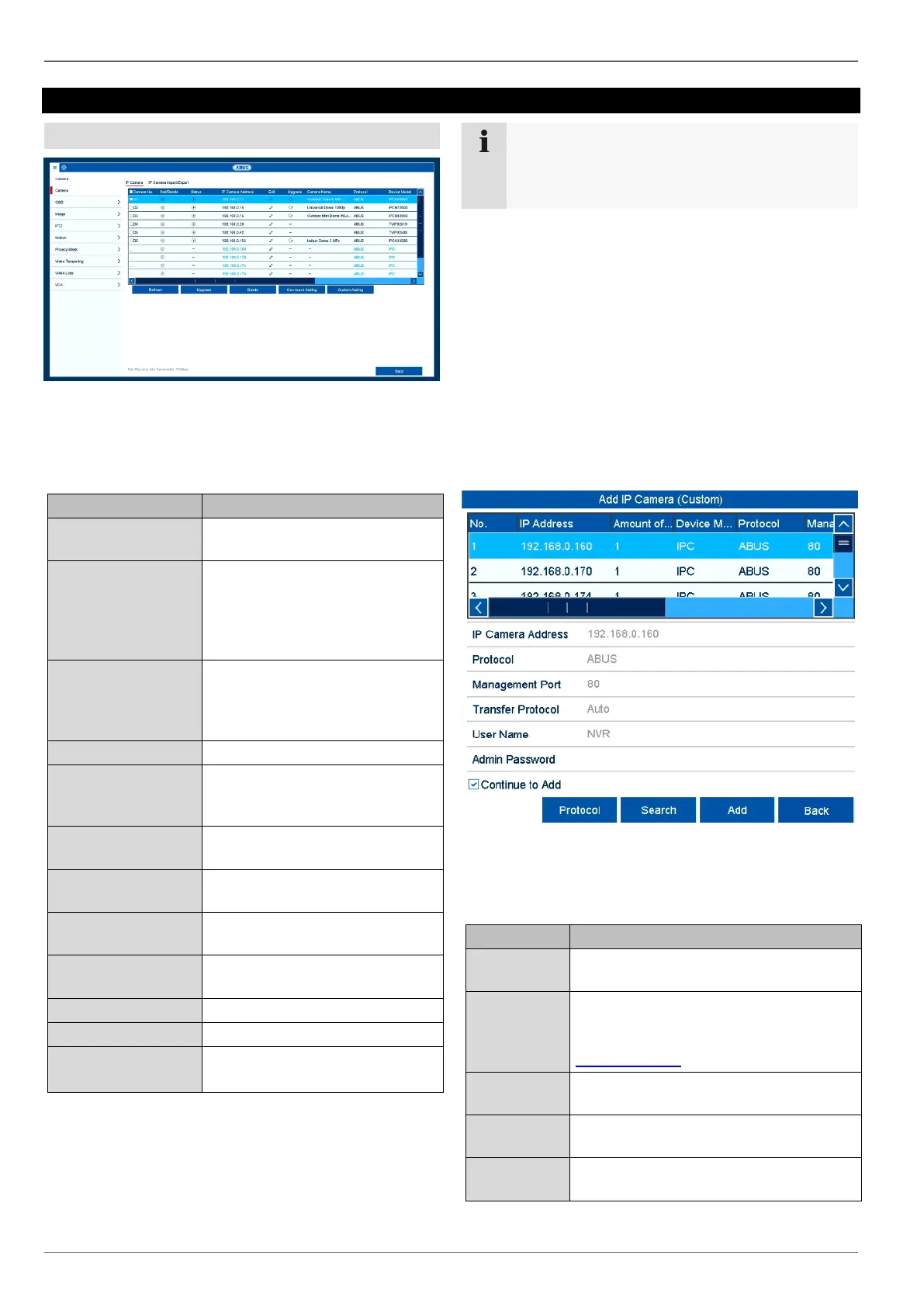
Here you can see an overview of all cameras currently
found on the network and a status display of cameras al-
ready integrated.
Camera tab
Channel port starting with
D1…D32.
X: manually delete the camera
+: quickly add the camera. To do
this, the camera must be set to
the standard user and port set-
tings.
>: camera is online, click to view
a preview
!: there is a camera fault or the
camera is offline.
Manually change the settings for
the IP address, protocol, port
and user name.
Updates the IP camera firmware
via USB.
Displays the camera name (see
OSD menu item).
Displays the manufacturer de-
vice protocol.
Displays the camera model num-
ber.
IP camera firmware version
If available: Access to the ad-
vanced settings
Click on Refresh to display the cameras on your net-
work.
The update function via USB is not available for
all cameras. Alternatively, you can use the ABUS
IP Installer for the IP camera firmware update.
Click on Delete to delete the cameras you have already
added.
Click on Add All to add all the cameras displayed.
Select Custom Adding to manually add a camera.
Custom Adding
Here you can manually add IP cameras by entering the
IP address and protocol and specifying the port and user
ID.
You can also use this menu to add IP cameras from
other manufacturers, ONVIF-compatible cameras and
RTSP profiles.
Click on Search to refresh the device list.
Select a camera from the list and add to/change the cor-
responding parameters when necessary:
IP address of the IP camera.
Manufacturer communication protocol
Check the compatibility list for this for
third-party manufacturers at
www.abus.com.
Communication port of the IP camera
(usually port 80 or 8000)
User name for the admin account of the
IP camera.
Password for the admin account of the
IP camera.


 To Next Page