Playback in live view
17
Playback in live view
General
There are three different options for playback:
Playback icon in the title bar
Context menu in the live image
Playback function in the overview menu
Note
The "Previous/Next file/day/event" buttons are allo-
cated as follows, depending on the playback
mode:
Normal playback:
Pressing one of the buttons switches playback to
the previous/next day.
Event search:
Pressing one of the buttons switches playback to
the previous/next event.
Data export:
Pressing one of the buttons switches playback to
the previous/next file.
The capacity for simultaneous playback on multi-
ple camera channels depends on your end device.
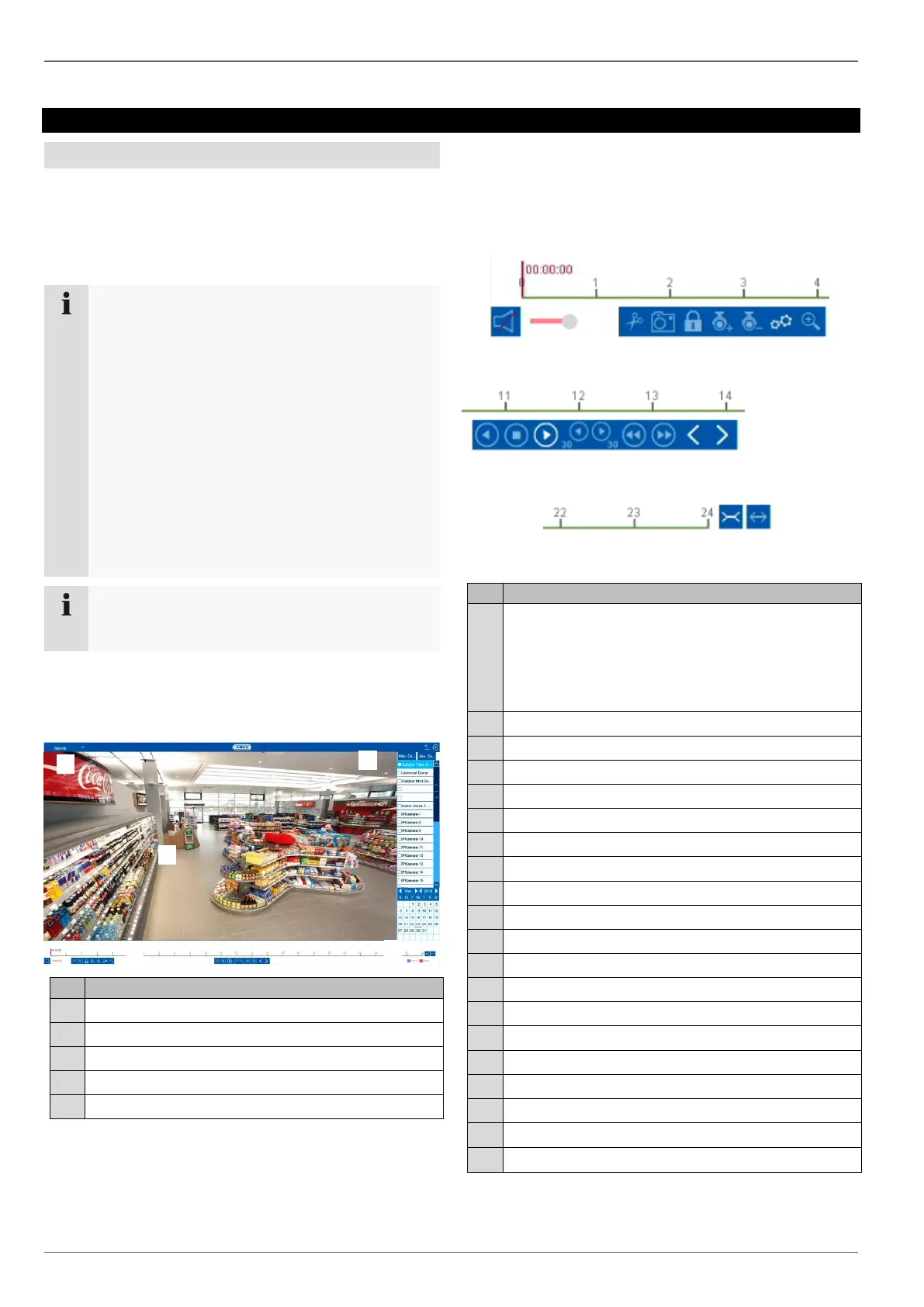
Playback screen
Playback is controlled via the control panel:
Running playback with date and time
Selection of camera for playback
Calendar with recording type
Control panel with time bar (see right)
Selection of playback type
Control via the control panel
The control panel (4) is used to control running playback.
The symbols have the following meanings:
Click on the time bar with the mouse to continue
playback from another point.
Click on the slider and drag it to a specific time
to start playback from that point.
Enable/disable audio output.
Add user-defined tag (see "Tag" playback type).
Go forward in slow-motion (8x 1x).
Increase time bar section.


 To Next Page