EasyManua.ls Logo

ACN IRIS 3000 - User Manual

ACN IRIS 3000
34 pages
Print Icon
To Next Page IconTo Next Page
Loading...
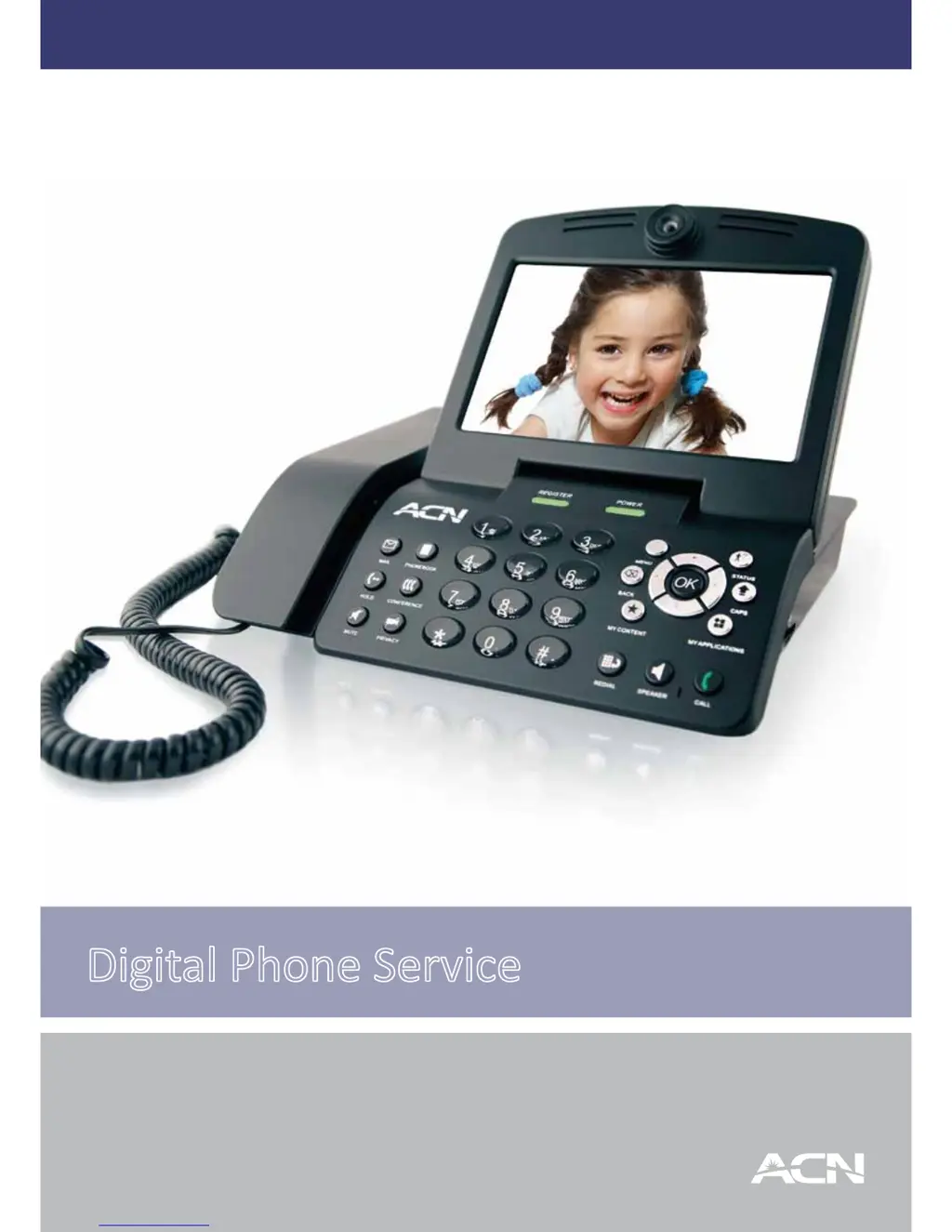
Digital Phone Service
IRIS 3000
Videophone
User Manual

Other manuals for ACN IRIS 3000

Questions and Answers

  • T
    Thomas WellsSep 10, 2025
    Why are images different on LCD screen and TV when ACN Telephone is connected to TV?
    • M
      Mr. Joseph RiveraSep 10, 2025
      When the external video output port is connected to a TV or monitor, certain parts of the image will not be displayed as shown on the LCD screen of your ACN Telephone.
  • J
    josephparkerSep 9, 2025
    Why can't I use *1 or *2 feature on phone connected to FXS port on ACN Telephone?
    • K
      Kelly CoxSep 9, 2025
      If you are unable to use the *1 or *2 feature on a phone connected to the FXS port of your ACN Telephone, verify that the IRIS 3000 is functioning properly without the phone connected to the FXS port. Ensure the phone cable from the IRIS 3000 to the auxiliary phone is securely connected. Verify that the phone is set to TONE dialing, not PULSE. Connect the phone directly to the FXS port, avoiding house wiring or external CID or answering machines. If possible, test with a different phone, as some phones may send DTMF differently and may not be compatible.
  • M
    Mary WrightSep 8, 2025
    How to fix ACN Telephone if unable to make call from phone connected to FXS port?
    • C
      Charles SilvaSep 8, 2025
      If you are unable to make calls from a phone connected to the FXS port on your ACN Telephone, first verify that the IRIS 3000 is functioning properly without the phone connected to the FXS port. Ensure the phone cable from the IRIS 3000 to the auxiliary phone is securely connected. Verify that the phone is set to TONE dialing, not PULSE. Connect the phone directly to the FXS port, avoiding house wiring or external CID or answering machines. If possible, test with a different phone, as some phones may require more power than the IRIS 3000 can supply and may not be compatible.
  • N
    njohnsonSep 7, 2025
    Why is there no ringing sound on my ACN Telephone?
    • M
      Miss Tanya LeachSep 7, 2025
      If there is no ringing sound when you receive a call on your ACN Telephone, even though the screen turns on, verify the ringtone volume level is set higher than “1” in the “Sound Settings” menu.
  • T
    Tracy FoxAug 23, 2025
    Why doesn't the phone connected to the FXS port ring on my ACN Telephone?
    • R
      Robert SmithAug 23, 2025
      If the phone connected to the FXS port does not ring, first verify that the IRIS 3000 is functioning properly without the phone connected to the FXS port. Ensure the phone cable from the IRIS 3000 to the auxiliary phone is securely connected. Connect the phone directly to the FXS port, avoiding house wiring or external CID or answering machines. Verify the auxiliary phone's ringer is turned on. If possible, test with a different phone, as some phones may require more power than the IRIS 3000 can supply and may not be compatible.
  • M
    melissabrownSep 4, 2025
    What to do if LCD screen is not turned on ACN Telephone?
    • S
      Sierra RobinsonSep 5, 2025
      If the LCD screen on your ACN Telephone is not turned on, power cycle the phone by turning it off and then on again. Check that the power cable is connected correctly. Press a key or lift the handset to ensure power saver mode isn't active.
  • A
    adam38Sep 4, 2025
    How to troubleshoot ACN Telephone if it cannot turn on?
    • D
      Devon CollinsSep 4, 2025
      If your ACN Telephone cannot turn on, verify the power cable is connected correctly. Ensure the top part of the power switch on the back of the phone is pressed down. Check if the power outlet works by connecting another device to it.
  • B
    Bryan TurnerSep 2, 2025
    What to do if the other party's screen is frozen on my ACN Telephone?
    • M
      Maria GarciaSep 3, 2025
      If the other party’s screen is frozen and there is no sound on your ACN Telephone, ensure that the video phone is properly connected to the Internet. Also, verify that the called party’s video phone hasn't been disconnected from the Internet.
  • T
    thomaselliottSep 1, 2025
    Why can the other party hear me but not see me on my ACN Telephone?
    • M
      Michael DudleySep 2, 2025
      If the call is connected, both the audio and video are present, and the called party can hear you but cannot see you on your ACN Telephone, verify that the video input path is correctly configured in the “Set-up” menu during a call. Also, verify that the called party’s video device is working properly.
  • K
    Kevin NewmanAug 31, 2025
    Why can the other party see me but not hear me on my ACN Telephone?
    • D
      David PhillipsAug 31, 2025
      If the call is connected, and you can see the screen and hear the sound and the other party can see you but cannot hear you on your ACN Telephone, verify the audio input path is configured correctly in the “Set-up” menu during a call. Also, verify that the called party’s audio device works properly.

Summary

Your ACN Videophone

Videophone Components

Lists the physical components included with the ACN Videophone such as the main unit and handset.

Safety Instructions

Provides essential user safety guidelines and precautions for operating the Videophone.

Installing Your Videophone

Guides on connecting the Videophone's main components for initial setup.

Using the Basic Functions of Your Videophone

Placing a Call

Explains how to initiate a phone call using the keypad, standby mode, or call log.

Placing a Call from Call Log

Details how to place a call using the Videophone's call history.

Placing a Call from Phonebook

Details how to make calls using saved contacts in the phonebook.

Set Up

Phonebook

Introduces the phonebook feature for managing contacts.

Add New Entry

Step-by-step instructions for adding a new contact to the phonebook.

Call Log Overview

Introduces the call history feature for reviewing calls.

Settings

Accesses device settings for System, Time, Upgrade, and Administrator.

System Settings

Accesses settings related to sound, display, and network.

Factory Reset

Procedure to restore the device to its original factory settings.

Troubleshooting Guide

Cannot Turn On Power

Steps to resolve issues with powering on the device.

LCD Screen Not Turned On

Steps to resolve issues with the display screen.

Cannot Hear Call Connection Signal

Steps to resolve issues with hearing call connection signals.

Cannot Make a Call

Steps to resolve issues when unable to make calls.

Cannot Receive Incoming Calls

Steps to resolve issues with receiving incoming calls.

No Ringing Sound on Incoming Call

Steps to resolve no ringing sound issues on incoming calls.

Other Party Cannot See Me; Poor Sound Quality

Steps to resolve video or audio quality issues.

No Sound During Call

Steps to resolve no sound issues during a call.

Called Party Cannot See or Hear

Steps to resolve issues where both parties cannot see or hear.

Called Party Can Hear But Not See

Steps to resolve issues where audio transmit is faulty.

Other Party Screen Frozen; No Audio

Steps to resolve frozen screen and no audio issues.

Videophone Not Registering

Steps to resolve issues with device registration.

ACN IRIS 3000 Specifications

General IconGeneral
BrandACN
ModelIRIS 3000
CategoryTelephone
LanguageEnglish