Assigning a trap preset to pages
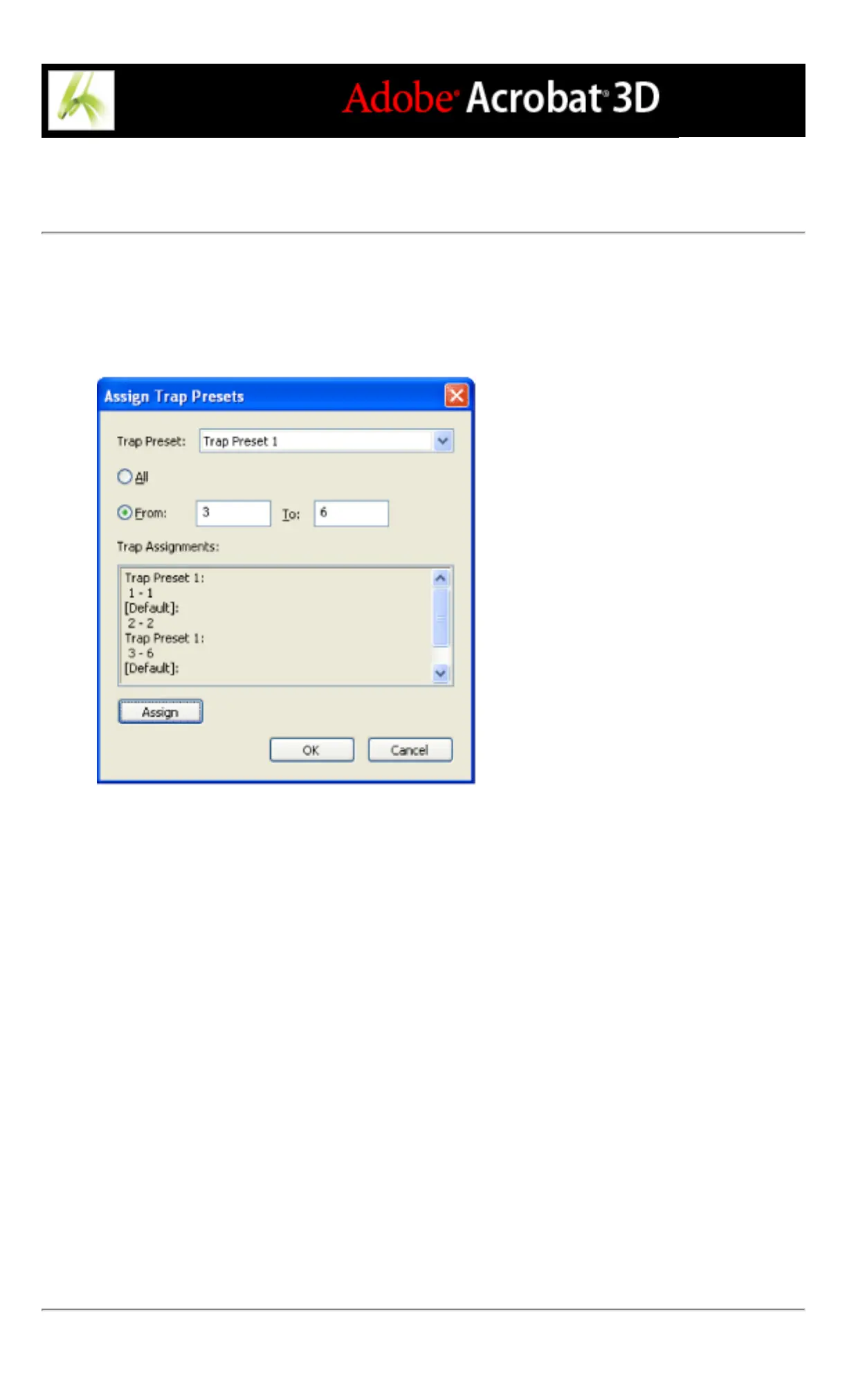
You can assign a trap preset to a document or to a range of pages in a document. Pages
with no abutting colors will print faster if you disable trapping on those pages. Trapping
doesn't actually occur until you print the document.
Trap assignments list the presets you have applied to various pages; the trap assignments are
updated each time you click Assign.
To assign a trap preset to pages:
1. In the Trap Presets dialog box, click Assign.
2. For Trap Preset, choose the preset you want to apply.
3. Select the pages you want to apply the trap preset to.
4. Click Assign, and then click OK.
Note: If you click OK without clicking Assign, the dialog box closes without making any
changes to the trap assignments. Trap assignments previously made using the Assign
button are preserved.
To disable a trapping on pages:
1. In the Trap Presets dialog box, click Assign.
2. Select the pages you want to disable trapping on and choose [No Trap Preset] in the Trap
Preset menu.
3. Click Assign, and then click OK.



 To Next Page