Specifying preflight profile settings
Before you can edit a preflight profile, the profile must be unlocked. (See Adding security
to preflight profiles.)
To view all available preflight profiles:
Click the Profiles button at the top of the Preflight dialog box, or choose Show Preflight
Profiles from the Options menu. The list includes all predefined profiles, and any custom
profiles you've created.
To open the Edit Profile dialog box:
1. In the Preflight dialog box, select the profile you want to modify.
2. Click Edit, or choose Edit Preflight Profiles from the Options menu.
To unlock a locked preflight profile:
1. In the Edit Profile dialog box, select a profile from the list on the left.
2. Choose Unlocked from the pop-up menu at the bottom of the Edit Profile dialog box.
Unlocking a locked preflight profile
3. When prompted, enter the correct password, and click OK. The file becomes unlocked.
To specify general preflight profile settings:
1. In the Edit Profile dialog box, select a profile from the list on the left.
2. Enter a unique name for the profile, and describe it in the Purpose box.
3. Enter your name and email address.
4. Select Profile Is A Favorite if you want to make the profile appear in bold text above other
profiles in the list.
5. To apply password protection to the profile, select Protect Profile With Password, and
then choose Locked from the pop-up menu. Otherwise, choose Unlocked.
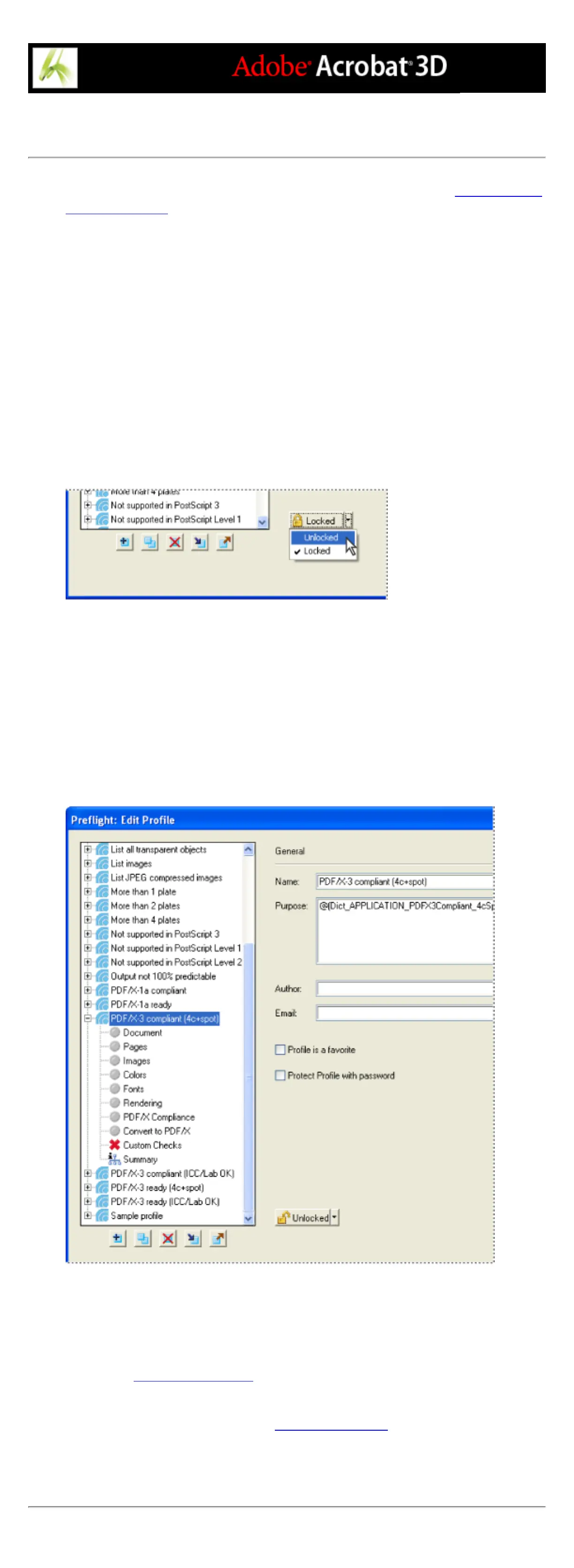
The Edit Profile dialog box shows which document properties are being analyzed.
To specify detailed preflight profile settings:
1. In the Edit Profile dialog box, select a profile.
2. Click the plus sign (+) next to a profile to view the property groups available for the
profile. (See About property groups.)
3. Select a group.
4. Click the alert condition pop-up menu and specify how you want Preflight to handle
mismatches during the inspection. (See About preflight alerts.)
5. Set options to specify the criteria for the inspection. Options vary according to the selected
category.
6. Click OK, or click Save to save modifications to the profile without exiting the dialog box.



 To Next Page