Previewing output
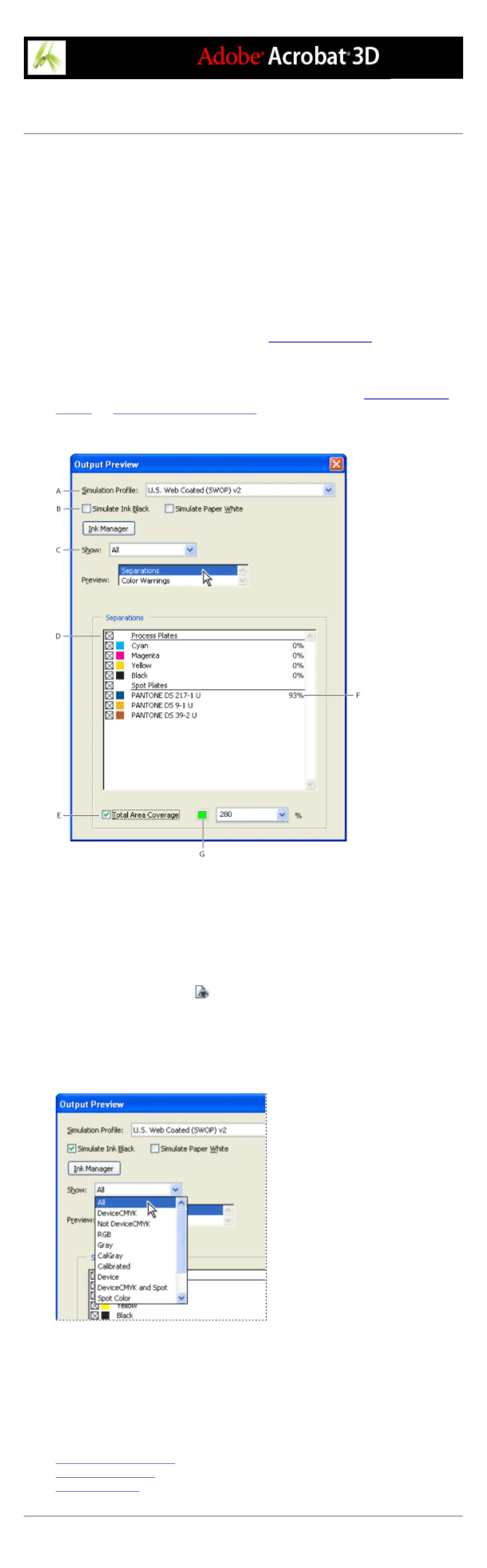
The Output Preview dialog box provides a convenient way to use the open Adobe PDF
document to preview separations, proof colors, view colors by source in addition to ink
plates, and highlight warning areas for out-of-gamut areas, ink coverage limits, and
overprinting. The top part of the dialog box has several controls. The Preview pop-up
menu allows you to switch between previewing separations and previewing color
warnings. When you select Separations, the bottom half of the dialog box lists all the inks
in the file, as well as ink warning controls and total area coverage controls. When you
select Color Warnings, a warnings section replaces the separations section. The preview
settings you specify in the Output Preview dialog box are reflected directly in the open
document.
Output Preview also includes access to the complete Ink Manager (as seen in the rest of
Adobe Creative Suite) for remapping spot-color inks in both printing and previewing, and
setting line frequencies and screen angles. (See Using the Ink Manager.)
Note: Unless you have been using a color management system (CMS) with accurately
calibrated ICC profiles and have calibrated your monitor, the on-screen separation
preview colors may not match the final color separation output. (See Managing color in
Acrobat and Creating an ICC monitor profile.)
Output Preview dialog box with Separations selected A. Source profile for simulation B. Soft-
proofing options C. Selected color space D. Ink list E. Total ink coverage allowed F. Ink
coverage per plate G. Warning color
To open the Output Preview dialog box:
Do one of the following:
● Choose Tools > Print Production > Output Preview.
● Select the Output Preview tool on the Print Production toolbar.
● Choose Advanced > Output Preview.
To view colors by source color space:
In the Output Preview dialog box, select an option from the Show pop-up menu.
Select all or single plates for previewing.
To change the warning color used in the preview:
1. In the Output Preview dialog box, select the color swatch next to the warning.
2. Select a color from the color picker.
Related Subtopics:
Previewing color separations
Viewing color warnings
Soft-proofing colors



 To Next Page