Viewing the settings of a preflight profile
To determine which document properties the profile analyzes, you view a description of
each rule and the criteria that the rule uses to analyze a document property in the Edit
Profiles dialog box. The Edit Profiles dialog box shows all the current profiles, rules, and
conditions in three separate columns.
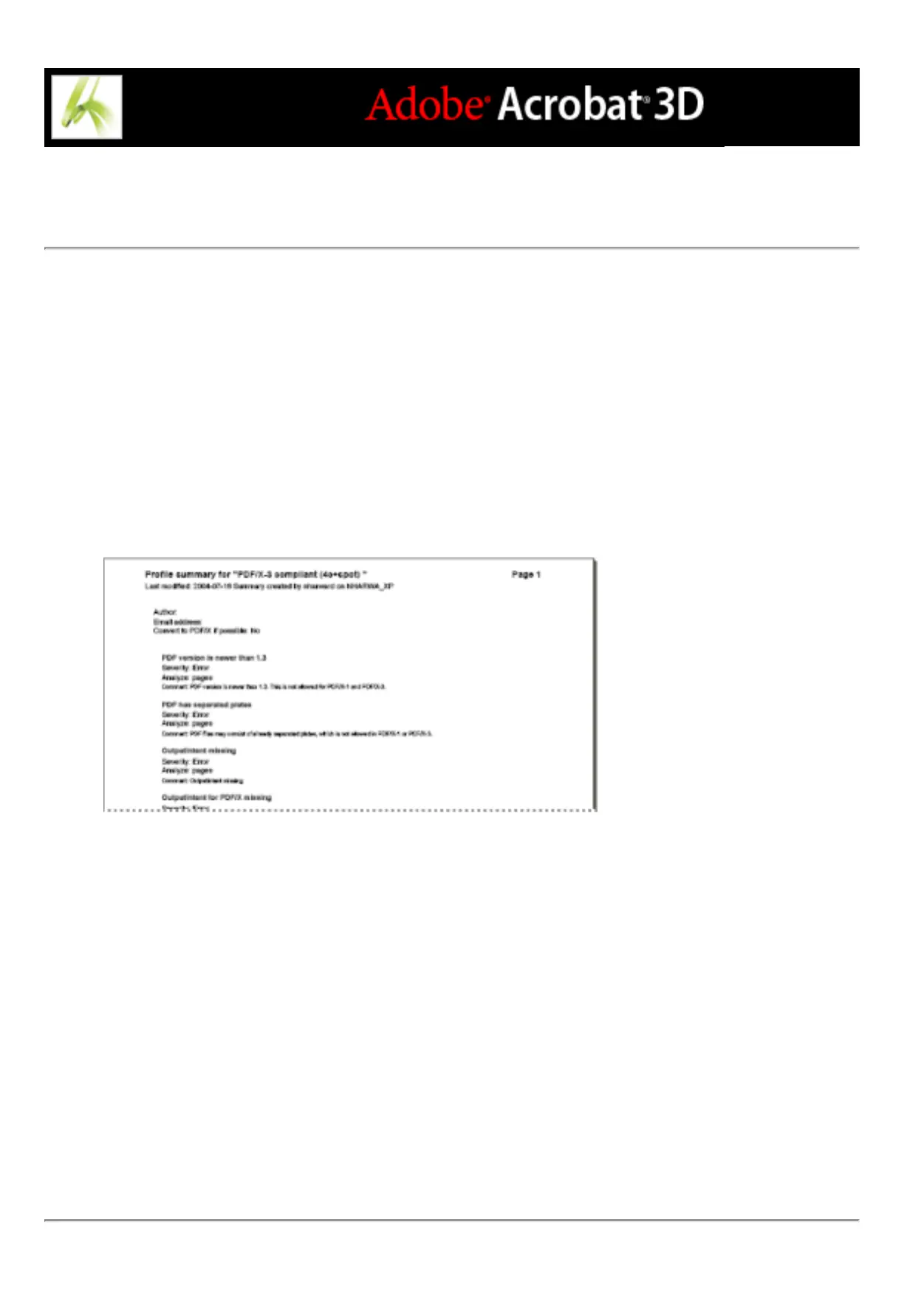
To create a quick summary of a profile:
In the Preflight dialog box, select a profile, and choose Create Profile Summary from the
Options menu.
A Profile Summary is a PDF document.
To view the settings for a profile:
1. If necessary, click the Profiles button in the Preflight dialog box to list the profiles.
2. Select a profile, and choose Edit Preflight Profiles (Advanced) from the Options menu.
3. In the Profiles column, click the plus sign (+) next to the profile to list its rules.
4. In either the Profiles column or Rules column, click the plus sign (+) next to a rule to list
its conditions.
To quickly find a profile, rule, or condition in a column:
Type the item name or partial name in the search box at the top of the column. Preflight
highlights the item.



 To Next Page