Afinia H800+ 3D Printer User’s Manual
17
Calibrating the Nozzle Height
This section is one of the most important of the entire manual. Please read it
carefully to help you understand the nozzle height setup procedure.
To print successfully, the platform should be 0.2mm from the nozzle. As each printer is slightly
different, this distance needs to be calibrated before starting to print.
You can set the nozzle height either automatically or manually.
If you are using any print surface other than the supplied plain Perf Board, Flex board, or Perf
board with BuildTak, you will need to set the Nozzle Height manually!
Automatic Nozzle Height Calibration
The Automatic Nozzle Height Calibration process will only work with the supplied Perf boards, a
Perf board with BuildTak adhered to the board or Flex boards as the print surface. If you are using
any other surface, manually set the nozzle height.
Select Nozzle Height Detect from the 3D Print menu.
The extruder will move to the back left of the printer and
the platform will lift until the nozzle contacts the Nozzle
Sensor.
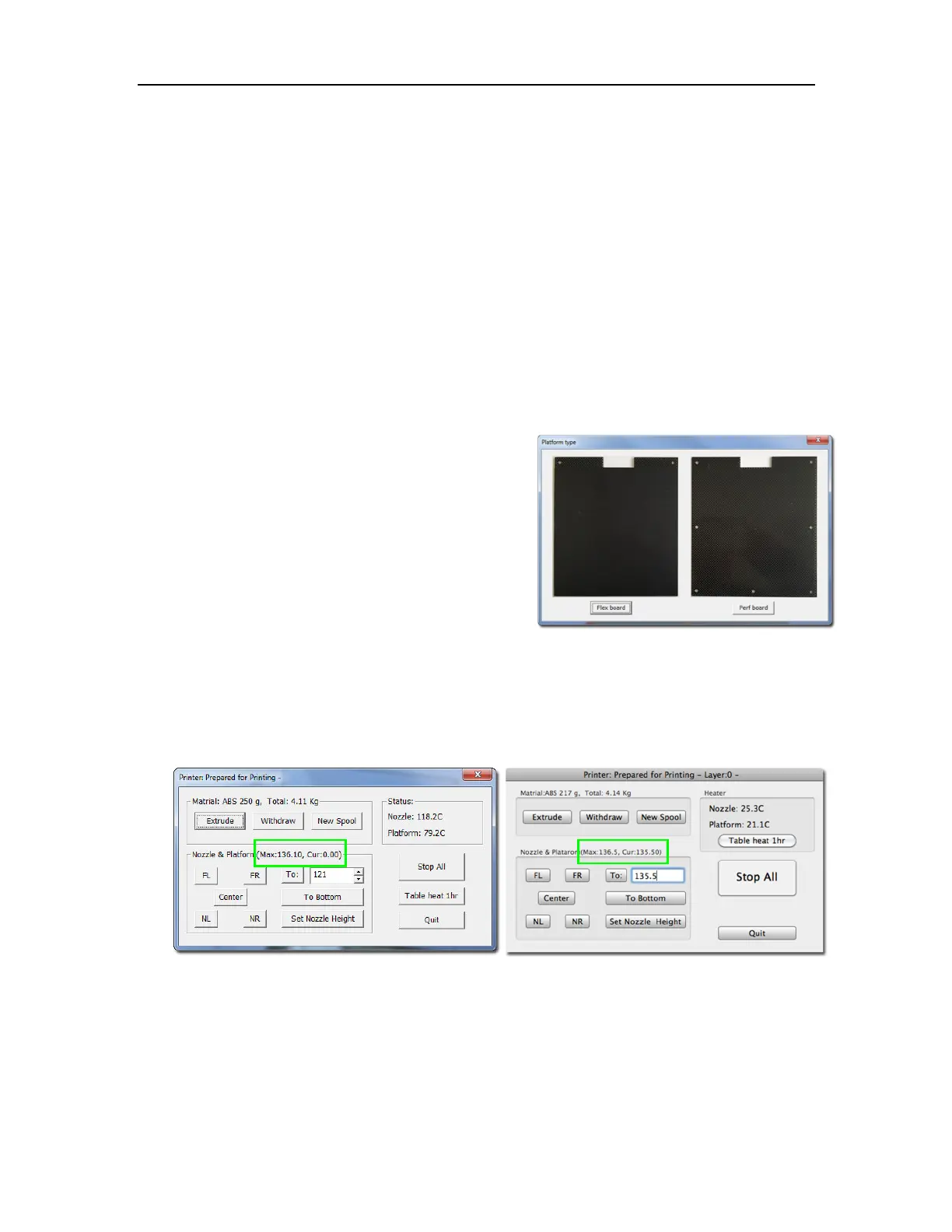
If you are on a PC, select whether you are using the
Flex board (or plain perf board with BuildTak) or a plain
Perf board. The detected nozzle height will then be
displayed.
Click OK to close the window and set the nozzle height.
Manual Nozzle Height Calibration
To manually set the correct nozzle height:
1. Open Maintenance from the 3D Print menu. The current nozzle height is shown in the
Maintenance dialog images below.
In the Windows example, the platform is at the bottom of the printer; the Mac example has
the platform 135.5mm from the bottom.
2. Click the Center button.
3. Raise the platform by entering a value into the To: textbox and click the To button.
4. Check the distance between the nozzle and the print surface. If the platform is more than
0.2mm from the nozzle, slowly raise the To value and click the To button each time. Small
changes will help avoid striking the print surface into the nozzle.
Mac version
Windows version


 To Next Page