Afinia H800+ 3D Printer User’s Manual
22
View Options
The mouse can be used to rotate, pan, or zoom the view of the models.
Rotate
Press the middle mouse button and move the mouse to rotate the view.
Pan
Press Ctrl and the middle mouse button at the same time and move the mouse to pan. You can
also use the arrow keys to pan the view.
Scale
Rotate the mouse wheel. The view will zoom in or out.
View
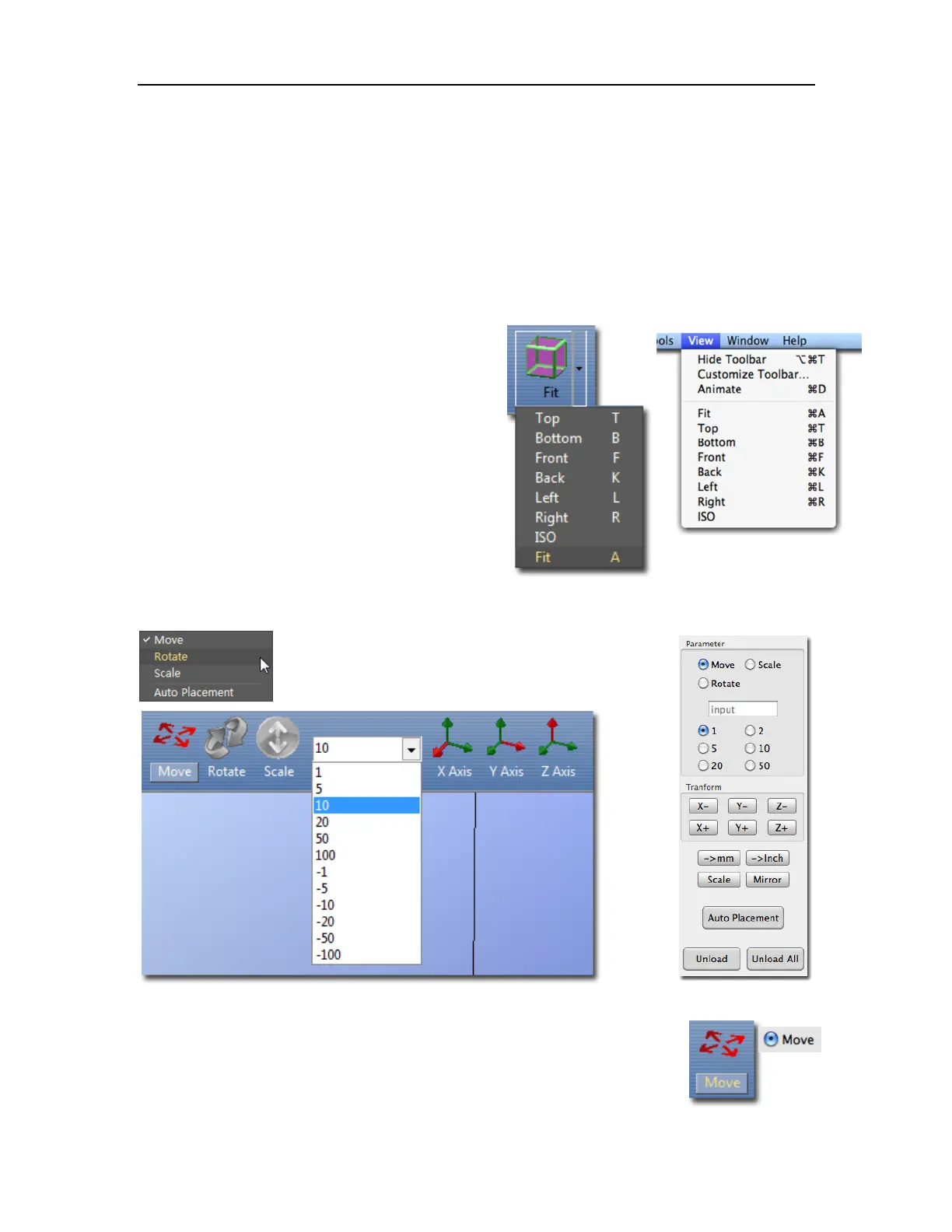
The system has eight preset standard views, the
default view being Fit. Click View on the toolbar
(Windows) or the View menu to select the View
options.
The caption under the View button will show the
selected view name.
Model transformations
Models can be moved, rotated, or scaled using the Edit menu or the toolbar:
Moving the Model
Click the Move button and choose or input into the text box the distance you
want to move. Then choose the axis (direction) in which you want to move.
Each time you click the axis button the model will move again.
For example: To move the model -5mm along Z axis (or down 5mm):
Windows version
Mac version
Mac version
Windows version


 To Next Page