Afinia H800+ 3D Printer User’s Manual
37
Cleaning the Platform
Regardless of your method of preparing the platform, a smooth surface will improve your results.
• If you are using the Perf Board as the print surface, you should remove any remaining
filament material from both sides of the board before printing again.
• If you are using blue painter’s, kapton, or other type of tape on the platform, replace the
tape once it becomes uneven. Remove excess adhesive from the platform before
replacing the tape.
Lubrication of Extruder Rails
The extruder rails on the Afinia H800+ 3D Printer requires lubrication every 4-6 months to keep it
operating smoothly. Different lubricants are required for the two rail bearing types.
• The Front-to-Back rails should be lubricated with lithium grease such as Mobil XHP 220.
• For the Left-to-Right rails, use lubricating oil such as Mobil SHC 630.
When lubricating the bearings, clean the rails as much as possible before applying new lubricant.
Slide the extruder several times in the all directions to spread the lubricant evenly.
If you have any questions about lubricating the rails, please contact Technical Support (see page
46 for contact information).
Changing the HEPA Filter
We recommend changing the HEPA filter after 300 hours of printing
or 6 months, whichever comes first.
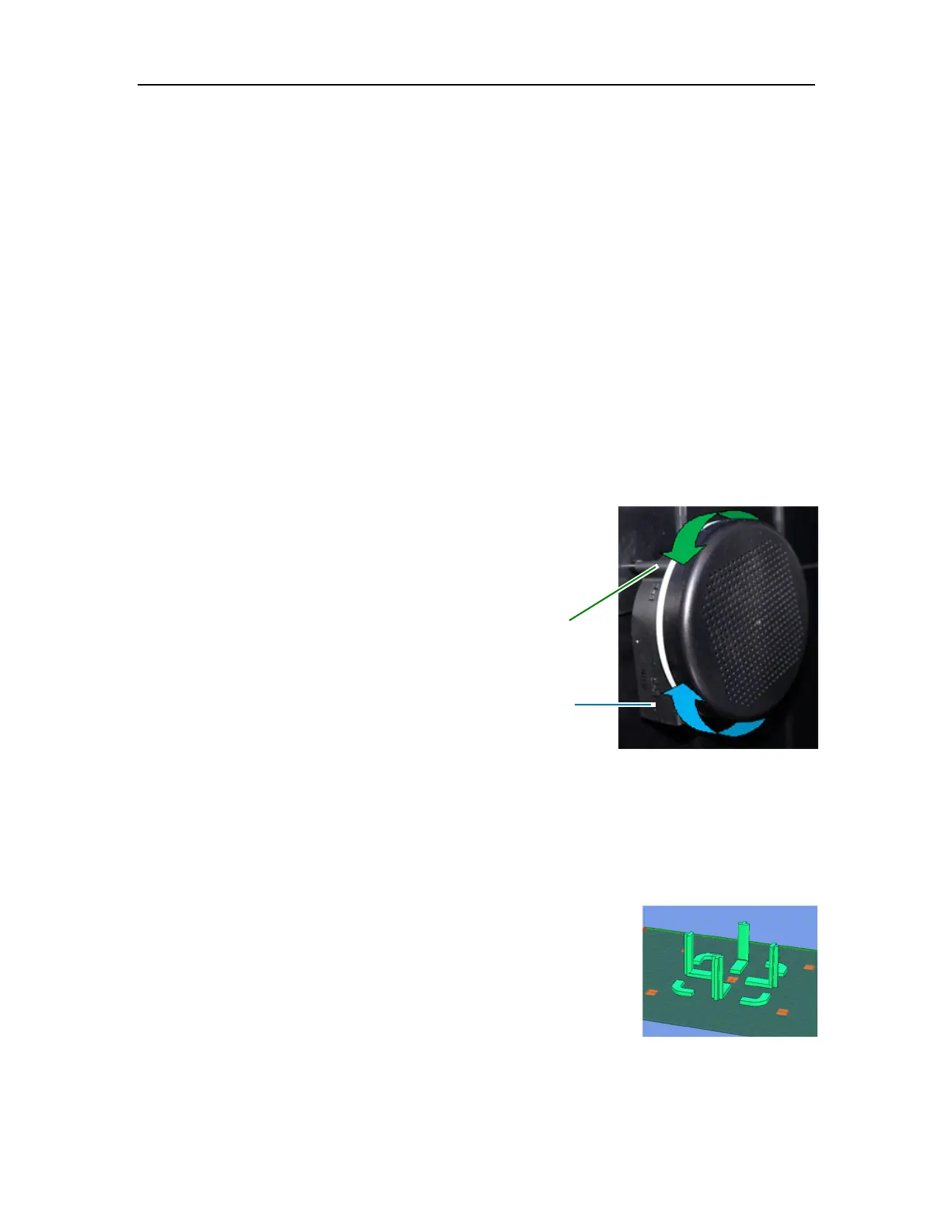
1. Rotate the filter cover counter-clockwise to remove.
2. Remove the old filter.
3. Install the new filter in the guide brackets.
4. Replace the filter cover and rotate clockwise to lock.
The HEPA filter should be replaced by a Class 7 or better filter.
Spare parts
Some of the plastic parts on the printer can be printed by the Afinia H800+ 3D Printer itself. If you
need spare parts for your printer, the files for the printable parts can be found in the C:\Program
Files\Afinia\Example\Spare Parts\H800+ folder on PCs and in the Afinia directory off the root of
the current User directory on Macs.
Vertical Calibration
The Vertical calibration procedure allows you to ensure that the printer
platform is perfectly horizontal and that the printer prints consistently in
the X, Y, and Z directions.
Open the file C:\Program Files\Afinia\Example\Calibrate96.UP3 on
PCs or in the Users\{user name}\Afinia\Calibrate96.UP3 directory off
the root of the main drive on Macs.
After the calibration model is printed, remove the platform without
removing the parts.


 To Next Page