Afinia H800+ 3D Printer User’s Manual
20
Printing with the H800+ 3D Printer
Loading a
3D Model
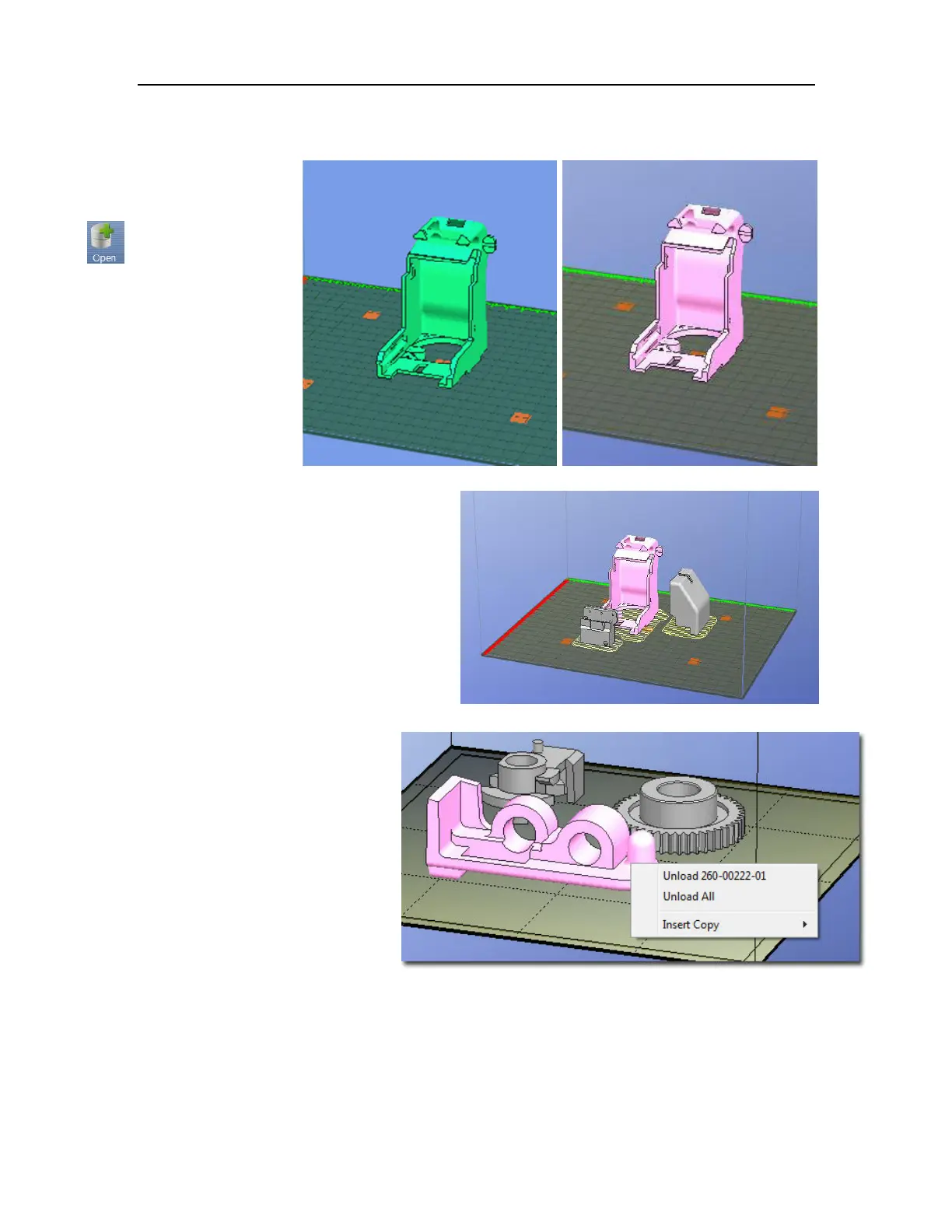
Click File / Open or
the Open icon on the
toolbar (Windows
only) and select the
model you want to
open. The Afinia 3D
Printer software only
supports STL files,
UP3, and UPP
formats.
You can open several models and print them
all at the same time; see Placing Models
onto the Build Platform (page 24).
Insert Copy
Add multiple copies of the same model to the
platform by selecting Insert Copy from the
right-click options (Windows) or by selecting
Copy from the Tools menu. Select the
number of copies to add from the list.
You will need to reposition the models after
the copies have been added.
Unloading the Model, Windows
Left-click a model and then click
Unload on the toolbar to remove
the selected model.
You can also right-click anywhere in
the software window then choose
Unload by the selected model
name or Unload All models if you
want to clear everything.
Unloading the Model, Mac
Use either the Unload or Unload
All button in the right tool pane.
Click the Unload button to remove the currently selected model, or Unload All to clear all models
from the workspace.
Mac Software
Windows Software
Multiple parts,
Windows Software
Unload with Right-click
Windows Software


 To Next Page