Afinia H800+ 3D Printer User’s Manual
23
Windows Mac
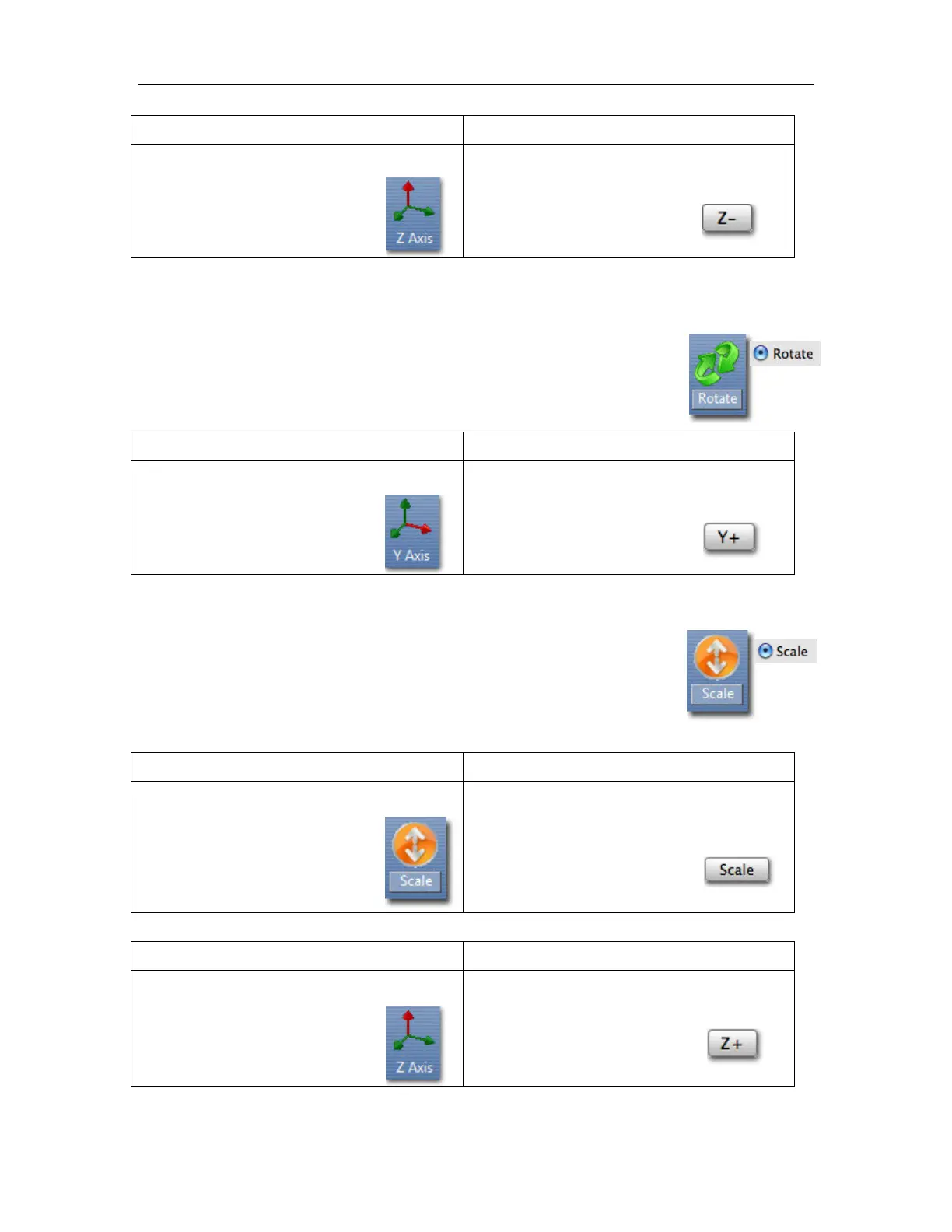
1. Click Move
2. Input -5 in the text box
3. Click the Z axis button
1. Select the Move option
2. Input 5 in the text box
3. Click the Z- button
Windows TIP: If you hold down the Ctrl key, you can drag the model to a position.
Rotating the Model
Click the Rotate button on the toolbar, choose or input into the text box how
many degrees you want to rotate, and then choose the axis of rotation.
For example: To rotate the model around Y axis by 30°.
Windows Mac
1. Click Rotate
2. Input 30 in the text box
3. Click the Y axis button
1. Select the Rotate option
2. Input 30 in the text box
3. Click the Y+ button.
Positive numbers rotate the model counterclockwise; negative numbers rotate the model
clockwise.
Scaling the Model
Click the Scale button on the toolbar, choose or input in the text box a scaling
factor, and then scale the model uniformly by clicking Scale. If you only want
to scale along one axis, click the axis around which you want the change to be
applied.
Example 1: Scale up the model uniformly by 2.0 times.
Windows Mac
1. Click Scale
2. Input 2.0 in the text box
3. Click the Scale button
1. Select the Scale option
2. Input 2.0 in the text box
3. Click the Scale
button
Example 2: Scale up the model by 1.2 times along the Z axis only.
Windows Mac
1. Click Scale
2. Input 1.2 in the text box
3. Click the Z Axis button
1. Select the Scale option
2. Input 1.2 in the text box
3. Click the Z+ button
Example 3: Scaling to convert inches to mm.


 To Next Page