Afinia H800+ 3D Printer User’s Manual
43
Solution for "Winusb.dll not found" problem (Windows)
If you encounter a “Winusb.dll not found” error message, please
follow the steps below:
Option 1: Uninstall Older Driver and Auto-Install New Driver
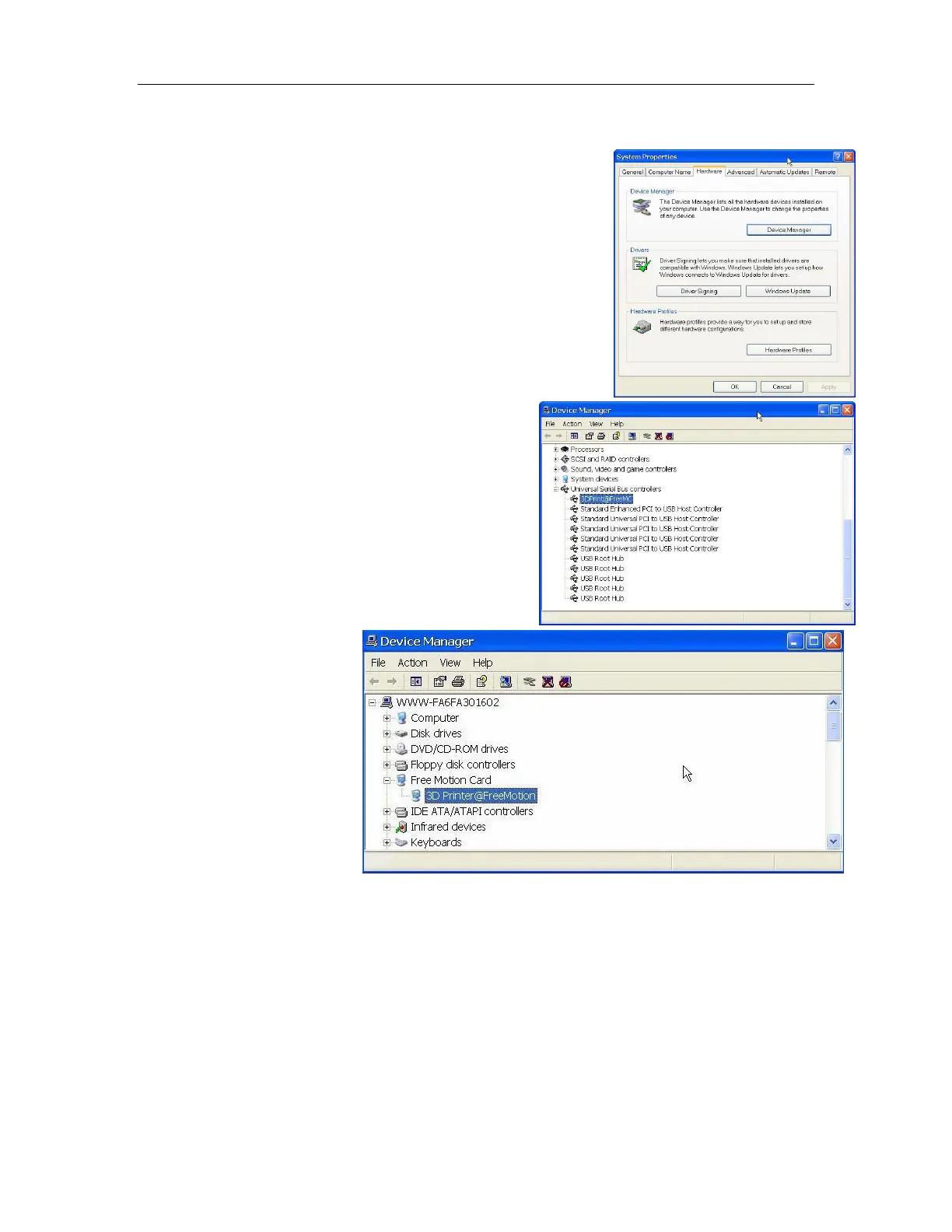
1. Open the Windows control panel, go to the System Properties
dialog box and select the Hardware tab.
2. Click the Device Manager button to open the following dialog
box. Find the 3DPrinter@FreeMC in the USB section.
3. Click the right mouse button and select the Uninstall option.
The confirm dialog box will appear. Click OK.
4. Install the latest Afinia H800+ 3D software.
5. Unplug the USB cable then plug it back in. Windows
will find a new device. Manually select the driver folder
(the default location is C:\Program Files\Afinia\Afinia
3D Printer\ Drivers).
6. There should now be a new
driver section in the device
manager as shown to the
right.


 To Next Page