104
To view video from a camera in the Live View screen:
— Click a viewing frame to select it. When selected, the frame is surrounded by a bright box.
— Click the camera channel you want to see.
— To expand the image to full frame, double click the image in the viewing frame. To return to normal viewing mode, press
ESC (keyboard escape key).
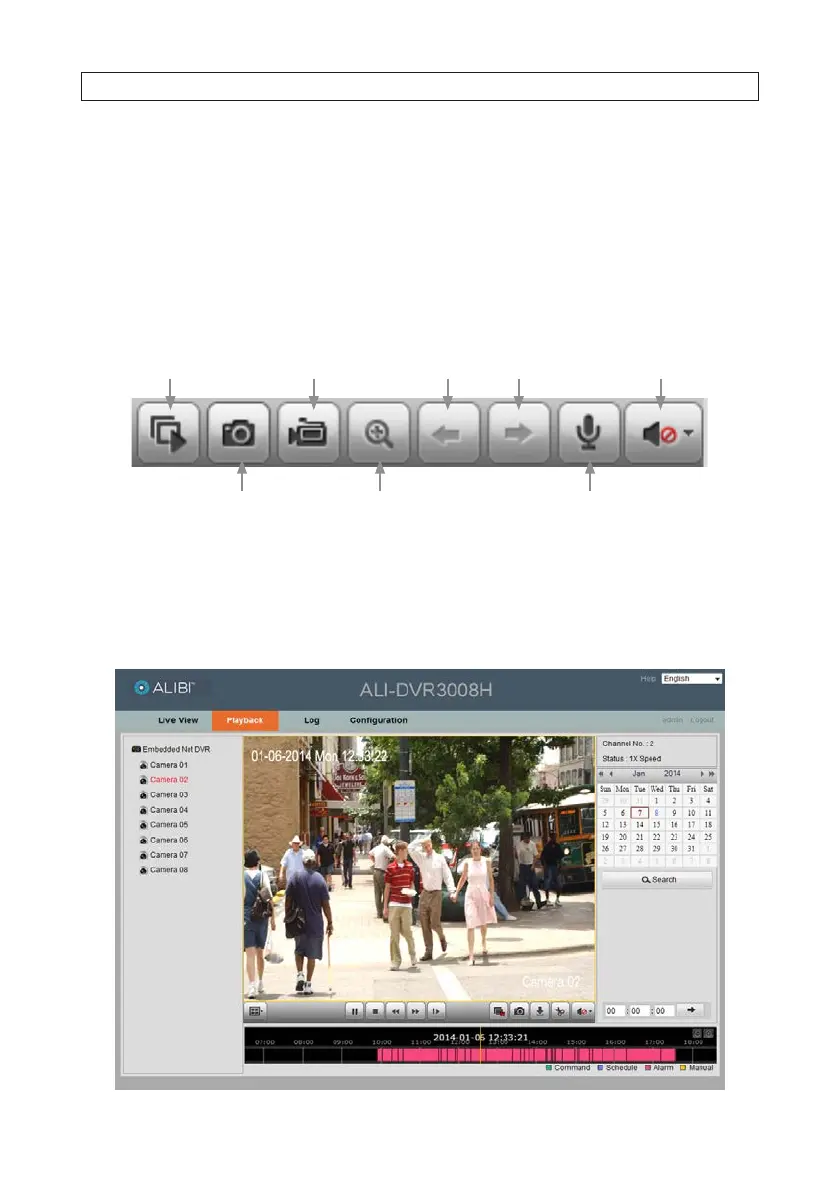
• You can control many Live View functions quickly with the Live View toolbar. The function of the toolbar icons are similar to
those on the DVR channel viewing frame.
Start/stop all
camera recording
Previous - Next screens
Start/stop all
camera live views
Enable/disable PTZ Start/stop 2-way audioCapture
Enable/mute audio
Remote Live View toolbar
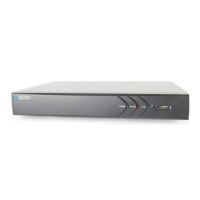
9.3 Remote Playback screen
Open the Playback screen by clicking Playback in the screen header. The Playback screen allows you to review video recorded from
one camera or several cameras concurrently. Also, video can be downloaded to your local computer.
SECTION 9: REMOTE ACCESS




 To Next Page