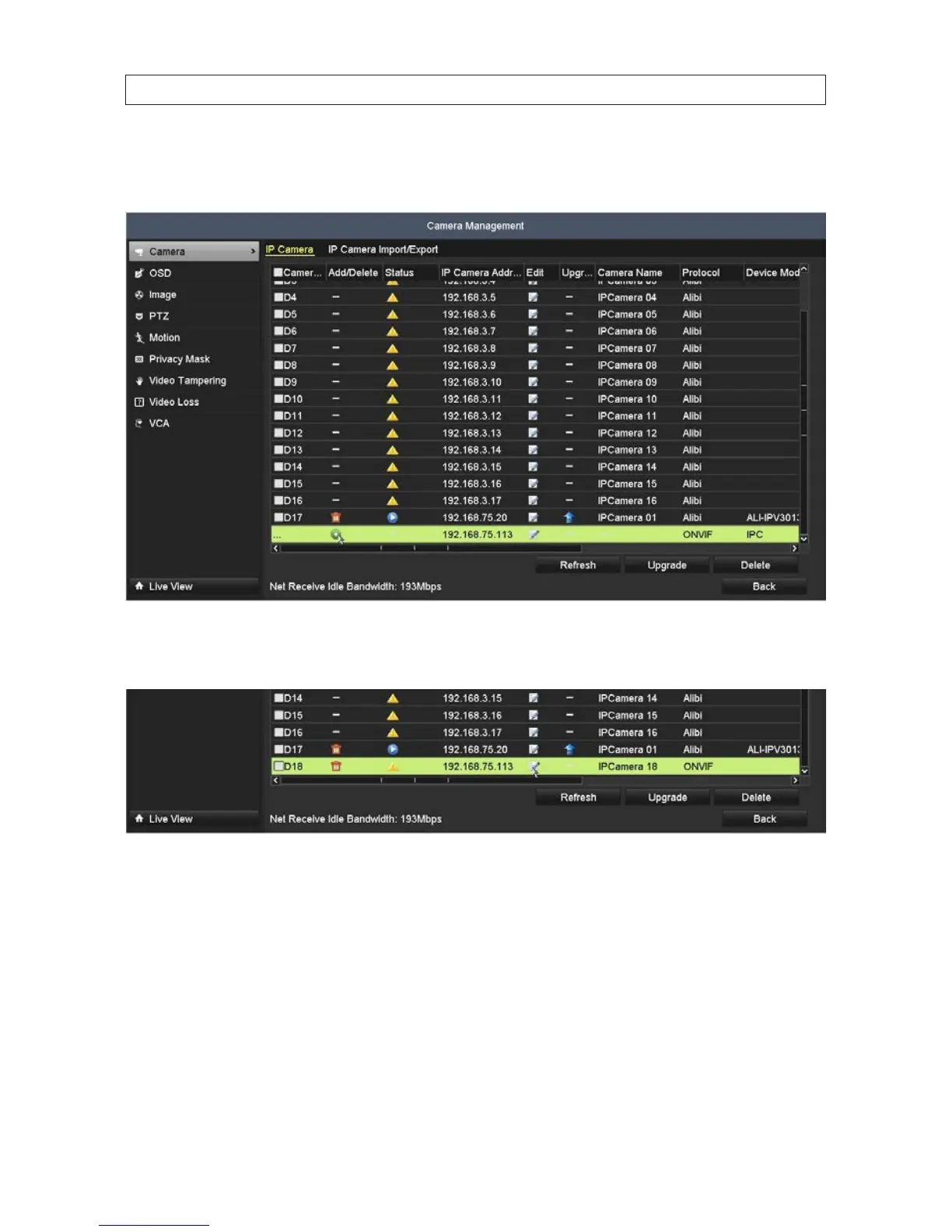
b. To add cameras on the LAN, scroll to the bottom of the list and nd a camera that is not assigned to a channel. In the
example below, the camera at IP address 192.168.75.113 is not assigned.
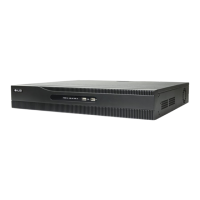
c. Click the (green “+”) icon (see screen above) in the Add/Delete column to add the camera. The Add/Delete icon will
change to a red container (trash can) icon.
d. After adding the camera, if the icon in the Status column shows a blue “Play” symbol, click that icon to view a live video
stream from the camera.
If the Status icon is an orange triangle, click the Status icon to see the status message, and then click the icon in the Edit
column (see screen above) to open the Edit IP Camera window.
SECTION 2: INSTALLING THE SYSTEM




 To Next Page