2. Congure the Capture schedule as you congured the Record schedule. Refer to “6.1.2 Conguring Record schedule” on
page 74.
3. Click Apply to save the conguration.
6.1.4 ConguringMotionDetectionRecording
Follow the steps to set the motion detection parameters. A motion detection events can trigger several kind of actions by the NVR,
including channels to start recording, full screen monitoring, an audio warning, notication sent to the surveillance center, etc.
Follow the steps below to schedule a recording triggered by a motion detection.
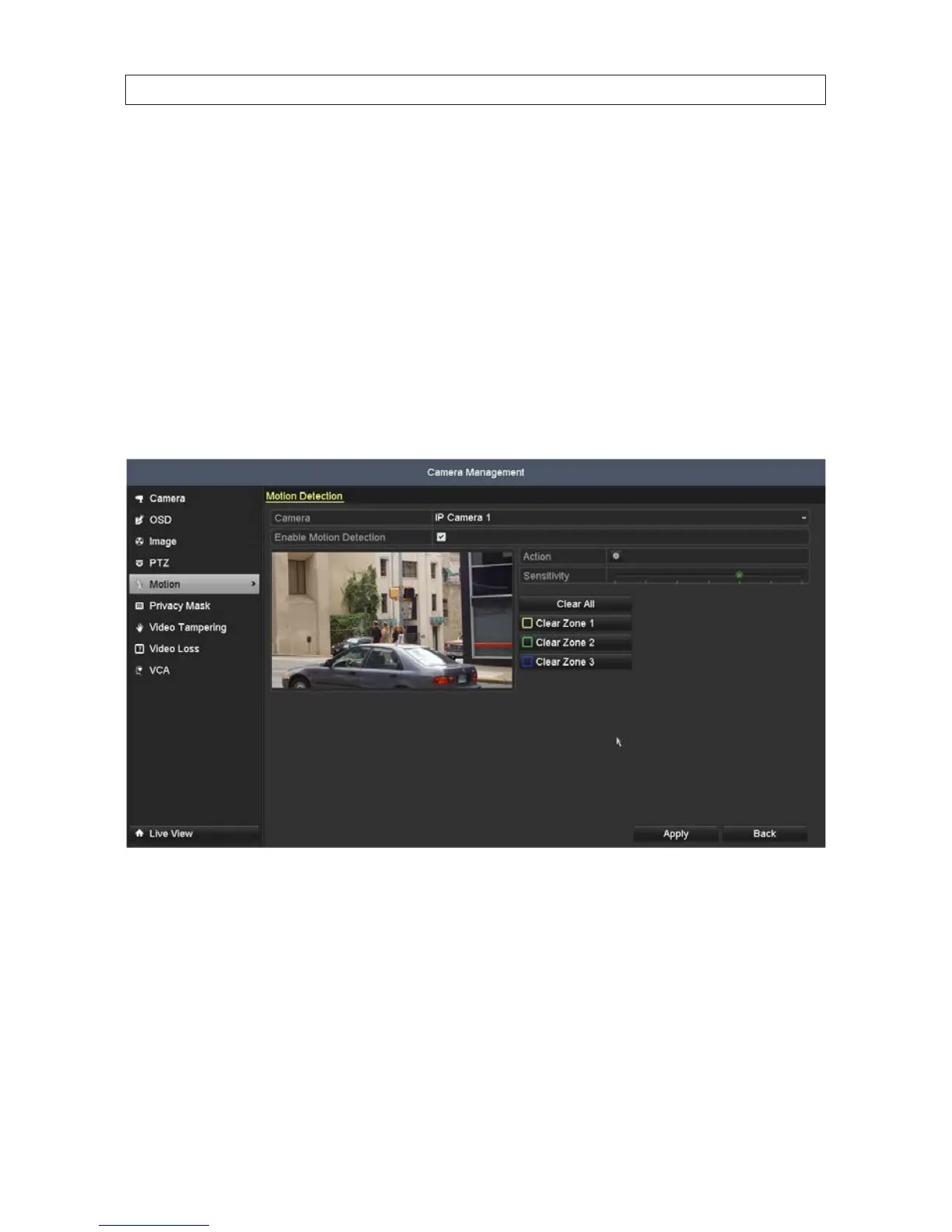
1. Open the Motion Detection menu. Go to Menu | Camera | Motion
2. To congure Motion Detection:
a. Choose camera you want to congure.
b. Check the Enable Motion Detection box.
c. Use the mouse to drag a rectangle across the area where you want to detect motion. A colored rectangle will appear in
the area(s) selected.
SECTION 6: RECORD, PLAYBACK AND VIDEO BACKUP




 To Next Page