24
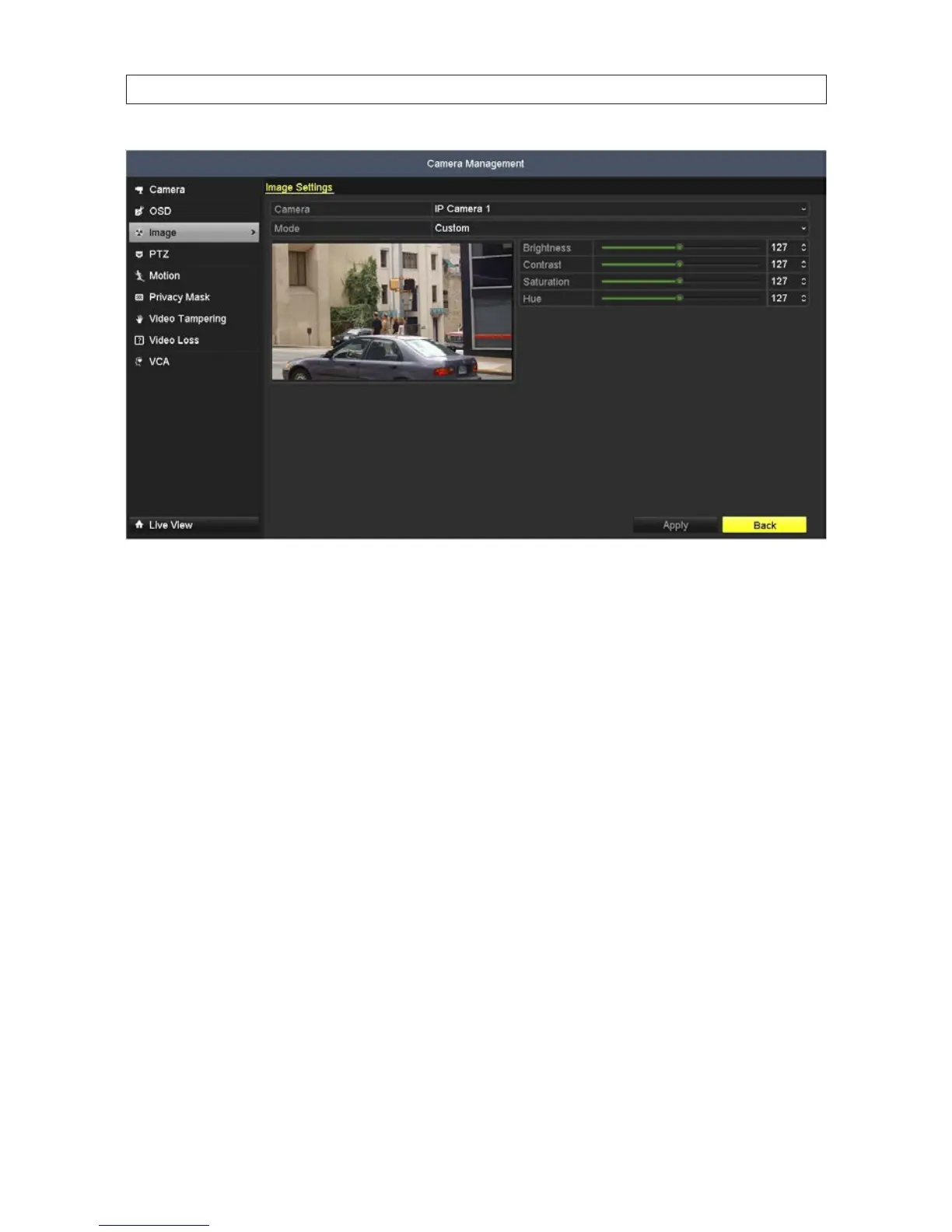
2. In the Camera eld drop down list, select the camera you want to congure. In the example shown, IP Camera 1 is selected.
3. Drag the Brightness, Contrast, Saturation and Hue adjustment markers left or right to perfect the image from the
camera. For some adjustments, you can click the up ( 5 )or down ( 6 )icons near the adjustment value (on the right side) to
incrementally change the value of those adjustment.
4. Click Apply to save your settings for this camera.
5. Repeat sub-steps 2 through 4 above for each camera managed by the NVR, if needed.
2.7.3 CameraPTZsetup
This option is available only for cameras that support PTZ. See “SECTION 5 PTZ Controls” on page 64 for more information.
2.7.4 CameraMotiondetectionsetup
Follow the steps to set the motion detection parameters. In the Live view mode, when a motion detection event takes place, the
NVR can analyze it and do many actions to handle it. Enabling the motion detection function can trigger certain channels to start
recording, or trigger full screen monitoring, audio warning, notify the surveillance center, etc. To setup motion detection for a
camera, do the following:
1. Click Motion in the left frame to open the Motion submenu.
SECTION 2: INSTALLING THE SYSTEM




 To Next Page