NOTE
In the live view mode of the main output monitor, the menu operation is not available while Aux output mode is enabled.
4.1.4 LiveViewStatusicons
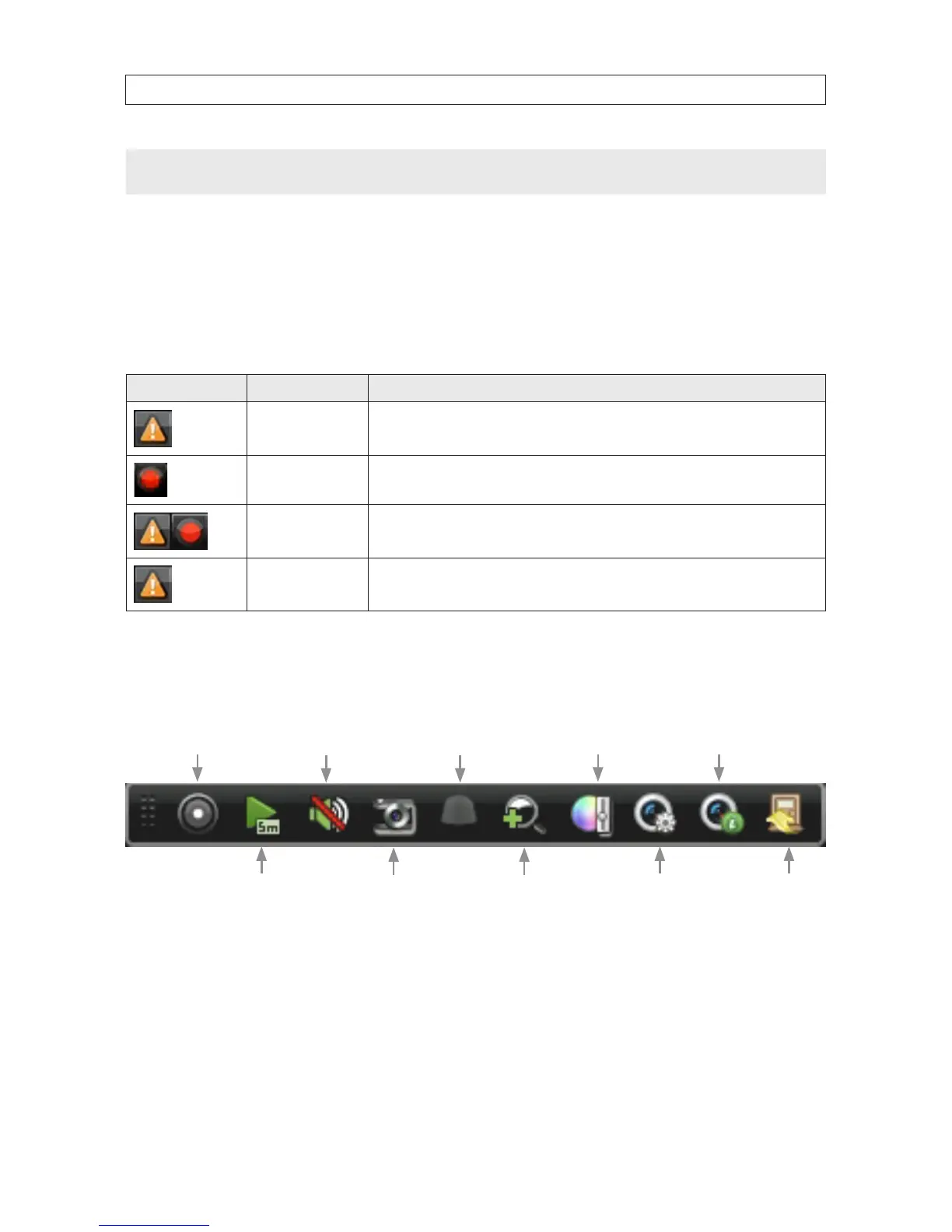
In the Live view mode, icons can appear in the upper-right of the screen for each channel, showing the status of the record and
alarm in the channel.
Icon Type Reason
Alarm
This icon appears in the upper right corner of the live video stream. It results from video loss, video
tampering, motion detection, sensor alarm, etc.
Record Manual record, schedule record, motion detection or alarm triggered record
Record and Alarm Both alarm and record status
Event/Exception
For the occurrence of motion detection, sensor alarm or exception information. This icon appears at the
lower-left corner of the screen. Click on the icon to display the event/exception reason.
4.2 Quick Setting Toolbar
Left-clicking the mouse on a viewing frame opens a Quick Setting Toolbar at the top or bottom of the frame.
Instant playback Live view strategyDigital
zoom
PTZ
control
Capture
Enable/disable
manual record
Close
Image setting InformationMute/audio on
Instant Playback: Plays what was recorded in the previous ve minutes. Nothing is played if a recording was not made at that
time.
PTZ Control: This icon is dark if PTZ control is not supported.
Digital Zoom: Shows the selected portion of the camera image in full-screen mode. To select an area, left-click and drag to form a
rectangle across the area to expand. See the gure below.
SECTION 4: LIVE VIEW INTERFACE




 To Next Page