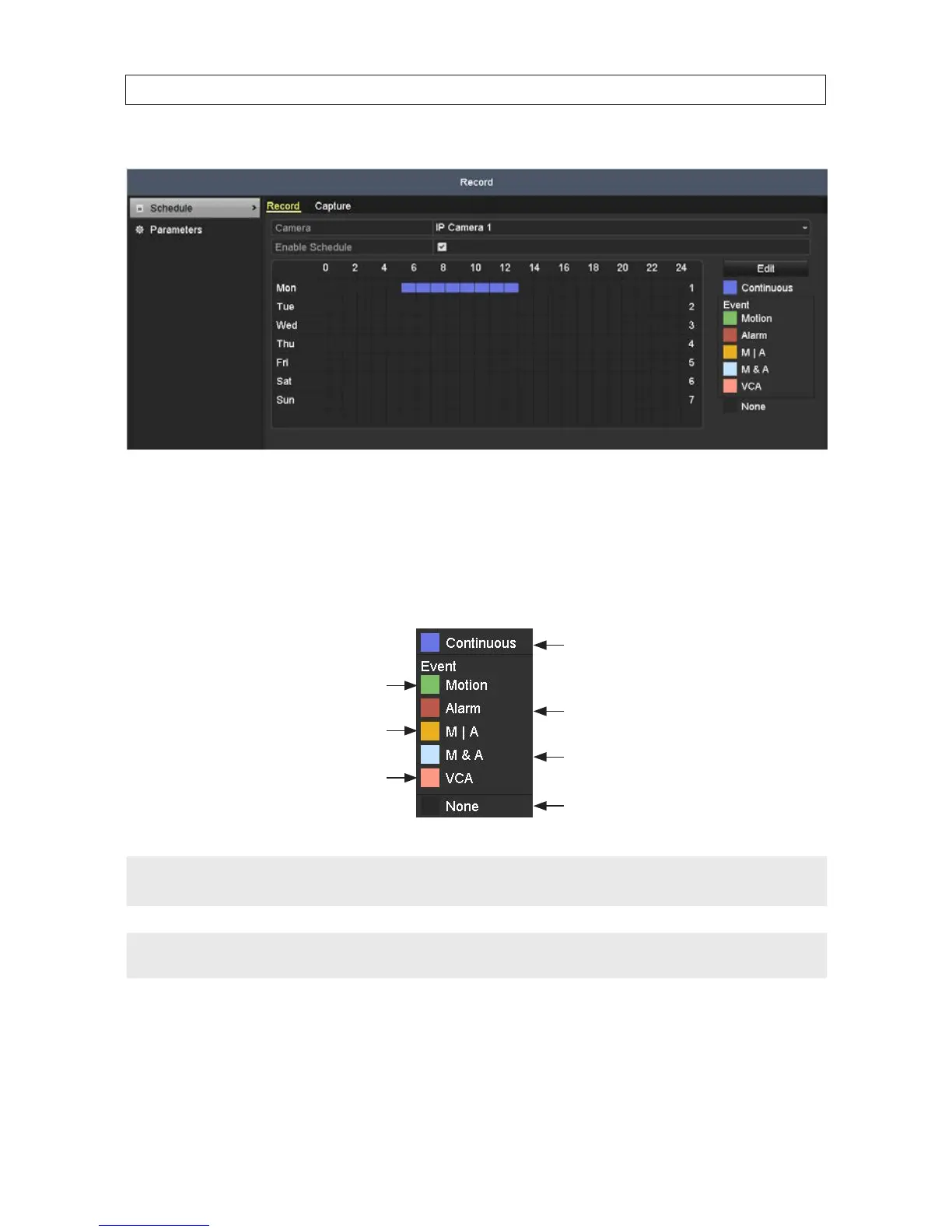
— The result will look like the following schedule.
ii. To use the graphical method to draw the schedule:
— Click the color icons on the right for the recording mode, then drag the mouse pointer across the area of the
chart (day of the week, hours of the day) where you want to use that type of recording. Blocks on the chart,
each representing 1 hour of one day, will be colored for the recording mode you selected. A descriptions of the
color icons are shown in the gure below.
Normal recording
Recording triggered by alarm
Recording triggered by
motion or alarm
Recording triggered by
Video Content Analysis*
Recording triggered by motion
Recording triggered by
motion and alarm
Delete schedule or no
recording scheduled
NOTE
Alarm triggered recording is available for only some cameras models supported by the Alibi NVR. Consult your vendor support
organization for more information.
NOTE
* Video Content Analysis triggered recording is not available at this time.
— An example of a graphically created schedule is shown below.
SECTION 6: RECORD, PLAYBACK AND VIDEO BACKUP




 To Next Page