USING THE ALLY APP
Home Screen
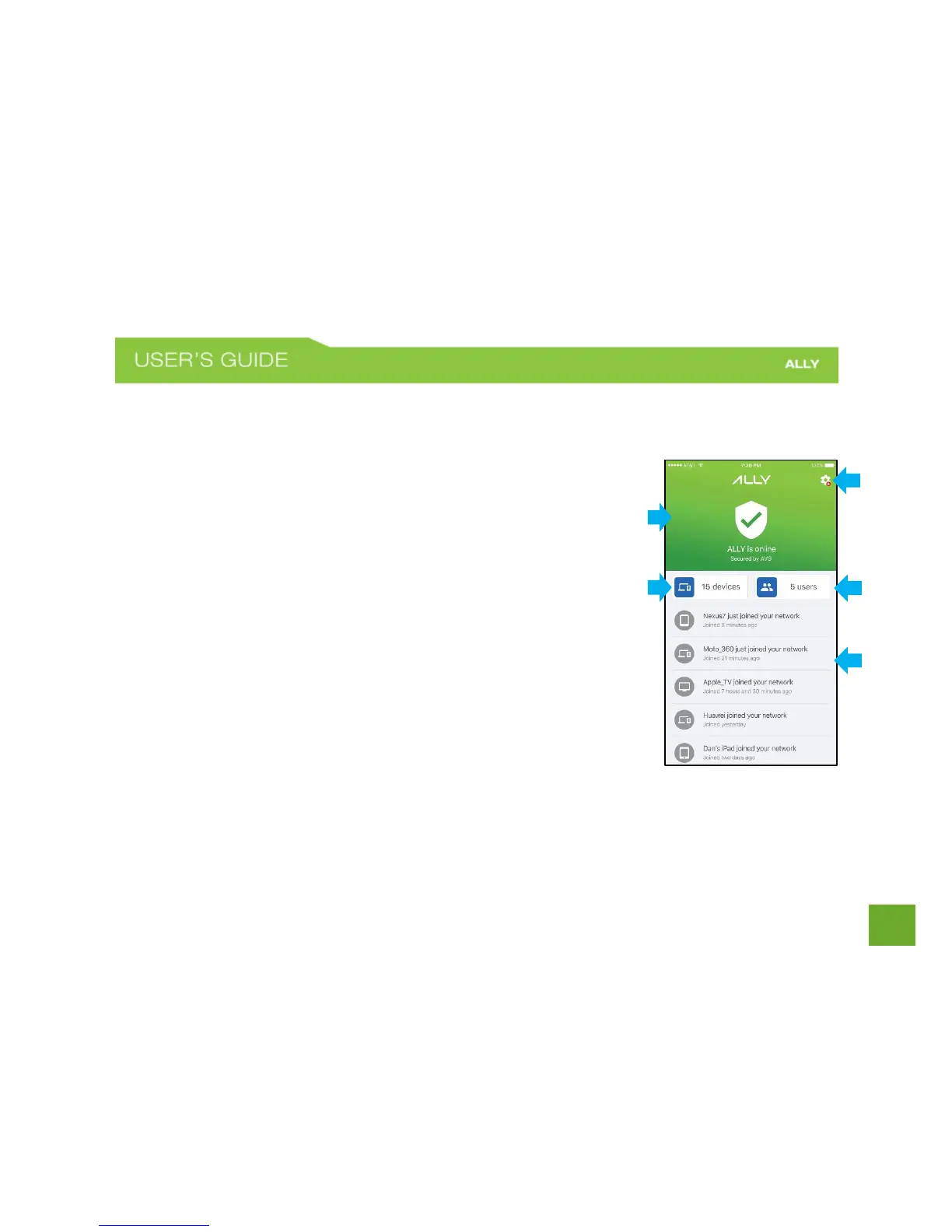
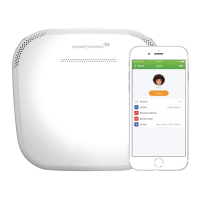
Home screen lets you see the status of your network and access all of ALLY’s
features.
a) Network status (top section):
If online, it says “ALLY is online” and section color is
green
If offline, it says “ALLY is offline” and section color is red
b) Settings: Check for updates, change Wi-Fi passwords and more.
c) Users: View and create user profiles. The number in the button
represents the number of users you have created on your network.
d) Devices: Manage and view the devices on your network. The
number in the button represents the number of devices that have
connected to your network.
e) Activity: Get a glance of recent network activities (e.g., when a new device joins your network)


 To Next Page