Guest Wi-Fi
Guest Wi-Fi allows you to share your Wi-Fi with visitors
without giving them access to your main network where all
your personal devices are communicating
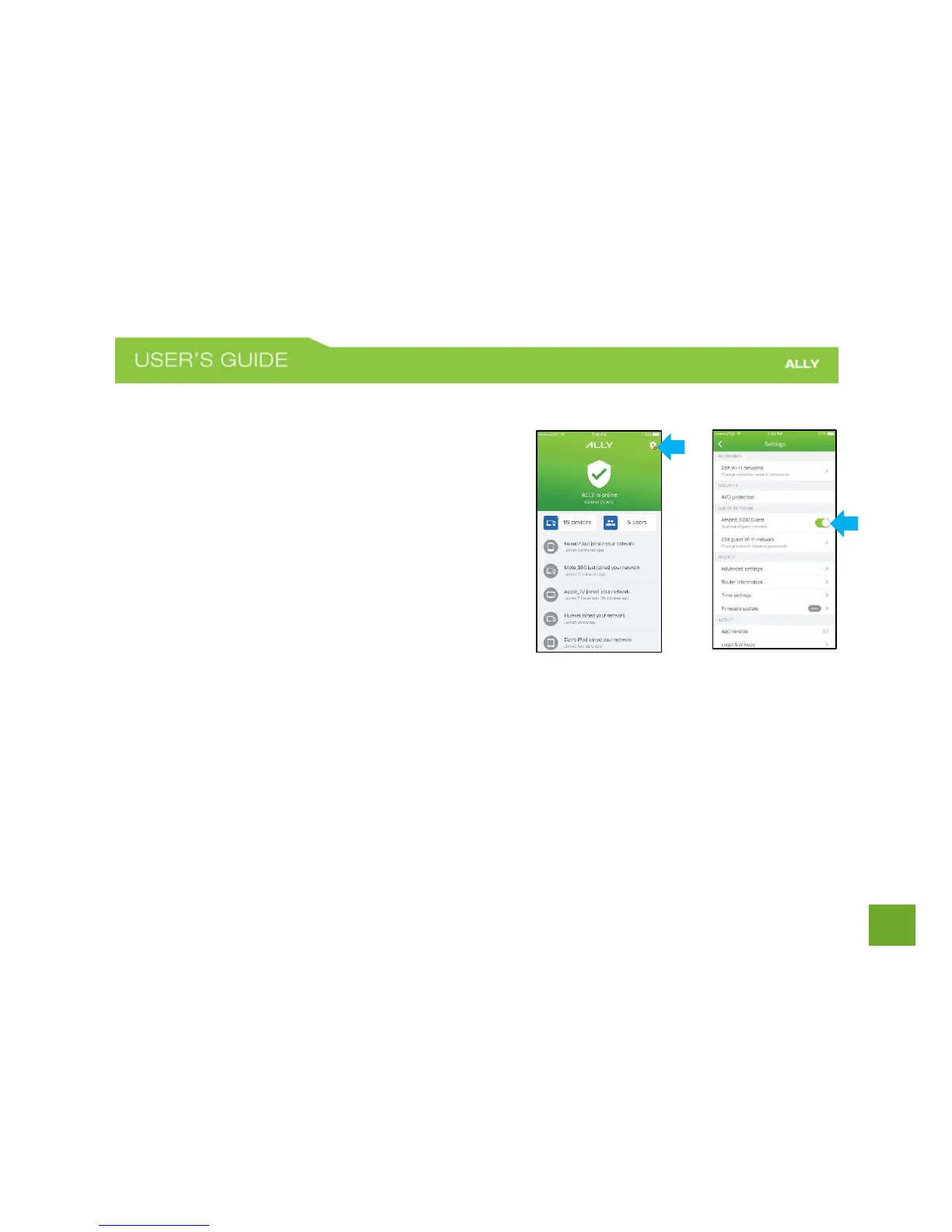
To turn on the Guest Wi-Fi
a) Open the ALLY app
b) On the Home screen, tap the gear icon in the
upper-right corner to open the Settings menu.
c) Under the Guest Network section, toggle the
Guest Wi-Fi switch to turn on.
You can disable the Guest Wi-Fi at any time by following
the same steps.
a) Edit Guest Wi-Fi
a) On the Home screen, tap the gear icon in the upper-right corner to open the Settings menu.
b) Under the Guest Network section, tap Edit Guest Wi-Fi Network.
c) To edit, tap the network name or the network password. Enter a new network name and/or
network password. Passwords must be 8 to max 15 characters long.
TIP: Tap the magic wand to create a strong password automatically.


 To Next Page