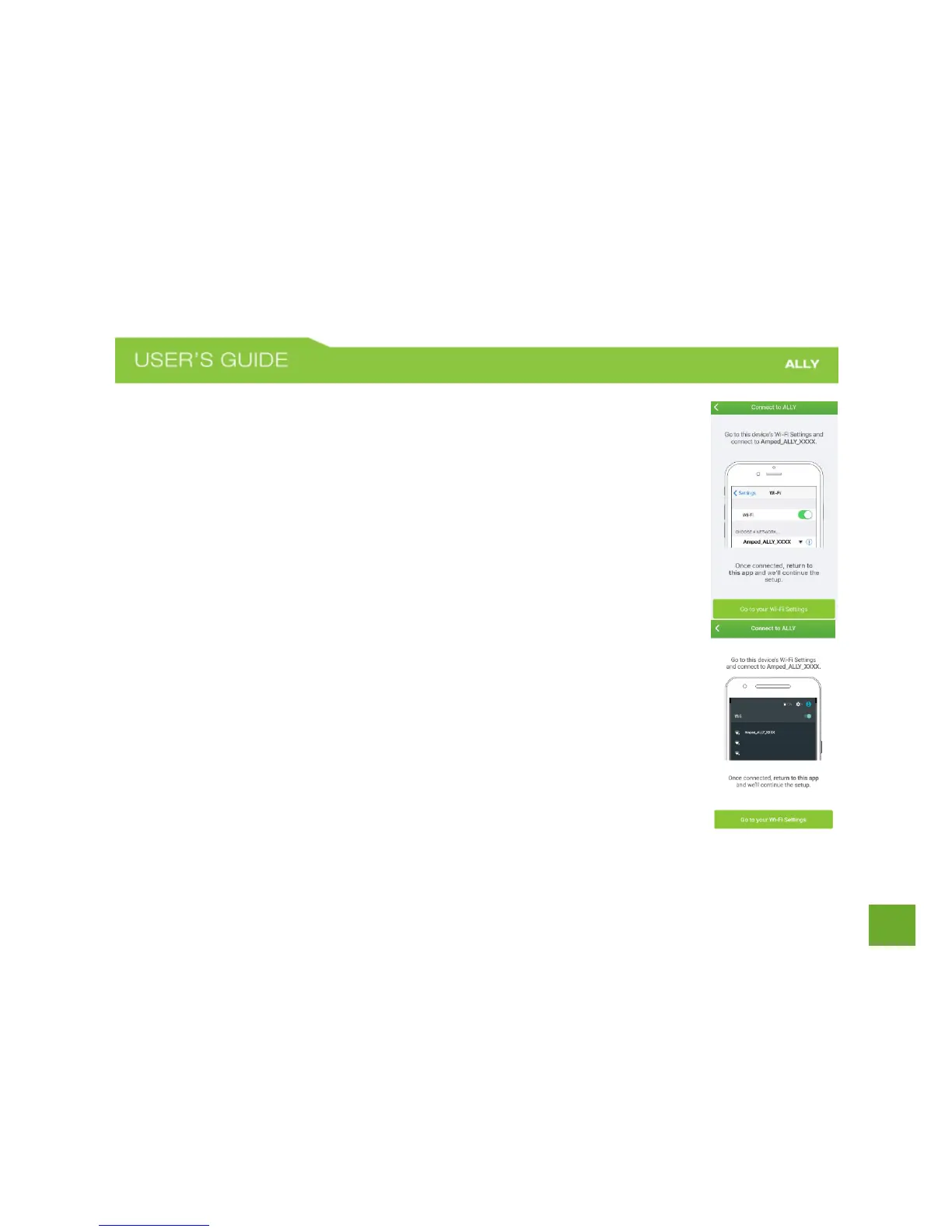
Connect to ALLY
After you have connected the ALLY to your modem you will be asked to connect to the
ALLY’s Wi-Fi network as shown on the screens to the right. The upper screen is what iOS
users will see while the lower screen is what Android users will see.
Leave the ALLY App and go to your phone’s Wi-Fi settings. Find the Wi-Fi network
named: Amped_ALLY_XXXX and connect to it.
Once you have connected return to the ALLY App


 To Next Page