Wi-Fi Networks
Find your Wi-Fi passwords
a) Open the ALLY app
b) On the Home screen, tap the Devices button to open the Connected Devices list. Tap the + sign
in the top-right corner. Here you can see the network names and passwords for all your Wi-Fi
networks.
NOTE: You should be careful about who
you give your passwords to.
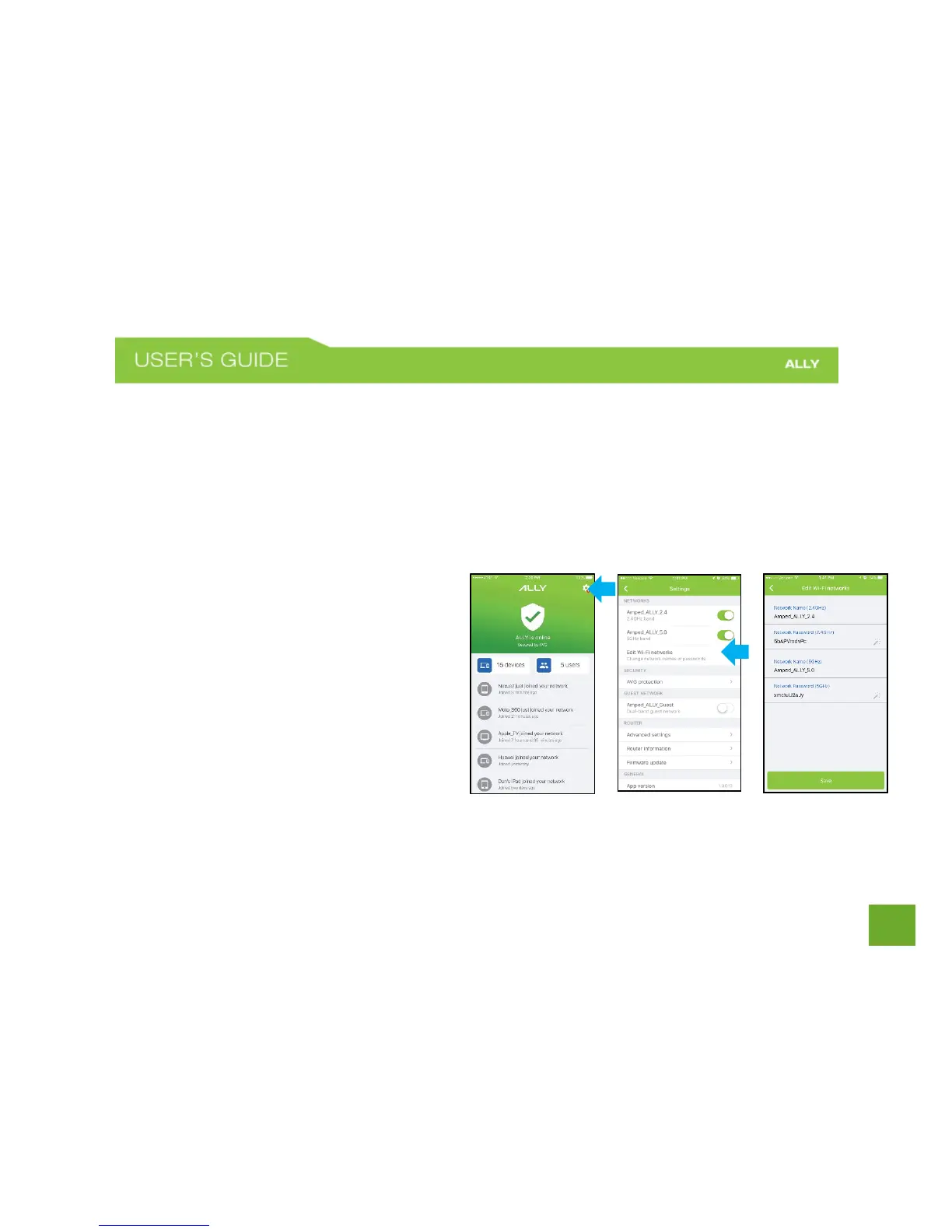
Change the Wi-Fi network name and password
a) Open the ALLY app
b) On the Home screen, tap the gear icon
in the upper-right corner to open the
Settings menu.
c) Under the Network section, tap Edit Wi-
Fi Networks.
d) To edit, tap the network name or the network password. Enter a new network name and/or


 To Next Page