4-2 Managing Files Chapter 4 — File Management
4-2 PN: 10580-00175 Rev. N MS272xB + MS8911B UG
Save a Measurement Screen as JPEG
Press the Save submenu key, type a name for the JPEG file, confirm that the file type is Jpeg
using the Change Type key and press Enter to save.
Recalling Files
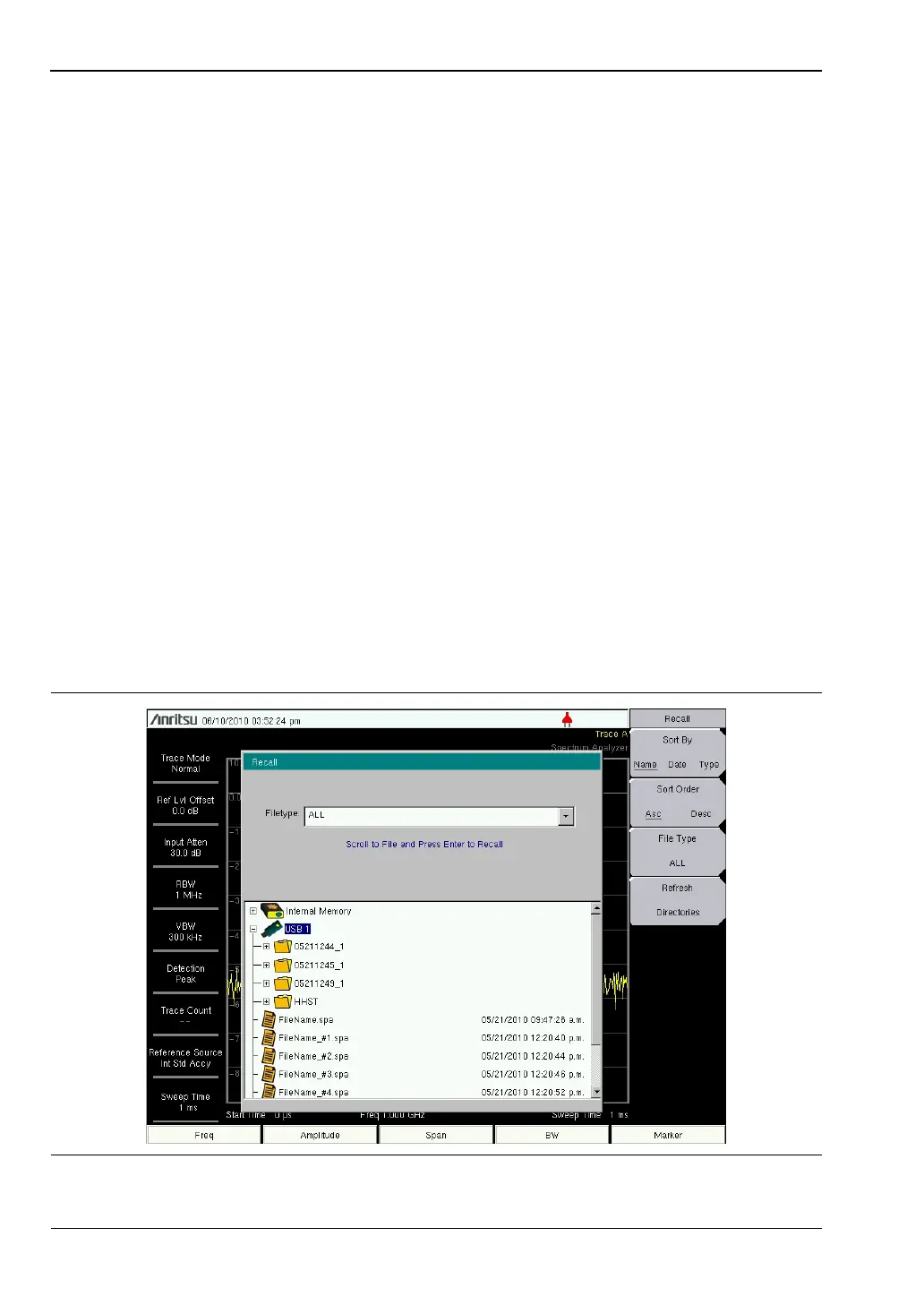
The recall menu enables you to view all the Measurement and Setup files in the internal
memory and external USB flash drive.
You can sort the recall menu by name, date, or type. You can also select to view only
measurement files or setup files by pressing File Type on the Recall dialog box and selecting
the file type you want to view.
Recall a Measurement
From the File menu, press the Recall Measurement submenu key, select the measurement
with the rotary knob or the Up/Down arrow keys and press Enter.
Recall a Setup
Press the Recall submenu key. Confirm that the file type is Setup or All using the File Type
key. Select the setup file (.stp) with the rotary knob or the Up/Down arrow keys and press
Enter.
Recall Dialog Box
The Recall dialog box (Figure 4-1) will open previously saved measurements and setups.
See the “Recall Menu” on page 4-10 for additional information.
Figure 4-1. Recall Dialog Box













 To Next Page