Chapter 4 — File Management 4-2 Managing Files
MS272xB + MS8911B UG PN: 10580-00175 Rev. N 4-3
Copying Files
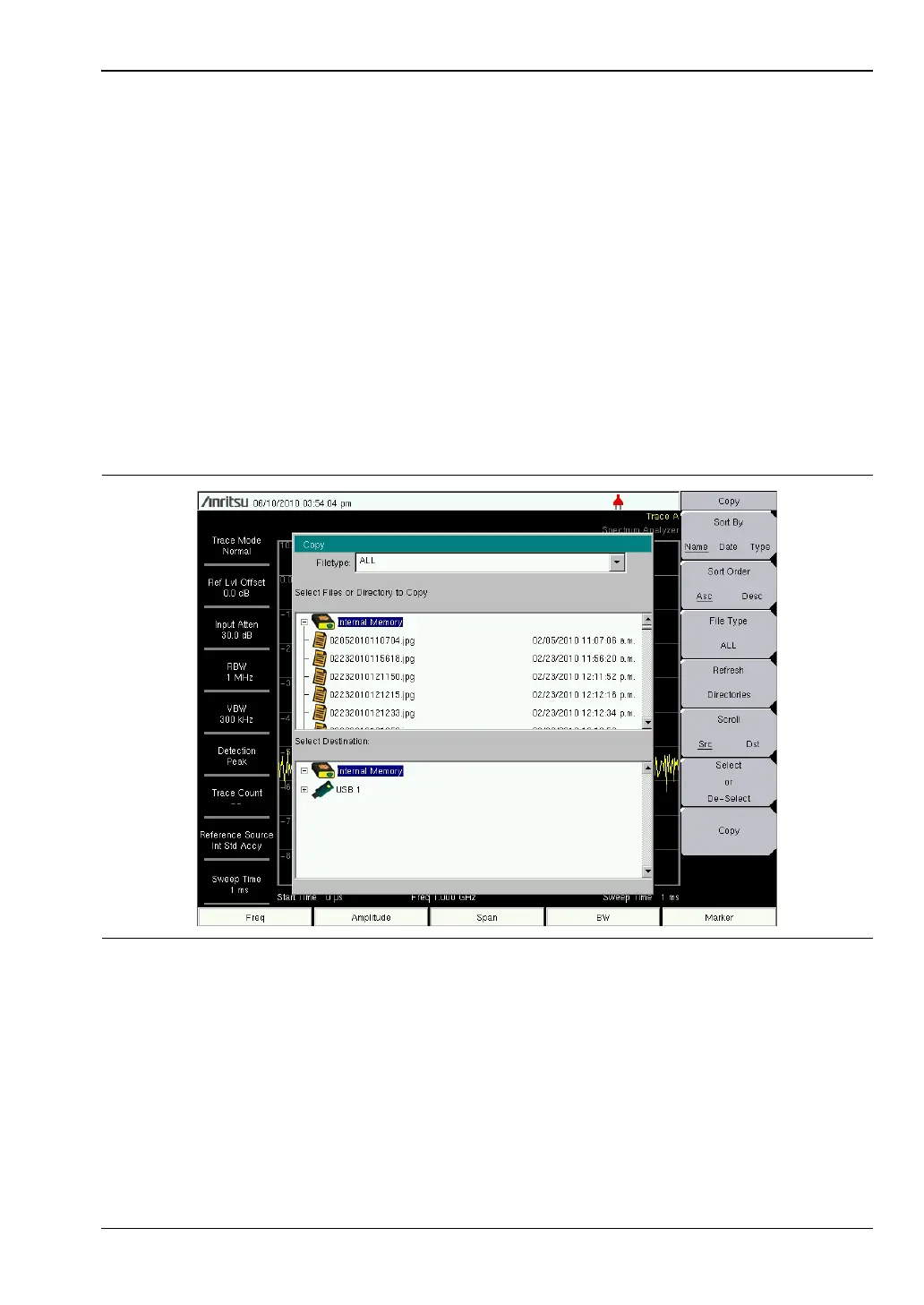
The steps below detail copying a file from internal memory to an external flash drive. Select
the files to copy in the top window and the location for the files to be copied to in the bottom
window (Figure 4-2). Refer to the “Copy Menu” on page 4-11 for additional information.
1. Insert a USB drive into either USB Type A port of the Spectrum Master.
2. From the File main menu, press the Copy submenu key. The Copy submenu and Copy
dialog box are displayed.
3. Select the files to copy. To select multiple files, highlight the first then press the Select
or De-Select key to keep the file selected. The file will be outlined in blue. Repeat with
all the files to copy. To display files in a folder, select the folder and press the Enter key.
4. Press the Scroll key and highlight the USB drive in the lower window using the
Up/Down arrow keys. The Scroll submenu key toggles between Src (top window) and
Dst (bottom window).
5. Press the Copy key to copy the files to the flash drive.
Figure 4-2. Copy Dialog Box













 To Next Page